Mount ISO Image in Linux/CentOS/Fedora

Procedure:

  • First create folder to mount ISO
  • # mkdir /mnt/isodata
  • After created mount point use mount command to mount iso file to /mnt/isodata folder
  • mount -t iso9660 -o loop /home/Data/data.iso /mnt/isodata

Options:

  1. -t: This option is use to indicate given file system type
  2. ISO 9660: It defines standard file system type structure to be used for CD/DVD ROMs
  3. -o:  Options are necessary with a -o argument followed by a separated comma string of options.
  4. loop: The loop device is a pseudo-device that often used for mounting CD/DVD ISO image and makes those files accessible as a block device

  • After mount image check data in folder
  • For permanent mounting enter below entry in /etc/fstab file as follow:
    /home/Data/data.iso  /mnt/isodata  iso9660  loop  0  0
  • Restart server and check permanent mount is working or not


Mount ISO Image in Linux/CentOS/Fedora

Procedure:

  • First create folder to mount ISO
  • # mkdir /mnt/isodata
  • After created mount point use mount command to mount iso file to /mnt/isodata folder
  • mount -t iso9660 -o loop /home/Data/data.iso /mnt/isodata

Options:

  1. -t: This option is use to indicate given file system type
  2. ISO 9660: It defines standard file system type structure to be used for CD/DVD ROMs
  3. -o:  Options are necessary with a -o argument followed by a separated comma string of options.
  4. loop: The loop device is a pseudo-device that often used for mounting CD/DVD ISO image and makes those files accessible as a block device

  • After mount image check data in folder
  • For permanent mounting enter below entry in /etc/fstab file as follow:
    /home/Data/data.iso  /mnt/isodata  iso9660  loop  0  0
  • Restart server and check permanent mount is working or not


Move Microsft CRM Databsae to Another Server

Procedure :

  • Open windows registry using Run — regedit
  • Change below registry value
  • HKEY_LOCAL_MACHINE\SOFTWARE\Microsoft\MSCRM\configdb
  • DataSource=SQLServer;InitialCatalog=MSCRM_CONFIG;Integrated Security=SSPI    to
  • DataSource=NewSQLServer;InitialCatalog=MSCRM_CONFIG;Integrated Security=SSP
  • Backup Current Organization Database and Restore it to  New SQL Server
  • After restore database change in deployment manager as follow:
  1. Disable the organization
  2. Edit the organization properties
  3. Change the SQL Server Name and Reporting Server Name to that of the new SQL Server
  4. Enable the organization
  5. Please make sure to install CRM 2015 reporting extension

Shrink WSS_Login_Database in Share Point

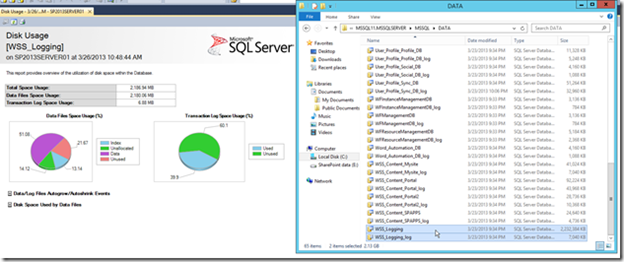
  • By defaults WSS_Logging  keeps 14 days information that result in a big database. 3 days information is sufficient for most test.
  • Check below result from Sql Management studio and size of database
  • To change in log configuration you need to open Share point management shell As a Administrator.
  • Below command is use to find the current configuration of log in Share Point

    PS C:\Users\dynamicsax.admin> Get-SPUsageDefinition
  • Run below command to change log days from 14 to 3
    PS C:\Users\dynamicsax.admin> Get-SPUsageDefinition  | ForEach-Object { Set-SPUs
    ageDefinition $_ -DaysRetained 3}
  • Then check again using above given command you will get below output.
  • 

Move Microsft CRM Databsae to Another Server

Procedure :

  • Open windows registry using Run — regedit
  • Change below registry value
  • HKEY_LOCAL_MACHINE\SOFTWARE\Microsoft\MSCRM\configdb
  • DataSource=SQLServer;InitialCatalog=MSCRM_CONFIG;Integrated Security=SSPI    to
  • DataSource=NewSQLServer;InitialCatalog=MSCRM_CONFIG;Integrated Security=SSP
  • Backup Current Organization Database and Restore it to  New SQL Server
  • After restore database change in deployment manager as follow:
  1. Disable the organization
  2. Edit the organization properties
  3. Change the SQL Server Name and Reporting Server Name to that of the new SQL Server
  4. Enable the organization
  5. Please make sure to install CRM 2015 reporting extension

Shrink WSS_Login_Database in Share Point

  • By defaults WSS_Logging  keeps 14 days information that result in a big database. 3 days information is sufficient for most test.
  • Check below result from Sql Management studio and size of database
  • To change in log configuration you need to open Share point management shell As a Administrator.
  • Below command is use to find the current configuration of log in Share Point

    PS C:\Users\dynamicsax.admin> Get-SPUsageDefinition
  • Run below command to change log days from 14 to 3
    PS C:\Users\dynamicsax.admin> Get-SPUsageDefinition  | ForEach-Object { Set-SPUs
    ageDefinition $_ -DaysRetained 3}
  • Then check again using above given command you will get below output.
  • 

Partitioning in Linux

Description:
  • This section shows you how to actually partition your hard drive with the fdisk utility. Linux allows only 4 primary partitions. You can have a much larger number of logical partitions by sub-dividing one of the primary partitions. Only one of the primary partitions can be sub-divided.
  • If partition size is more than 2 TB than you need to gdisk instead of fdisk. You need to convert from MBR to GPT you can do so (use caution with this) using gdisk.
Fdisk usage
  • fdisk is started by typing (as root) fdisk device at the command prompt. device might be something like /dev/hda or /dev/sda
  • The basic fdisk commands you need are:
  1. pprint the partition table
  2. ncreate a new partition
  3. ddelete a partition
  4. qquit without saving changes
  5. wwrite the new partition table and exit
  • Create New Partition on Linux
  1. Start a terminal.
  2. Start fdisk using the following command:
    # fdisk /dev/sda
  3. In fdisk, to create a new partition, type the following command:
    n
          1. When prompted to specify the Partition type, type p to create a primary partition or e to create an extended one. There may be up to four primary partitions. If you want to create more than four partitions, make the last partition extended, and it will be a container for other logical partitions
          2. When prompted for the Number, in most cases, type 3 because a typical Linux virtual machine has two partitions by default.
          3. When prompted for the Start cylinder, type a starting cylinder number or press Return to use the first cylinder available.
          4. When prompted for the Last cylinder, press Return to allocate all the available space or specify the size of a new partition in cylinders if you do not want to use all the available space.
          5. By default, fdisk creates a partition with a System ID of 83. If you’re unsure of the partition’s System ID, use the
            l
            Command to check it.
          6. Use the
            w
            Command to write the changes to the partition table.
             
  1. Create a file system on the new partition. We recommend that you use the same file system as on the other partitions. In most cases it will be either the Ext4 or ReiserFS file system. For example, to create the Ext4 file system, enter the following command:
    # mkfs.ext4 /dev/sda3
       Or
    # mkfs -t ext4 /dev/sda3
  2. Create a directory that will be a mount point for the new partition and mount partition in that directory. For example, to name it data, enter:
    # mkdir /data
    # mount /dev/sda3  /data
  3. Make changes in your static file system information by editing the /etc/fstab file in any of the available text editors. For example, add the following string to this file:
    /dev/sda3 /data ext4 defaults 0 0
    Save /etc/fstab file after making changes
Gdisk Usage:
  • Gdisk is use to create more than 2 TB partition because fdisk support up to 2 TB.
  • The basic fdisk commands you need are:
  1. pprint the partition table
  2. ncreate a new partition
  3. ddelete a partition
  4. qquit without saving changes
  5. wwrite the new partition table and exit
  • Method of create new partition will be same as fdisk.

Partitioning in Linux

Description:
  • This section shows you how to actually partition your hard drive with the fdisk utility. Linux allows only 4 primary partitions. You can have a much larger number of logical partitions by sub-dividing one of the primary partitions. Only one of the primary partitions can be sub-divided.
  • If partition size is more than 2 TB than you need to gdisk instead of fdisk. You need to convert from MBR to GPT you can do so (use caution with this) using gdisk.
Fdisk usage
  • fdisk is started by typing (as root) fdisk device at the command prompt. device might be something like /dev/hda or /dev/sda
  • The basic fdisk commands you need are:
  1. pprint the partition table
  2. ncreate a new partition
  3. ddelete a partition
  4. qquit without saving changes
  5. wwrite the new partition table and exit
  • Create New Partition on Linux
  1. Start a terminal.
  2. Start fdisk using the following command:
    # fdisk /dev/sda
  3. In fdisk, to create a new partition, type the following command:
    n
          1. When prompted to specify the Partition type, type p to create a primary partition or e to create an extended one. There may be up to four primary partitions. If you want to create more than four partitions, make the last partition extended, and it will be a container for other logical partitions
          2. When prompted for the Number, in most cases, type 3 because a typical Linux virtual machine has two partitions by default.
          3. When prompted for the Start cylinder, type a starting cylinder number or press Return to use the first cylinder available.
          4. When prompted for the Last cylinder, press Return to allocate all the available space or specify the size of a new partition in cylinders if you do not want to use all the available space.
          5. By default, fdisk creates a partition with a System ID of 83. If you’re unsure of the partition’s System ID, use the
            l
            Command to check it.
          6. Use the
            w
            Command to write the changes to the partition table.
             
  1. Create a file system on the new partition. We recommend that you use the same file system as on the other partitions. In most cases it will be either the Ext4 or ReiserFS file system. For example, to create the Ext4 file system, enter the following command:
    # mkfs.ext4 /dev/sda3
       Or
    # mkfs -t ext4 /dev/sda3
  2. Create a directory that will be a mount point for the new partition and mount partition in that directory. For example, to name it data, enter:
    # mkdir /data
    # mount /dev/sda3  /data
  3. Make changes in your static file system information by editing the /etc/fstab file in any of the available text editors. For example, add the following string to this file:
    /dev/sda3 /data ext4 defaults 0 0
    Save /etc/fstab file after making changes
Gdisk Usage:
  • Gdisk is use to create more than 2 TB partition because fdisk support up to 2 TB.
  • The basic fdisk commands you need are:
  1. pprint the partition table
  2. ncreate a new partition
  3. ddelete a partition
  4. qquit without saving changes
  5. wwrite the new partition table and exit
  • Method of create new partition will be same as fdisk.

Change SQL Server Analysis Server Mode Multi-Dimensional to Tabular Mode

Description :  Here I have define how to change SSAS [SQL Server Analysis Server] mode from multidimensional to tabular mode.

Procedure:

  1. Backup any multidimensional databases on your server and either detach them or delete them. You will not be able to load them on the tabular instance.
  2. Copy the msmdsrv.ini file to your desktop. For my instance (which I called TABULAR, I installed it like that from setup), I found the config file in C:\Program Files\Microsoft SQL Server\MSAS11.TABULAR\OLAP\Config.
  3. Open the config file in Notepad. Change the DeploymentMode property from 0 (multidimensional) to 2 (tabular), as pictured. Save and close the file. 
  4. Copy the msmdsrv.ini file back to the OLAP\Config directory.
  5. From services.msc, restart the Analysis Services instance.

Optimization Of Cpanel

Description: Here I have define various optimizations in Cpanel like Apache, MySQL, CSF Firewall, Mail and PHP.
1> Apache Web Server: Change the apache setting using below steps using  WHM » Service Configuration » Apache Configuration » “Global Configuration”
  • Timeout :- This setting determines how long Apache will wait for a visitor to send a request. In busy servers, we set it up to 120 seconds, but it is best to keep this value as low as possible to prevent resource wastage.
  • KeepAlive :-When “KeepAlive” is set to “On”, Apache uses a single connection to transfer all the files to load a page. This saves time in establishing a new connection for each file.
  • MaxKeepAliveRequests :-This setting determines how many files can be transferred via a KeepAlive connection. Unless there’s a reason not to (like resource constrains), this setting can be set to “0”, that is, “unlimited”.
  • KeepAliveTimeout :-This setting makes sure that a KeepAlive connection is not abused. It says how long should Apache wait for a new request before it resets the connection. In heavily loaded servers, we’ve found 10 Sec. to be a good limit.
  • MaxClients :-This setting tells Apache how many visitors can be served simultaneously. In busy servers (such as shared servers), we’ve found 512 to be a good value. However, note that setting it too high will cause resource wastage, and setting it too low will result in lost visitors.
  • MinSpareServers & MaxSpareServers :-Apache keeps a few “workers” on stand-by to handle a sudden surge of requests. If your site is prone to visit spikes, configure these variables. In heavily loaded servers, we’ve found MinSpareServers value of 10 and MaxSpareServers value of 15 to be a good limit.
  • HostnameLookups:-Apache can try to find out the hostname of every IP that connects to it, but that would be a wastage of resources. To prevent that, set HostnameLookups to “0”.

2> MYSQL Optimization : You can optimize SQL server depends on Hardware configuration of server [CPU and RAM]. So below are some my.cnf settings as per CPU and RAM
 
Below SQL Settings for having 2 Core CPU and 4 GB Memory


Open my.cnf and use below settings. 
[mysqld]
local-infile = 0
max_connections = 250
key_buffer = 64M
myisam_sort_buffer_size = 64M
join_buffer_size = 1M
read_buffer_size = 1M
sort_buffer_size = 2M
max_heap_table_size = 16M
table_cache = 5000
thread_cache_size = 286
interactive_timeout = 25
wait_timeout = 7000
connect_timeout = 15
max_allowed_packet = 16M
max_connect_errors = 10
query_cache_limit = 2M
query_cache_size = 32M
query_cache_type = 1
tmp_table_size = 16M
open_files_limit=25280
performance_schema=0

[mysqldump]
max_allowed_packet = 16M

[myisamchk]
key_buffer = 64M
sort_buffer = 64M
read_buffer = 16M
write_buffer = 16M

Below SQL Settings for having 8 Core CPU and 16+ GB Memory
[mysqld]
local-infile=0
max_connections = 600
max_user_connections=1000
key_buffer_size = 512M
myisam_sort_buffer_size = 64M
read_buffer_size = 1M
table_open_cache = 5000
thread_cache_size = 384
wait_timeout = 20
connect_timeout = 10
tmp_table_size = 256M
max_heap_table_size = 128M
max_allowed_packet = 64M
net_buffer_length = 16384
max_connect_errors = 10
concurrent_insert = 2
read_rnd_buffer_size = 786432
performance_schema=0
bulk_insert_buffer_size = 8M
query_cache_limit = 5M
query_cache_size = 128M
query_cache_type = 1
query_prealloc_size = 262144
query_alloc_block_size = 65535
transaction_alloc_block_size = 8192
transaction_prealloc_size = 4096
max_write_lock_count = 8
external-locking=FALSE
open_files_limit=50000
[mysqldump]
max_allowed_packet = 16M
[isamchk]
key_buffer = 384M
sort_buffer = 384M
read_buffer = 256M
write_buffer = 256M
[myisamchk]
key_buffer = 384M
sort_buffer = 384M
read_buffer = 256M
write_buffer = 256M


3> Security and Limit Resources in Cpanel: Configuration of CSF for securing server

  1.  Go to WHM » Plugins » ConfigServer Security & Firewall » “Check Server Security” And pass on what appears as required to repair:
  2. Go to WHM » Plugins » ConfigServer Security & Firewall » “Firewall Configuration” and set the parameters according to your needs:
  • PT_USERMEM=180
  • PT_USERTIME=180
  • PT_USERKILL=1
  • PT_USERKILL_ALERT=1 (Optional)

Below are some Tweak Settings that increase server performance:

  • Tweak settings open using: Main >> Server Configuration >> Tweak Settings
  • Email delivery retry time: The default is a retry every hour – but you may want to extend this so the server is less strained with larger queues.
  • Max Hourly Emails: By default, this is unlimited. Our shared servers have a limit of 1000 per hour to avoid abuse or spamming.
  • BoxTrapper spam trap: This can help prevent spam, but consumes a lot of memory. We recommend disabling it.
  •  Mailman mailing lists: It’s easier on the server to use a program like PHPList (installable through Softaculous). We recommend disabling this.
  • Webmail clients: By default there are three mail clients running. Use just one for better performance – we recommend RoundCube

4> PHP:  Below are some PHP settings that increase server performance

  • Max Execution Time: The default is 90 seconds, but this could be dropped lower if certain scripts are over consuming resources.
  • PHP Max Upload Size: The default is 50 megabytes or MB, but this can be reduced to prevent large files from overloading the server during upload.