Disk Quota Issue in WHM/Cpanel

Description: Disk usage shows wrong in WHM
Procedure: Perform below steps in  SSH console
  1. Run /scripts/fixquotas script to fix the quota
  2. Check fstab entry it seems to like as follow:
     
    /dev/md7        /home   ext3    defaults,usrquota       1       1
     
  3. Make sure backup setting in legacy need to change from /backup to original drive.
  4. Check disk quota from list account in WHM

Use Hyper-V Manager To Move Running Virtual Machine

Procedure: Below steps are use to Import and Export Virtual Machine in Hyper-V

  1. Open Hyper-V Manager. (From Server Manager, click Tools >>Hyper-V Manager.)
  2. In the navigation pane, select one of the servers. (If it isn’t listed, right-click Hyper-V Manager, click Connect to Server, type the server name, and click OK. Repeat to add more servers.)
  3. From the Virtual Machines pane, right-click the virtual machine and then click Move. This opens the Move Wizard.
  4. Use the wizard pages to choose the type of move, destination server, and options.
  5. On the Summary page, review your choices and then click Finish.

Import and Export Virtual Machine in Windows  Hyper-V  Server

Export Virtual Machine in Hyper-V

A. Export Menu Option

  1. Connect to your Hyper-V server from Hyper-V Manger -> Right click on your virtual machine and select the export option.
  2. In this example, we’ll export Windows 8 virtual machine from server1 (Hyper-v server).


B.  Specify Export Folder Path

Specify the folder path to export virtual machine. After selecting folder path, export operation will start
Please note that you can export a virtual machine even when it is in “On” (tun on) state.
C. Exported VM Files

      After completing export operation you can see the virtual machine files in destination folder. This folder will contain Snapshots, Virtual Disks and Virtual machine files


To import the VM, you need to copy all these three folders to the other server.

II. Import Virtual Machine in Hyper-V

1. Copy the VM Files

Copy the exported Virtual machine files and folders to your local server before you start import a virtual machine.
In this example, we will import a Windows 8 Virtual machine from Server 1 to Backup-Server.
Before importing virtual machine, I have Copied Windows 8 exported machine files from Server 1 to Backup-Server.

2. Import Virtual Machine Menu Option

Connect Hyper-V server from Hyper-V Manger, Right click on Hyper-V server and select Import Virtual Machine Option. Click next on the import virtual Machine page.

3. Select VM File Folder

Select the virtual machine folder path (This is the folder that contains the exported machine files).

4. Select the VM to Import

After selecting the path, it will show the machine name in import virtual Machine page. Select machine and click next

5. Choose Import Type

Select the Import mode as per your requirement. Please note that exported files can be reused to clone machines only using “Copy The virtual machine (create a new unique ID)” option.
This has the following three options:
  1. Register the virtual machine in-place
  2. Restore the virtual machine
  3. Copy the virtual machine (In our example, we are going to select this option)

6. Choose Destination Location

Select the Virtual Machine storage location path to store virtual machine files. Accept the default values here. If you want to change the location, select the “Store the virtual machine in a different location” checkbox

8. Finish the Import

Review your machine configuration selection, and click on Finish to complete the import process.

    Default Cron Jobs of Cpanel

    Description: By Default some cron jobs available with Cpanel installation. So if you have deleted them by mistakenly you just need to paste it as follow:

    root@localhost # crontab –e

    [Open crontab using above command and paste below crons]


    0 6 * * * /usr/local/cpanel/scripts/exim_tidydb > /dev/null 2>&1

    30 5 * * * /usr/local/cpanel/scripts/optimize_eximstats > /dev/null 2>&1

    2,58 * * * * /usr/local/bandmin/bandmin

    0 0 * * * /usr/local/bandmin/ipaddrmap

    19 2 * * * /usr/local/cpanel/scripts/upcp –cron

    0 1 * * * /usr/local/cpanel/scripts/cpbackup

    0 2 * * * /usr/local/cpanel/bin/backup

    35 * * * * /usr/bin/test -x /usr/local/cpanel/bin/tail-check && /usr/local/cpanel/bin/tail-check

    45 */4 * * * /usr/bin/test -x /usr/local/cpanel/scripts/update_mailman_cache && /usr/local/cpanel/scripts/update_mailman_cache

    30 */4 * * * /usr/bin/test -x /usr/local/cpanel/scripts/update_db_cache && /usr/local/cpanel/scripts/update_db_cache

    45 */8 * * * /usr/bin/test -x /usr/local/cpanel/bin/optimizefs && /usr/local/cpanel/bin/optimizefs

    30 */2 * * * /usr/local/cpanel/bin/mysqluserstore >/dev/null 2>&1

    15 */2 * * * /usr/local/cpanel/bin/dbindex >/dev/null 2>&1

    15 */6 * * * /usr/local/cpanel/scripts/autorepair recoverymgmt >/dev/null 2>&1

    */5 * * * * /usr/local/cpanel/bin/dcpumon >/dev/null 2>&1

    8 0 * * * /usr/local/cpanel/whostmgr/docroot/cgi/cpaddons_report.pl –notify

    2,17,32,47 * * * * /usr/local/cpanel/whostmgr/bin/dnsqueue > /dev/null 2>&1


    IIS Common Issues and solutions

    Below are some common IIS issue in its solutions
    1. “User is not recognized using Windows Authentication”
    • Open Internet Information Service Manager
    • Find the application pool for Pronestor (pronestor)
    • Right click and choose advanced settings
    • Ensure that “Identity” is set to Network Services
    • Recycle application pool
       

    2>     “HTTP 502 – Bad gateway”

    • Open Internet Information Service Manager
    • Find the application pool for Pronestor (pronestor)
    • Right click and choose advanced settings
    • Ensure that “Identity” is set to Network Services
    • Recycle application pool
       

    3>     “HTTP 500 internal server error” / “HTTP 500.19 internal server error” / “HTTP 500.21”

    • Open a command prompt
    • Go to the folder for the .NET Frame (C:\Windows\Microsoft.NET\Framework64\v4.0.30319)
    • aspnet_regiis.exe –i
    And
    • Make sure .NET is enabled as a feature (“add/remove Programs” -> “Turn Windows features on or off”)
    And
    • Make sure ASP.NET is enabled as a role(“add/remove Programs” -> “Turn Windows features on or off”)
    And
    • Ensure that “IIS_IUSRS” has full permissions on the PRONESTORDISPLAY folder
    And (if “Handler” is showing MVCScriptMap64)
    • Ensure the handler mapping for MvcScriptMap64 is set to use .NET 4.0 framework
    • “PageHandlerFactory-Integrated” bad module “ManagedPipelineHandler in IIS7…”
    • Open a command prompt
    • Go to the folder for the .NET Frame (C:\Windows\Microsoft.NET\Framework64\v4.0.30319)
    • aspnet_regiis.exe -i
       

    4>     “Absolute physical path “C:\inetpub\custerr” is not allowed in….

    • Please open the Event Viewer and look for Warning/Errors in the “Application” log.
    • Choose an Warning/Error and look for stack trace in the “General tab”
       

    5>     “HTTP 404 when call http://localhost/pronestor

    IIS 7/7.5 (Windows 2008 Server)

    • Open Internet Information Service Manager
    • Find the application pool (pronestor)
    • Right click and choose advance
    • Ensure that “Load user profile” is set to “true

    IIS 6 (Windows 2003 Server)

    • Open Internet Information Service Manager
    • Make sure ASPNET 4.0 is allows as a Web Service Extension 

    6>     “HTTP 404 when calling http://localhost/pronestor/Booking.NET/Home.mvc

    • IIS 7/7.5 (Windows 2008 Server)
    • Ensure that the Role “HTTP Redirection” is enable
       
    1. “Can’t install Pronestor Display due to missing ASP.NET Role”
    • IIS 6 – the role is installed but the Pronestor Display still argues that ASP.NET isn’t
    • Check that ASP.NET role enabled (see article here from Microsoft)
    • Run the installation from a command prompt using:
    • “msiexec /i proNestor.Display.Setup.msi /l*v logfile.txt BYPASS_PREREQUISITES=1”
       
    1. “PronestorWebAdmin.Models.PnbDataContext…ctor()”
    • With notepad open the connectionstrings.config located in Configuration folder
    • Ensure that the name of the connection string is equal to:
    • <add name="dbConnectionString" connectionstring="……
       
    1.  “Unable to generate a temporary class (Result=1)”
    • It is due to a lack of permissions on the temporary folder which is used by the IIS.
      The easist way to fix it to do as follows:
    • Right click the folder c:\windows\temp
    • Choose permission
    • Ensure that the “NTAUTHORITY\NETWORK SERVICE” has the following minimum permissions on the folder – (“List folder”/”Read Data”/”Write”/”Delete”)
    • Open the IIS
    • Locate the Pronestor application pool and recycle the application pool
       
    1.  “HTTP Error 400. The size of the request headers is too long”
    • When a user is a member of a large number of active directory groups the Kerberos authentication token for the user increases in size.  If the HTTP header or packet size increases past the limits configured in IIS, IIS may reject the request and send this error as the response.
    • There are two ways to solve this issue
    • Decrease the number of Active Directory groups that the user is a member of.
    • Try increasing the MaxRequestBytes and MaxFieldLength values as per note (you will need to restart http service (or reboot the machine) for it to take effect.)

    Share Point Database Details and Upgrade Share Point 2010 to 2013

    Description: Here I have explained Share Point database details and how to upgrade Share Point from 2010 to 2013
    Share Point Databases:
    ·         1 Database for SharePoint Configuration (SharePoint_Config_{Guid})
    ·         1 Database for SharePoint Central Administration (SharePoint_AdminContent_{Guid})
    ·         If you have 3 web applications, you will have minimum 3 SharePoint Content Databases. Each will have 1 SharePoint Content Database.
    ·         The Content database was named like WSS_Content_{GUID of webapplication}
    SharePoint upgradation process from 2010 to 2013:
    1>     Set up Server 2012 Server and a SharePoint 2013 Farm in Target server
              Set up Server 2012 and install SharePoint 2013 on the target server and configure a SharePoint 2013 farm. When you create your Web application and site collection, make sure that you create the same type of site, the same port and the same authentication method as the source site.
    2>     Copy the SharePoint 2010 Database to the Target Server
              Before proceeding, please make a backup of your Source Server’s SharePoint application.
              Next, open SharePoint Central Administration on the source server and navigate to Application Management > Manage Content Databases. Locate the database pertaining to your Web application.
              Copy database [wss_content_database] or relevant SharePoint database to new database server.
              Check db_owner privilege must be assigned to user.
              From SharePoint 2013 [Target server] management shell run below command
    Mount-SPContentDatabase -Name WSS_Content -WebApplication http://taurus/
    3>     Verify site after migration
              Enter your site and verify that it’s working. You may notice that it still looks like SharePoint 2012. That’s because we have not yet upgraded the site collection.
              Once you verify that the site is working, go to Central Administration > Application Management > Configure Alternate Access Mappings and change the default URL to the live URL of your Web site; alternatively, you can extend your Web site.
              Once you make the port forwarding and/or DNS changes (if necessary), your newly migrated site will be live!
    4>     Upgrade the Site Collection
              The final step is to upgrade the site collection. Before proceeding with the site collection upgrade, create a backup or a snapshot of the SharePoint 2013 server in case the fecal matter impacts the therm antidote.
              From the Web site, click site actions > site settings. In the site collection administration menu, click on the site collection upgrade link.

    Copy or Migrate Database from one MSSQL to Another

    Description:  There are two methods to copy or migrate database from one machine to another
    Method-1: Backup database and Restore it to another:
          ·         Open SQL Management Studio
          ·         Choose your database
          ·         Right Click, go to Tasks —> Backup
          ·         In the database backup windows, click add and then give backup path and file name and click ok
          ·         Copy backup file to destination machine
          ·         Open SQL Management studio on destination machine
          ·         Create new database
          ·         Right click on newly created database, go to Tasks —> Restore–> Database
          ·         on the restore window select from device option
          ·         Add backup file path
          ·         Click Ok
    Method-2: Copy .mdf and .ldf file from source machine to destination machine. You need to take database offline to copy .mdf and .ldf file of database
          ·         You need to take database offline. For offline choose database
          ·         Right Click, go to Tasks —> Take Offline
          ·         Copy database and log file from database directory and paste it to destination machine in  database directory
          ·         On Destination machine, Open SQL Management studio
          ·         Right Click on Databases, go to Attach
          ·         Click on Add button and select database file that you have copied
          ·         Don’t forget to online database in source machine

    Backup configuration using maintenance plan in SQL management studio

    Add caption

    Maintenance Plan in MSSQL Server

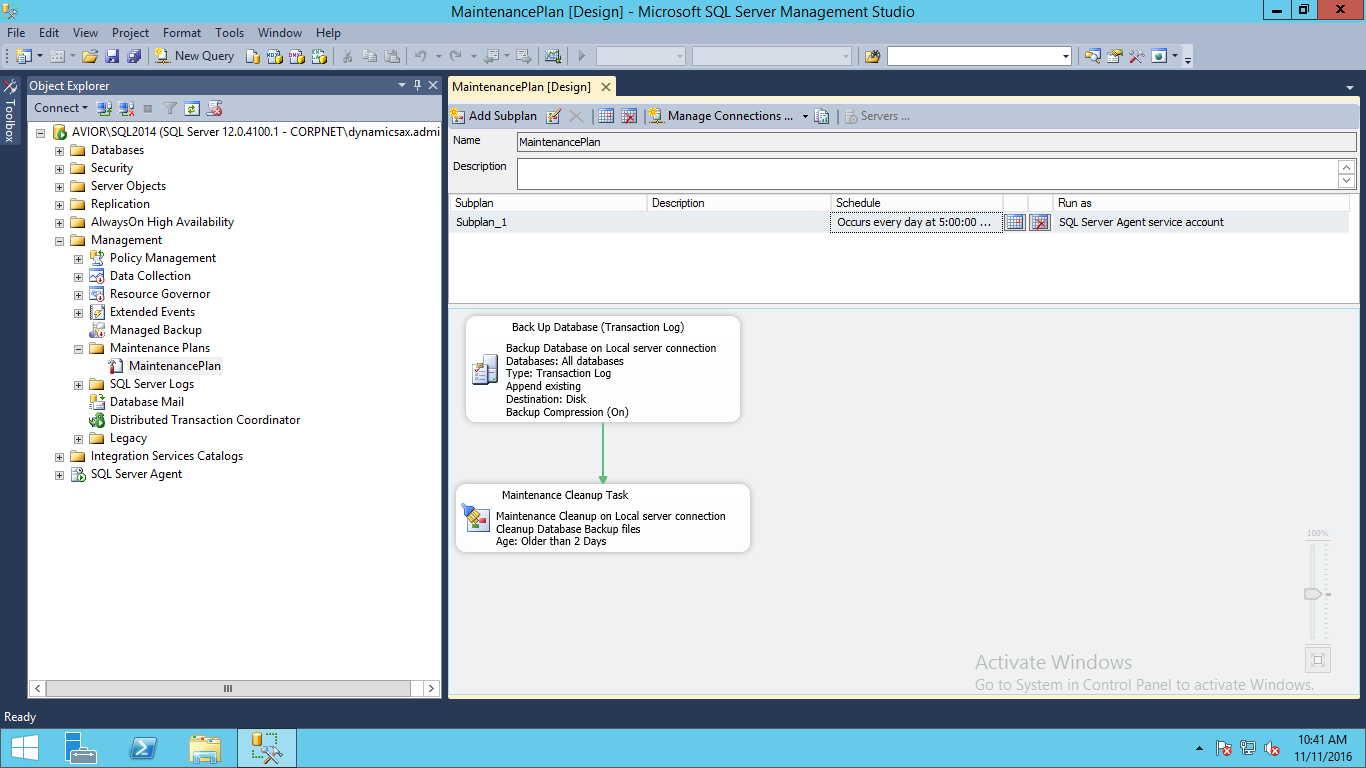
    Description: Maintenance plan use to configure backup in MSSQL Server. This feature is only available in MSSQL Standard and Enterprise Edition. In this example the maintenance plan with full daily backup and cleanup after 2 working copy of database.
    Procedure: Please find below steps to configure backup maintenance plan in MSSQL Server
          ·         Check SQL Agent Service is running and set automatic from services.msc. The maintenance plan is depend on this service.
          ·         Open SQL Management studio for create maintenance plan.
          ·         In the Object Explorer pane, expand the Management folder, right-click on Maintenance Plans, and the select Maintenance Plan Wizard.


                  ·    On the welcome page of the wizard, click next.
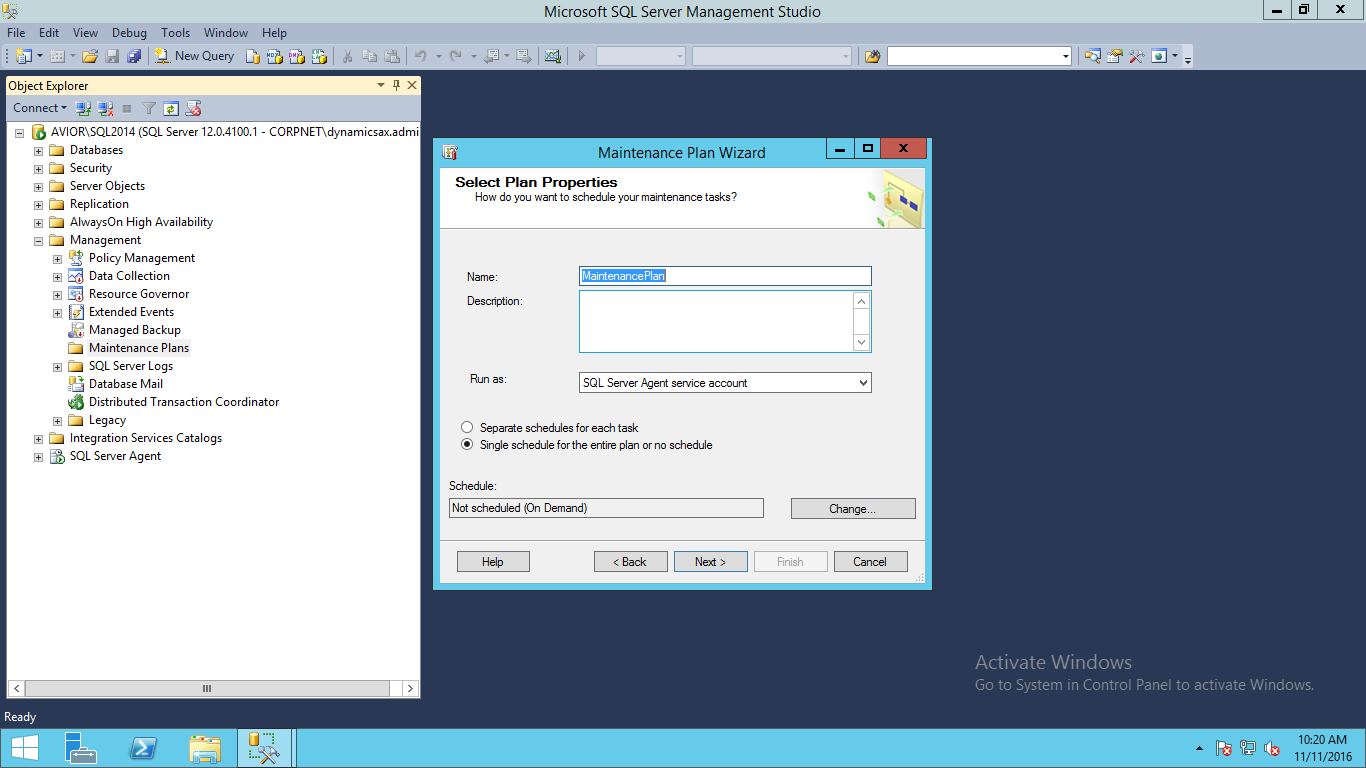
            ·    Fill all details of as define in wizard

        ·    Name: As you want to display in management studio under plan

        ·    Schedule:Define Schedule to run this plan as defined in below image:

    ·    In this example we have define daily backup at 5:00 AM

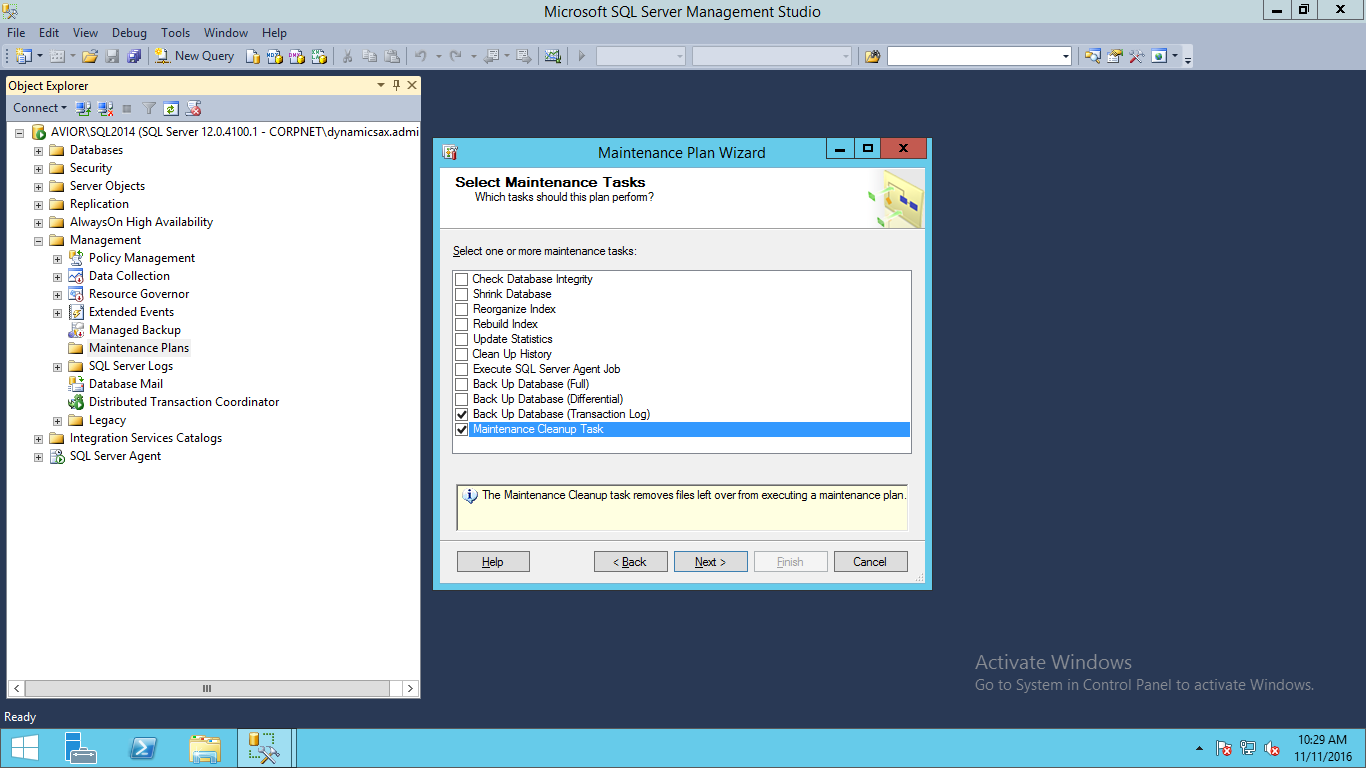
          ·   On Select maintenance page filled tasks that you want to perform.

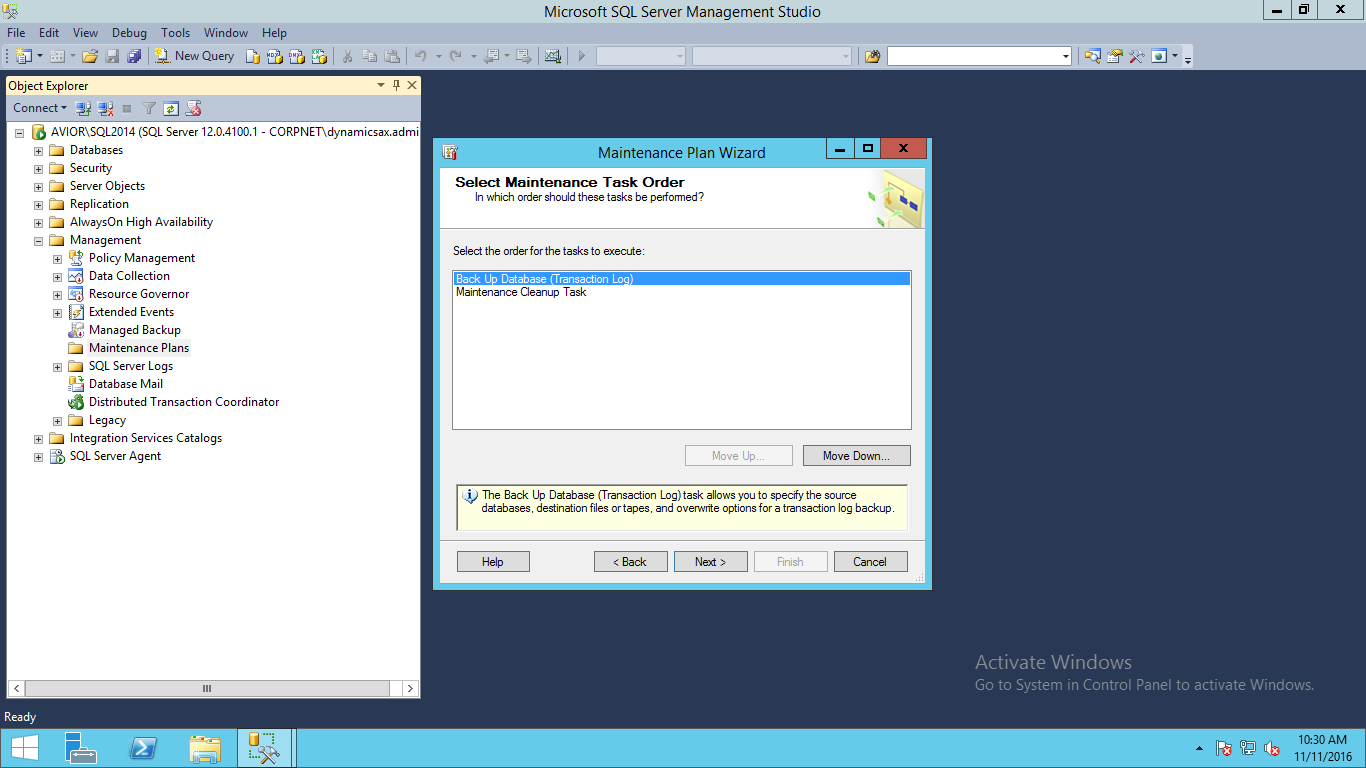
         ·         On Select maintenance task order set order to run or perform tasks

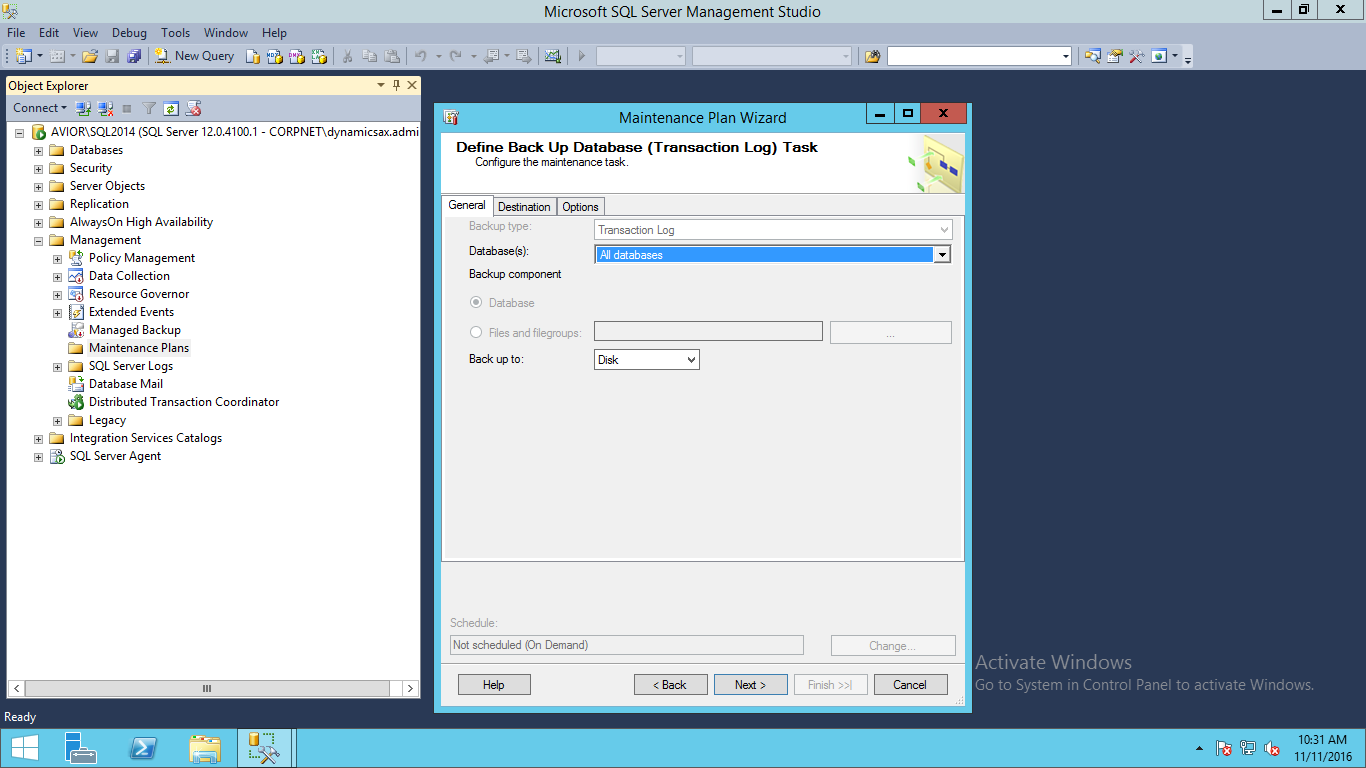
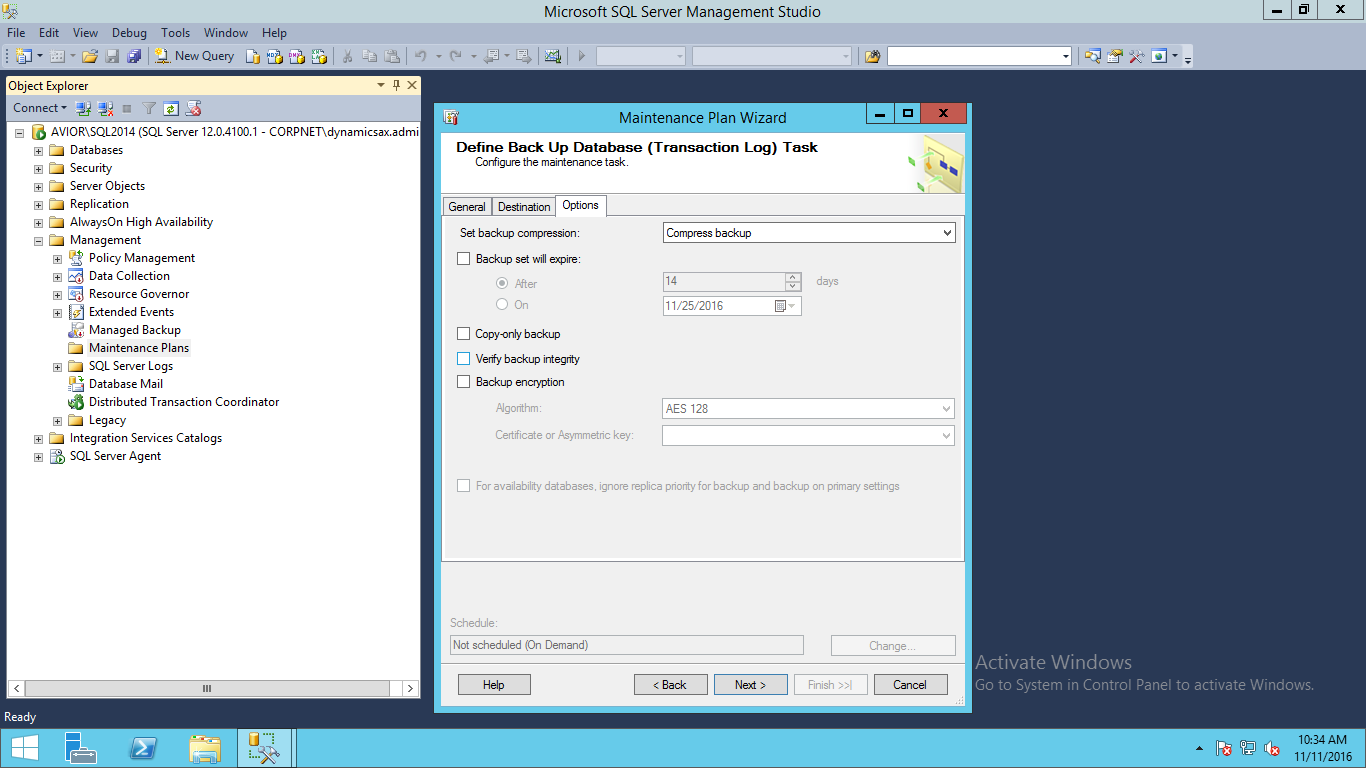
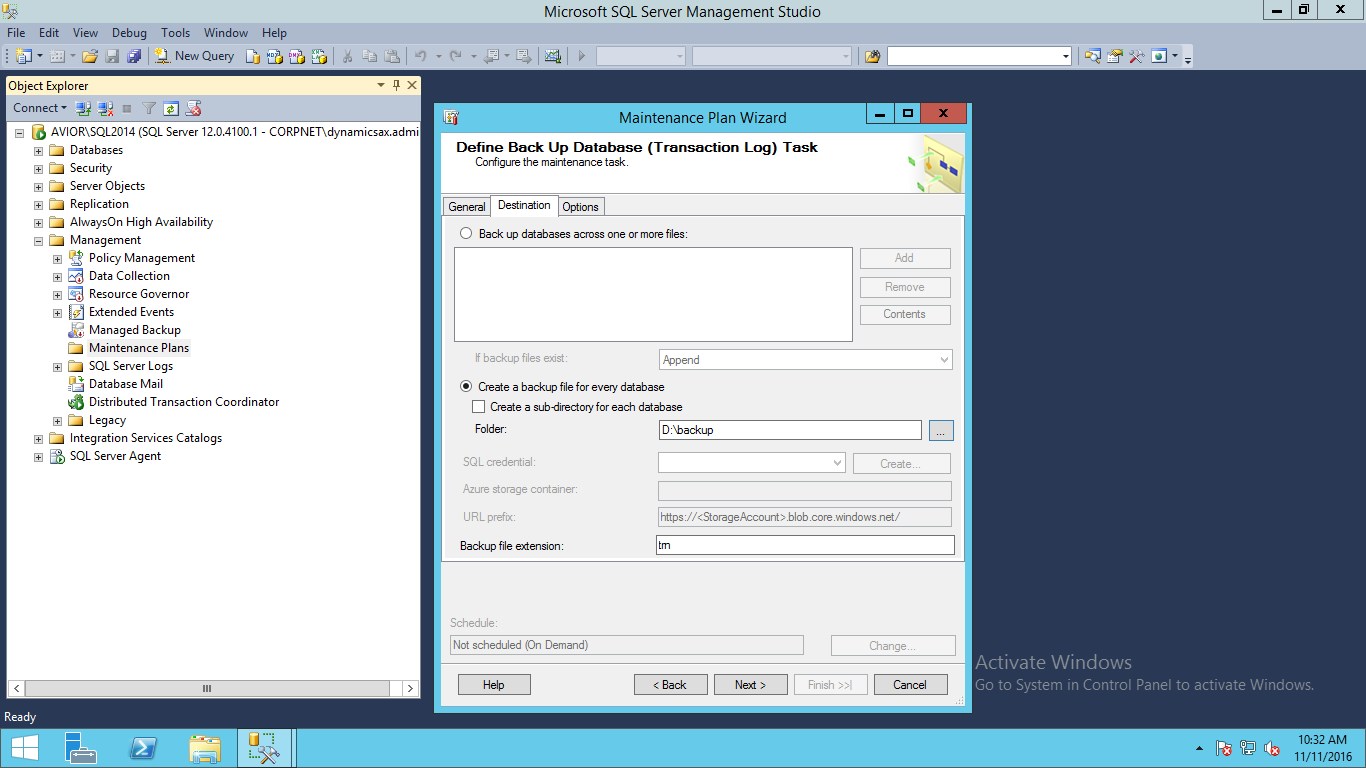
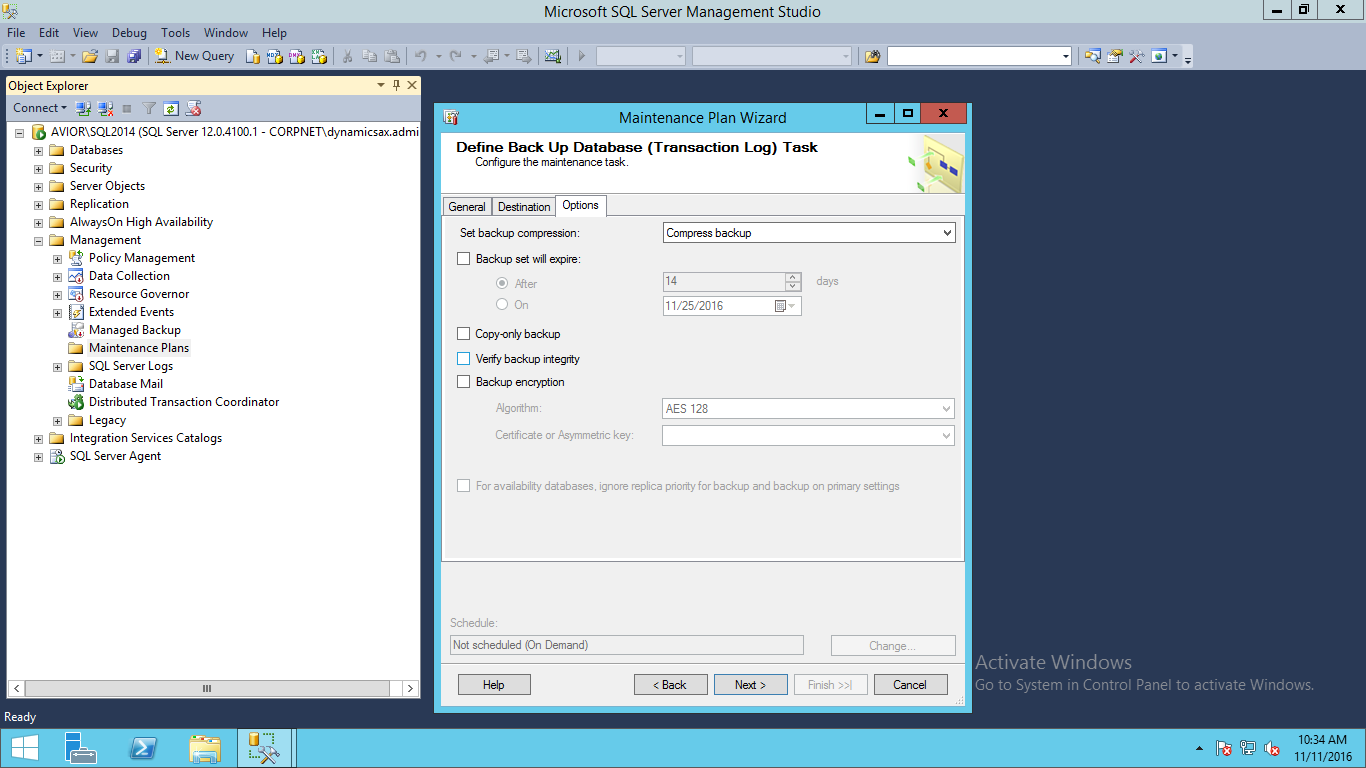
         ·         Define backup database fill required information  as follow:

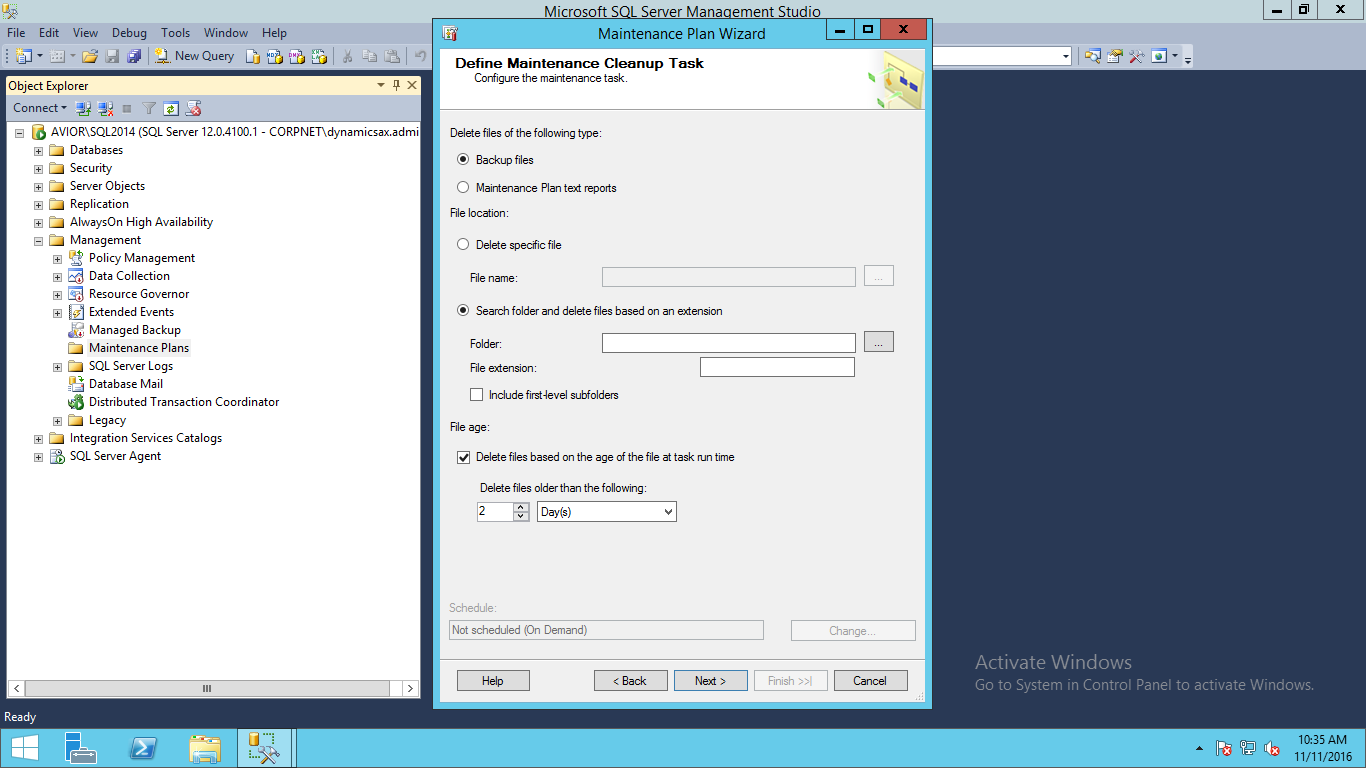
             ·         Define maintenance plan as you want to keep 2 copy of database define in cleanup task.

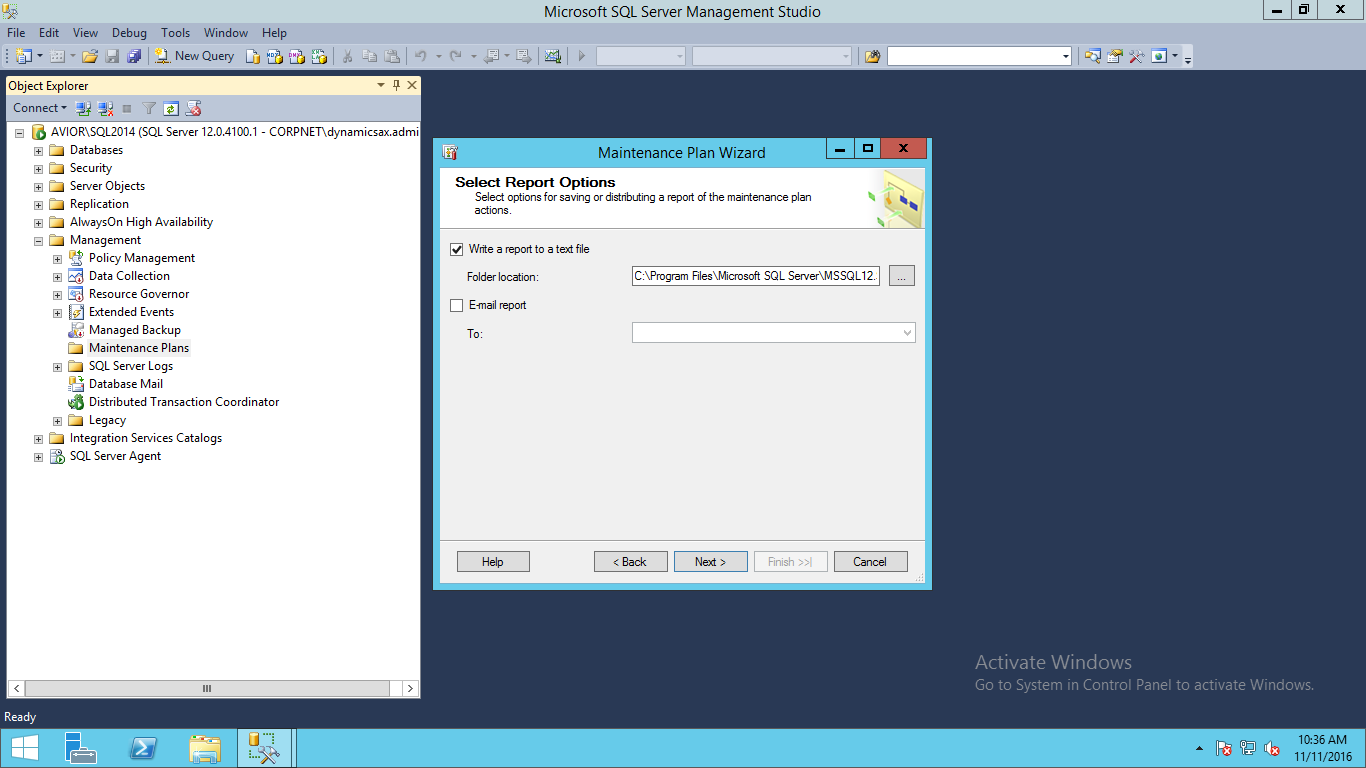
              ·   Select Report Option: If you want to save report in text file or mail it to any mail id then you can set
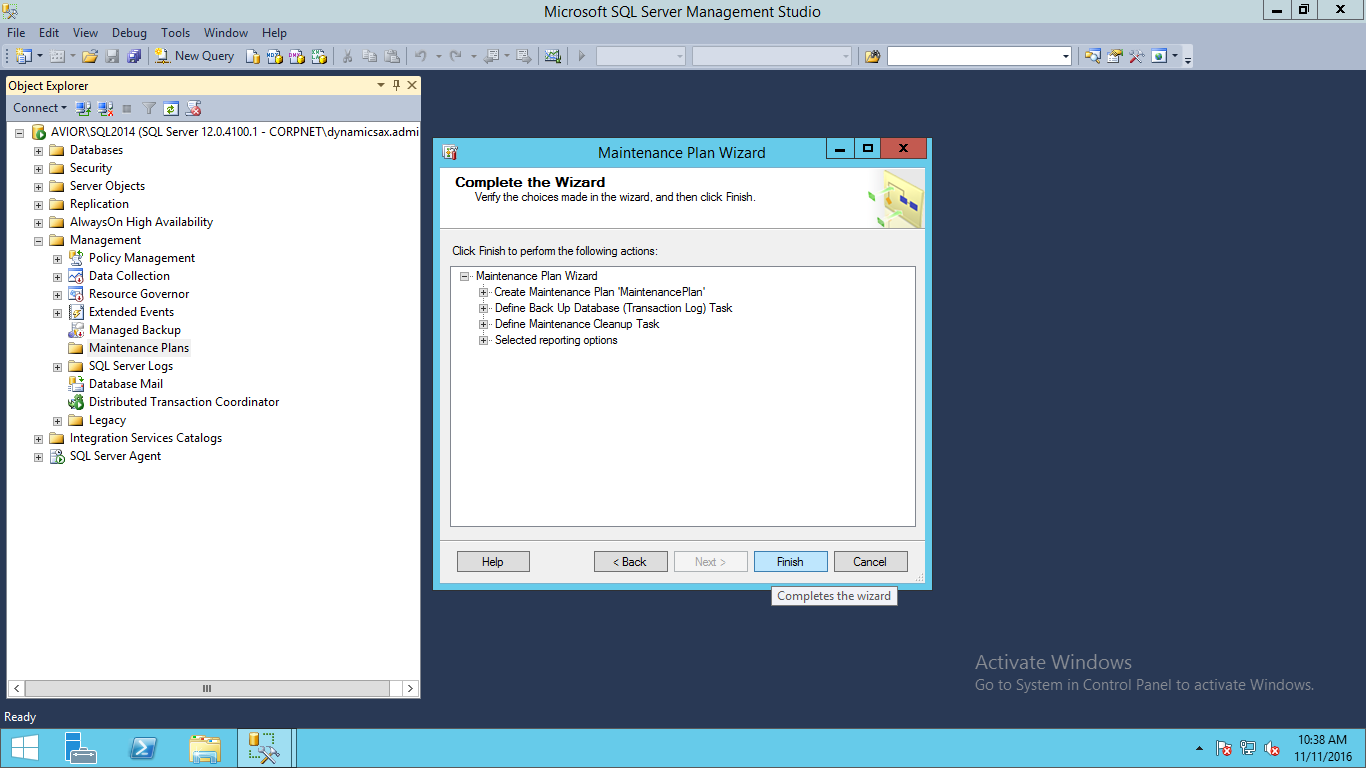
              ·   Complete the wizard

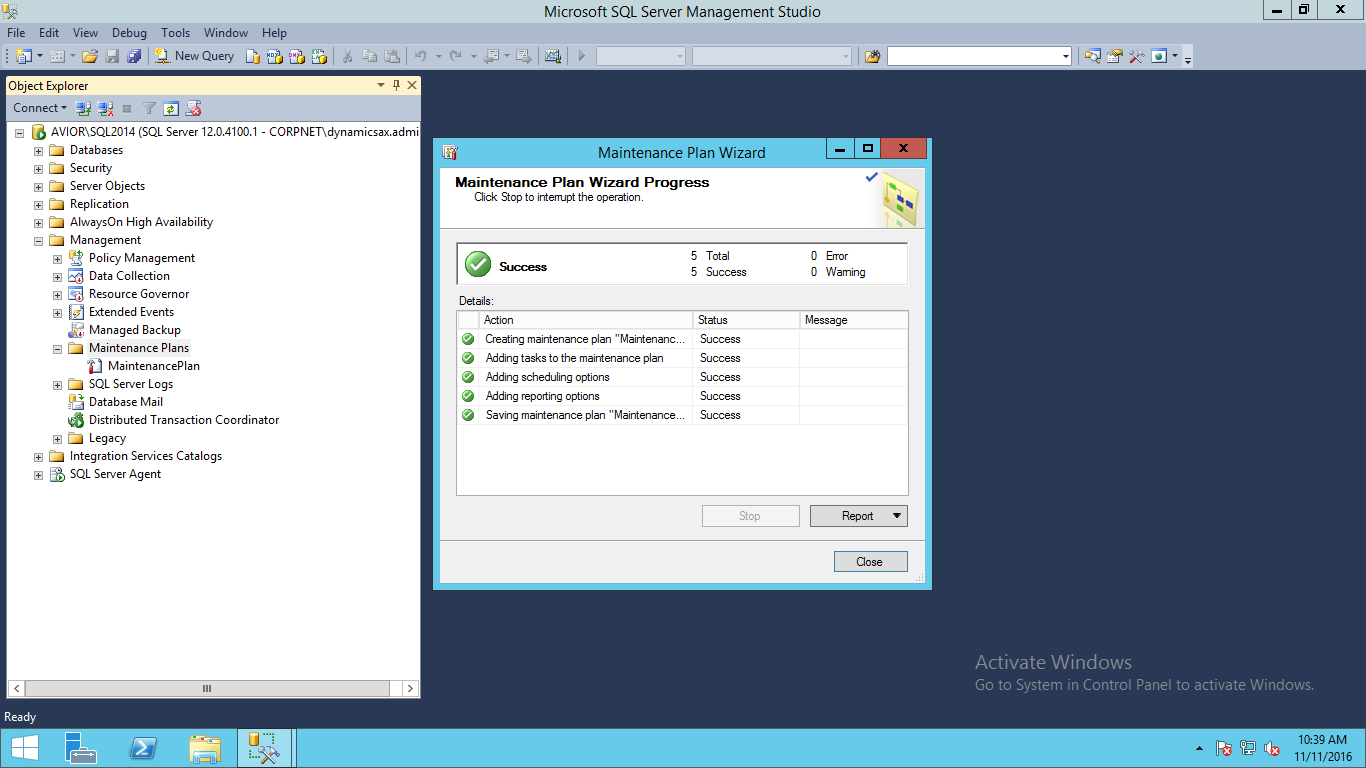
            ·         Plan wizard final output.

             ·         You can fine maintenance plan in management status.

              ·         Check  maintenance plan as follow:

    Change MySQL Database Location

    Move MySQL database from one drive to another

    Description:
    Here I have describe how to move MySQL database from one drive to another when drive full or need to change hard drive.
    Procedure:
          1>     Shutdown MySQL service using below command:
           # service mysqld stop
          2>    Check mysql process using below command and if any process running then kill process
          # ps aux |grep mysql
          3>     Move all contents of /var/lib/mysql [Data Dir] content to new location for this demo I create     /database directory
          4>     Change datadir attribute in my.cnf [MySQL configuration file] as follow. Generally it is located on /etc/my.cnf or /etc/mysql/my.cnf
    [mysqld]
    Datadir = /database
           5>     Give mysql user ownership to /database directory and give 755 permission on /database directory
           6>   Rename  /var/lib/mysql directory with new name

           7>     Start service using below command:

           # service mysqld start

    IPTABLES Commands

    IPTables
             Iptables is a command-line firewall utility that uses policy chains to allow or block traffic. When a connection tries to establish itself on your system, iptables looks for a rule in its list to match it to. If it doesn’t find one, it resorts to the default action.
    Types of Chains
    Iptables uses three different chains: input, forward, and output
    a>   Input – This chain is used to control the behavior for incoming connections. For example, if a user attempts to SSH into your PC/server, iptables will attempt to match the IP address and port to a rule in the input chain.
    b>  Forward – This chain is used for incoming connections that aren’t actually being delivered locally. Think of a router – data is always being sent to it but rarely actually destined for the router itself; the data is just forwarded to its target. Unless you’re doing some kind of routing, Nating, or something else on your system that requires forwarding, you won’t even use this chain.
    ·         There’s one sure-fire way to check whether or not your system uses/needs the forward chain.
          # iptables -L –v
    c>   Output This chain is used for outgoing connections. For example, if you try to ping howtogeek.com, iptables will check its output chain to see what the rules are regarding ping and howtogeek.com before making a decision to allow or deny the connection attempt.
          # Iptables –L |grep policy
    ·         Above command is use to find the default policy for rule that you haven’t define in chain
          # iptables --policy INPUT ACCEPT
    # iptables --policy OUTPUT ACCEPT
    # iptables --policy FORWARD ACCEPT
    If you get above output then iptables ACCEPT such a connection which were not defined.
    If output is as follow then iptables drop connection which not define in rule:
    # iptables --policy INPUT DROP
    # iptables --policy OUTPUT DROP
    # iptables --policy FORWARD DROP

    Connection-specific Responses

    With your default chain policies configured, you can start adding rules to iptables so it knows what to do when it encounters a connection from or to a particular IP address or port. In this guide, we’re going to go over the three most basic and commonly used “responses”.
    Accept – Allow the connection.
    Drop – Drop the connection, act like it never happened. This is best if you don’t want the source to realize your system exists.
    Reject – Don’t allow the connection, but send back an error. This is best if you don’t want a particular source to connect to your system, but you want them to know that your firewall blocked them.

    Allowing or Blocking Specific Connections

    -A = Append rule to existing chain. Iptables starts at the top of its list and goes through each rule until it finds one that it matches
    -I = Insert rule in chain. Iptables add new chain in firewall
    As we mentioned earlier, a lot of protocols are going to require two-way communication. For example, if you want to allow SSH connections to your system, the input and output chains are going to need a rule added to them. But, what if you only want SSH coming into your system to be allowed? Won’t adding a rule to the output chain also allow outgoing SSH attempts?
    That’s where connection states come in, which give you the capability you’d need to allow two way communication but only allow one way connections to be established. Take a look at this example, where SSH connections FROM 10.10.10.10 are permitted, but SSH connections TO 10.10.10.10 are not. However, the system is permitted to send back information over SSH as long as the session has already been established, which makes SSH communication possible between these two hosts.
    # iptables -A INPUT -p tcp --dport ssh -s 10.10.10.10 -m state --state NEW,ESTABLISHED -j ACCEPT
    # iptables -A OUTPUT -p tcp --sport 22 -d 10.10.10.10 -m state --state ESTABLISHED -j ACCEPT

    Saving Changes

    The changes that you make to your iptables rules will be scrapped the next time that the iptables service gets restarted unless you execute a command to save the changes.  This command can differ depending on your distribution:
    Ubuntu:
    sudo /sbin/iptables-save
    Red Hat / CentOS:
    /sbin/service iptables save
    Or
    /etc/init.d/iptables save
    List the currently configured iptables rules:
    # iptables -L

    Delete Firewall Rules

    To display line number along with other information for existing rules, enter:
    # iptables -L INPUT -n --line-numbers
    # iptables -L OUTPUT -n --line-numbers
    # iptables -L OUTPUT -n --line-numbers | less
    # iptables -L OUTPUT -n --line-numbers | grep 202.54.1.1
    You will get the list of IP. Look at the number on the left, then use number to delete it. For example delete line number 4, enter:
    # iptables -D INPUT 4
    OR find source IP 202.54.1.1 and delete from rule:
    # iptables -D INPUT -s 202.54.1.1 -j DROP
    Adding the -v option will give you packet and byte information, and adding -n will list everything numerically. In other words – hostnames, protocols, and networks are listed as numbers.
    To clear all the currently configured rules, you can issue the flush command.
    # iptables -F

    Crontab in Linux

    Crontab:

    Description: crontab stands for “cron table,” because it uses the job scheduler cron to execute tasks; cron itself is named after “chronos,” the Greek word for time.


     Example of crontab format with commented fields is as follows:

    # Minute   Hour   Day of Month       Month          Day of Week        Command 
        
    # (0-59)  (0-23)     (1-31)    (1-12 or Jan-Dec)  (0-6 or Sun-Sat)     /usr/bin/find
                              
        0        2          12             *               0,6           
     

    Some crontab command

    # crontab -l  View crontab file, if any 
     
    # crontab -r  Remove crontab file, if any 
     
    # crontab -e  Edit (or create) user's crontab file (starts the editor automatically) 
     
    # crontab file  Replace existing crontab file (if any) with file


    Field Descriptions:

    Minute   hour    dayOfMonth    month    dayOfWeek    command
    where:

    minute values range from 0 to 59,

    hour values range from 0 to 23,

    dayOfMonth values range from 1 to 31,

    month values range from 1 to 12,

    dayOfWeek values range from 0 to 6, with 0 meaning Sunday
      

    Field Values:

    NUM
    A single value
    NUM-NUM
    A range of values
    NUM,NUM-NUM,...
    A comma separated list of values or ranges (remember no spaces after commas!)
    *
    Wildcard, meaning match all possible values 

    (Note: Don't use a wildcard for the minute field, and rarely for the hour!)

    Examples:

    # Example 1:  0,30 8-17 * * 1-5 cmd
    Answer: Run cmd on the half-hour from 8:00 AM to 5:30 PM, Monday thru Friday
     
    # Example 2:  0 12 1,15 * 5 cmd
    Answer: Run cmd at noon each Friday AND the first and fifteenth of every month

    # Example 3:  17 3 * * 1 cmd
    Answer: Run cmd at 3:17 AM Monday (a backup program perhaps)