Backup Script for Zimbra with Rsync Over SSH

Description: Here I have uploaded Backup script for Zimbra with Rsync Over SSH

#!/bin/bash
# Zimbra Backup Script
# For Rsync need to configure password less ssh between two Server
# https://systemadmintalk.blogspot.com/2016/10/password-less-ssh-connection-between.html
# This script is intended to run from the crontab as root
# Local Server Directory Path
DESTLOCAL=/Backup/zimbra_backup

# Remote Server Directory path
DESTREMOTE="root@10.10.10.10:/home/Zimbra_Server_Backup"


# Outputs the time the backup started, for log/tracking purposes
echo Time backup started = $(date +%T)
before="$(date +%s)"
# a backup dir on the local machine. This will fill up over time!
BACKUPDIR=$DESTLOCAL/$(date +%F-%H-%M-%S)

# Now we need to shut down Zimbra to rsync any files that were/are locked
# whilst backing up when the server was up and running.
before2="$(date +%s)"

# Stop Zimbra Services
/etc/init.d/zimbra stop
#su - zimbra -c"/opt/zimbra/bin/zmcontrol stop"
#sleep 15
# Kill any orphaned Zimbra processes
#kill -9 `ps -u zimbra -o "pid="`
pkill -9 -u zimbra


# Only enable the following command if you need all Zimbra user owned
# processes to be killed before syncing
# ps auxww | awk '{print $1" "$2}' | grep zimbra | kill -9 `awk '{print $2}'`


# Sync to backup directory
rsync -avHK --delete --backup --backup-dir=$BACKUPDIR /opt/zimbra/ $DESTLOCAL/zimbra


# Restart Zimbra Services
#su - zimbra -c "/opt/zimbra/bin/zmcontrol start"
/etc/init.d/zimbra start


# Calculates and outputs amount of time the server was down for
after="$(date +%s)"
elapsed="$(expr $after - $before2)"
hours=$(($elapsed / 3600))
elapsed=$(($elapsed - $hours * 3600))
minutes=$(($elapsed / 60))
seconds=$(($elapsed - $minutes * 60))
echo SERVER WAS DOWN FOR: "$hours hours $minutes minutes $seconds seconds"

# Create a txt file in the backup directory that'll contains the current Zimbra
# server version. Handy for knowing what version of Zimbra a backup can be restored to.
# su - zimbra -c "zmcontrol -v > $DESTLOCAL/zimbra/conf/zimbra_version.txt"
# or examine your /opt/zimbra/.install_history

# Display Zimbra services status
echo Displaying Zimbra services status...
su - zimbra -c "/opt/zimbra/bin/zmcontrol status"

# /etc/init.d/zimbra status # seems not to work

# backup the backup dir (but not the backups of the backups) to remote
rsync /opt/zimbra_backup/zimbra/*  -ave  "ssh -c arcfour -p 2255" --recursive --delete-during  root@10.10.10.10:/home/Zimbra_Server_Backup


# Outputs the time the backup finished
echo Time backup finished = $(date +%T)


# Calculates and outputs total time taken

after="$(date +%s)"
elapsed="$(expr $after - $before)"
hours=$(($elapsed / 3600))
elapsed=$(($elapsed - $hours * 3600))
minutes=$(($elapsed / 60))
seconds=$(($elapsed - $minutes * 60))
echo Time taken: "$hours hours $minutes minutes $seconds seconds" > /tmp/status.txt
# end

MySQL Database Backup Script

Here I  have given command to take backup of all database in one file

# mysqldump -u root -p --all-databases > all_dbs.sql
If you want to take backup all database in separate file with automatic retention and email alert you can use below shell script.

#!/bin/bash
#==============================================================================
#TITLE: mysql_backup.sh
#DESCRIPTION: script for automating the daily mysql backups
#USAGE: ./mysql_backup.sh
#CRON:

# example cron for daily db backup @ 9:15 am
# min hr mday month wday command
# 15 9 * * * /Users/[your user name]/scripts/mysql_backup.sh

#RESTORE FROM BACKUP
#$ gunzip < [backupfile.sql.gz] | mysql -u [uname] -p[pass] [dbname]
#==============================================================================
# CUSTOM SETTINGS
#==============================================================================
# directory to put the backup files
BACKUP_DIR=/backup/mysqlbkp

# MYSQL Parameters
MYSQL_UNAME=backup
MYSQL_PWORD=B@ckUp@1@3

# Email Parameters
MAIL="mail1.example.com", "mail2.example.com"
MAILER="$(which mail)"
STATUSFILE="/tmp/statusfile.txt"

# Don't backup databases with these names
# Example: starts with mysql (^mysql) or ends with _schema (_schema$)
IGNORE_DB="(^mysql|_schema$)"

# include mysql and mysqldump binaries for cron bash user
PATH=$PATH:/usr/local/mysql/bin
# Number of days to keep backups
KEEP_BACKUPS_FOR=2 #days
#==============================================================================
# METHODS
#==============================================================================
# YYYY-MM-DD

TIMESTAMP=$(date +%F)
function delete_old_backups()
{
echo "Deleting $BACKUP_DIR/*.sql.gz older than $KEEP_BACKUPS_FOR days"
find $BACKUP_DIR -type f -name "*.sql.gz" -mtime +$KEEP_BACKUPS_FOR -exec rm {} \;
}

function mysql_login() {
local mysql_login="-u $MYSQL_UNAME"
if [ -n "$MYSQL_PWORD" ]; then
local mysql_login+=" -p$MYSQL_PWORD"
fi
echo $mysql_login
}

function database_list() {
local show_databases_sql="SHOW DATABASES WHERE \`Database\` NOT REGEXP '$IGNORE_DB'"

echo $(mysql $(mysql_login) -e "$show_databases_sql"|awk -F " " '{if (NR!=1) print $1}')
}

function echo_status(){
printf '\r';
printf ' %0.s' {0..100}
printf '\r';
printf "$1"'\r'
}


function backup_database(){
backup_file="$BACKUP_DIR/$TIMESTAMP.$database.sql.gz" > $STATUSFILE
output+="$database => $backup_file\n"
echo_status "...backing up $count of $total databases: $database" >> $STATUSFILE
$(mysqldump $(mysql_login) $database | gzip -9 > $backup_file)
}

function backup_databases(){
local databases=$(database_list)
local total=$(echo $databases | wc -w | xargs)
local output=""
local count=1
for database in $databases; do
backup_database
local count=$((count+1))
done
echo -ne $output | column -t >> $STATUSFILE
}

function hr(){
printf '=%.0s' {1..100}
printf "\n"
}
#==============================================================================
#Run Rsync After Backup
#To sync first configure password less ssh from source to destination server
#==============================================================================
echo_status "Start rsync to destination server" >> $STATUSFILE
rsync /backup/mysqlbkp/* -ave "ssh -c arcfour -p 2255" --recursive --delete-during root@10.0.0.1:/home/mysql_Backup_10SRV >> $STATUSFILE
echo_status "complete rsync to destination server" >> $STATUSFILE
#==============================================================================
# RUN SCRIPT
#==============================================================================
delete_old_backups
hr
backup_databases
hr
printf "All backed up!\n\n" >> $STATUSFILE
$MAILER -s "MySQL Database Backup report for 10.10.10.1 $NOW" -- $MAIL < $STATUSFILE
rm $STATUSFILE

MySQL Database Backup Script

Here I  have given command to take backup of all database in one file

# mysqldump -u root -p --all-databases > all_dbs.sql
If you want to take backup all database in separate file with automatic retention and email alert you can use below shell script.

#!/bin/bash
#==============================================================================
#TITLE: mysql_backup.sh
#DESCRIPTION: script for automating the daily mysql backups
#USAGE: ./mysql_backup.sh
#CRON:

# example cron for daily db backup @ 9:15 am
# min hr mday month wday command
# 15 9 * * * /Users/[your user name]/scripts/mysql_backup.sh

#RESTORE FROM BACKUP
#$ gunzip < [backupfile.sql.gz] | mysql -u [uname] -p[pass] [dbname]
#==============================================================================
# CUSTOM SETTINGS
#==============================================================================
# directory to put the backup files
BACKUP_DIR=/backup/mysqlbkp

# MYSQL Parameters
MYSQL_UNAME=backup
MYSQL_PWORD=B@ckUp@1@3

# Email Parameters
MAIL="mail1.example.com", "mail2.example.com"
MAILER="$(which mail)"
STATUSFILE="/tmp/statusfile.txt"

# Don't backup databases with these names
# Example: starts with mysql (^mysql) or ends with _schema (_schema$)
IGNORE_DB="(^mysql|_schema$)"

# include mysql and mysqldump binaries for cron bash user
PATH=$PATH:/usr/local/mysql/bin
# Number of days to keep backups
KEEP_BACKUPS_FOR=2 #days
#==============================================================================
# METHODS
#==============================================================================
# YYYY-MM-DD

TIMESTAMP=$(date +%F)
function delete_old_backups()
{
echo "Deleting $BACKUP_DIR/*.sql.gz older than $KEEP_BACKUPS_FOR days"
find $BACKUP_DIR -type f -name "*.sql.gz" -mtime +$KEEP_BACKUPS_FOR -exec rm {} \;
}

function mysql_login() {
local mysql_login="-u $MYSQL_UNAME"
if [ -n "$MYSQL_PWORD" ]; then
local mysql_login+=" -p$MYSQL_PWORD"
fi
echo $mysql_login
}

function database_list() {
local show_databases_sql="SHOW DATABASES WHERE \`Database\` NOT REGEXP '$IGNORE_DB'"

echo $(mysql $(mysql_login) -e "$show_databases_sql"|awk -F " " '{if (NR!=1) print $1}')
}

function echo_status(){
printf '\r';
printf ' %0.s' {0..100}
printf '\r';
printf "$1"'\r'
}


function backup_database(){
backup_file="$BACKUP_DIR/$TIMESTAMP.$database.sql.gz" > $STATUSFILE
output+="$database => $backup_file\n"
echo_status "...backing up $count of $total databases: $database" >> $STATUSFILE
$(mysqldump $(mysql_login) $database | gzip -9 > $backup_file)
}

function backup_databases(){
local databases=$(database_list)
local total=$(echo $databases | wc -w | xargs)
local output=""
local count=1
for database in $databases; do
backup_database
local count=$((count+1))
done
echo -ne $output | column -t >> $STATUSFILE
}

function hr(){
printf '=%.0s' {1..100}
printf "\n"
}
#==============================================================================
#Run Rsync After Backup
#To sync first configure password less ssh from source to destination server
#==============================================================================
echo_status "Start rsync to destination server" >> $STATUSFILE
rsync /backup/mysqlbkp/* -ave "ssh -c arcfour -p 2255" --recursive --delete-during root@10.0.0.1:/home/mysql_Backup_10SRV >> $STATUSFILE
echo_status "complete rsync to destination server" >> $STATUSFILE
#==============================================================================
# RUN SCRIPT
#==============================================================================
delete_old_backups
hr
backup_databases
hr
printf "All backed up!\n\n" >> $STATUSFILE
$MAILER -s "MySQL Database Backup report for 10.10.10.1 $NOW" -- $MAIL < $STATUSFILE
rm $STATUSFILE

Cron job not working in CPanel

Description: Cron jobs stopped working suddenly in CPanel Server

Procedure: Below are steps to troubleshoot issue

  • Make sure Cron service running 
  • check permission in /usr/bin/crontab it should be 4775 if it is different, then change it using below command 
# useradd authuser
# chmod 4775 /usr/bin/crontab
  • Check permission in /var/spool/cron it should be as follow:
drwx------. 2 root root 4.0K Jul 8 15:34 .
drwxr-xr-x. 16 root root 4.0K Jul 8 15:23 ..
-rw------- 1 root root 1 May 11 20:53 demosite1
-rw------- 1 root root 1 May 15 12:52 testsite1
-rw------- 1 root root 1.3K Jun 6 21:04 example
-rw------- 1 root root 583 May 27 21:39 democy
-rw------- 1 root root 1 May 11 20:54 demowriterpay
-rw------- 1 root root 1 May 11 20:54 origianl

Cron job not working in CPanel

Description: Cron jobs stopped working suddenly in CPanel Server

Procedure: Below are steps to troubleshoot issue

  • Make sure Cron service running 
  • check permission in /usr/bin/crontab it should be 4775 if it is different, then change it using below command 
# useradd authuser
# chmod 4775 /usr/bin/crontab
  • Check permission in /var/spool/cron it should be as follow:
drwx------. 2 root root 4.0K Jul 8 15:34 .
drwxr-xr-x. 16 root root 4.0K Jul 8 15:23 ..
-rw------- 1 root root 1 May 11 20:53 demosite1
-rw------- 1 root root 1 May 15 12:52 testsite1
-rw------- 1 root root 1.3K Jun 6 21:04 example
-rw------- 1 root root 583 May 27 21:39 democy
-rw------- 1 root root 1 May 11 20:54 demowriterpay
-rw------- 1 root root 1 May 11 20:54 origianl

Tips to secure CPanel server

Description: Server Security is very important to keep your websites and other data secure as new methods of attacks and hacks are popping up almost every day, so it is critically important to keep your servers secure and updated. Here I have explained ways to secure CPanel server.

Procedure: Here are some basic ways to secure Cpanel server

  • Strong  Server Password:  Set such password which is not easy to guess. So set password with complexity and lengthy with multiple characters. Also change server password in regular retention.  
  • Create Wheel user:  Create new user and disable ssh access for root user. So SSH console will access with that user only. Here are the steps.
# useradd authuser
  • Change default ssh port and  disable root ssh access from configuration file 
    # vi /etc/ssh/sshd_config
    Port 2255
    Set PermitRootLogin to 'No'
    PermitRootLogin no
    • Updating CPanel: Updating CPanel to the latest version is the best way to keep the system from vulnerabilities and bugs as CPanel releases the bug fixes regularly. 
    You can update cPanel via WHM,
    WHM >> cPanel >> Upgrade to Latest Version >> Click to upgrade

    You can also do this via Command Line

      #/scripts/upcp --force
      • Install and Config Server Firewall (CSF)
      # rm -fv csf.tgz
      # wget http://www.configserver.com/free/csf.tgz
      # tar -xzf csf.tgz
      # cd csf
      # sh install.sh
      # cd /etc/csf/
      # mv csf.conf csf.conf.BKP
      # wget http://jarry.web-dns1.com/~heberge/csf.tar.gz
      # tar -zxf csf.tar.gz
      # rm -rf csf.tar.gz
      # csf –r
      • Install Maldet Malware Scanner
      # cd /usr/src
      # wget http://www.rfxn.com/downloads/maldetect-current.tar.gz
      # tar -xzf maldetect-current.tar.gz
      # cd maldetect-*
      # sh ./install.sh
      # maldet –update-ver
      • Install ClamAV AntiVirus (From WHM/CPanel)
      Log in to WHM
      Click on Manage Plugins
      Check the ClamAV box
      At bottom click Save
      Wait for process to finish (It will take approx 15 minutes)
    • Install Rootkit Hunter

    • Go to http://downloads.sourceforge.net/project/rkhunter/
      and locate the latest version. Copy the URL into source url below.
      # wget http://sourceforge.net/projects/rkhu…ar.gz/download
      # tar -xvzf rkhunter-*
      # cd rkhunter-*
      # sh installer.sh –install –layout default
      # rkhunter -c
      Results are logged to: /var/log/rkhunter.log
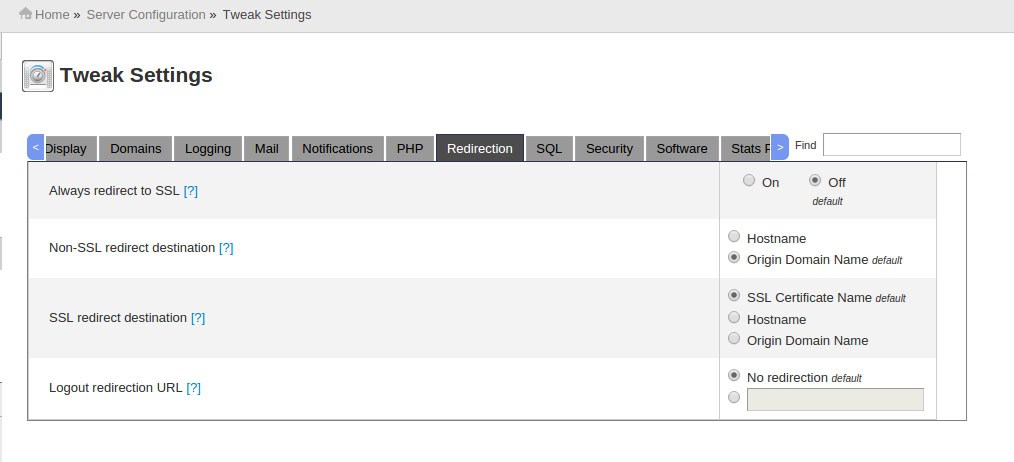
    • Tweaking CPanel and WHM access: It is always best to keep SSL based encryption when you login to CPanel and WHM. For this go to:
      WHM >> Server Configuration >> Tweak Settings >> Redirection
      • Enable CPHulk Brute Force Protection:
      cPHulk is a commonly used tool to protect the server from Brute Force attacks. You can enable cPHulk via:
      WHM >> Security Center >> cPHulk Brute Force Protection.
      • Apache And PHP Security Tweak.
      You can enable ModSecurity in WHM for securing Apache from attacks like code injection etc. There are specific rules defined in the ModSecurity configuration file and any connection not matching the rules will be blocked. You can install ModSecurity via:


      WHM >> Plugins >> Mod Security

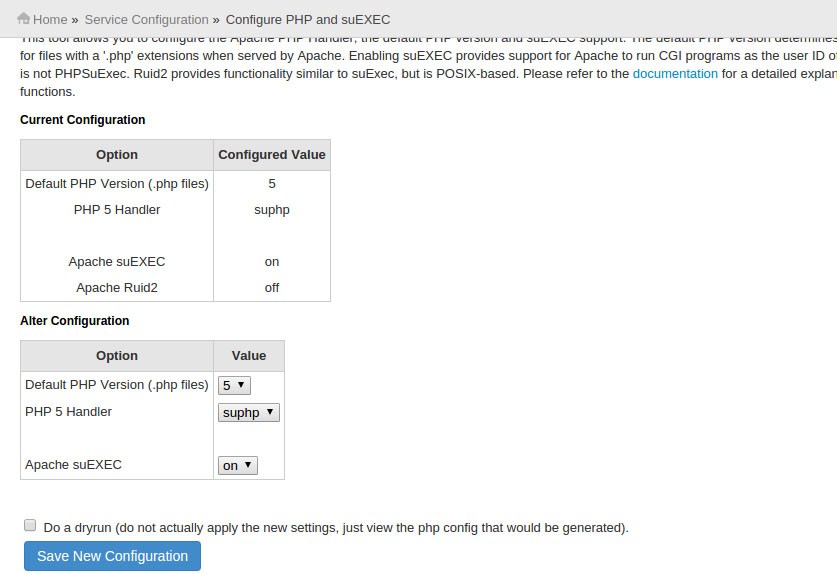
      Configure suPHP as the PHP handler and suEXEC for executing the CGI scripts in the user privilege. You can enable suPHP and suEXCEC via:


      WHM >> Service Configuration >> suEXEC

      Change the PHP handler to suPHP, Turn Apache suEXEC to ‘ON’ and click Save New Configuration.

      You need to enable PHP open_basedir protection for preventing PHP scripts from files outside of its home directory.

      WHM >> Security Center >> PHP open_basedir Tweak >> check box the option Enable PHP open_basedir Protection >> Click Save.

      You need to tweak the PHP configuration to disable some of the PHP functions.

      WHM >> Service Configuration >> PHP Configuration Editor >> Select Advanced mode
      And set the following parameters.
      register_globals: Off
      disable_functions: show_source, system, shell_exec, passthru, exec, phpinfo, popen, proc_open, allow_url_fopen

      Then click ‘Save’

      • Disable Compiler Access To Users Other Than Root: You can either disable “disable compiler access” to all users or you can enable it for trusted users via:
      # WHM >> Security Center >> Compiler Access

      • Hardening /Tmp: We can set /tmp partition mounted with the nosuid option because this will force the file in to be executed in its user privilege. cPanel/WHM has a custom script for this and you can simply run the script via Command Line. Here is the script/command.
      #/scripts/securetmp
      • Checking Suspicious Files And Folders: Files and folders with full permissions and with out user and or groups is always suspicious as it can be accessed by the attackers easily. So we need to find such files and check if it is necessary.

      Here is the command to check the suspecias files:

      #find / \( -type f -o -type d \) -perm /o+w 2>/dev/null | egrep -v '/(proc|sys)' > suspecius_files.txt

      Command to find no owner files and folders is:

      #find / -nouser -o -nogroup >> no_owner_files.txt
      • Disable Anonymous FTP & Logins: With Root Attackers always tend to upload malicious scripts as the anonymous user. So it is advised to disable Anonymous user and you can do it via:
      WHM >> Service Configuration >> FTP Server Configuration
      • Disable Recursion In Bind: Enabling Recursion in Bind may lead to DNS amplification attacks, lookups from DNS lookup websites etc. So it is recommended to turn it off.

      #vi /etc/named.conf
      recursion no

      Tips to secure CPanel server

      Description: Server Security is very important to keep your websites and other data secure as new methods of attacks and hacks are popping up almost every day, so it is critically important to keep your servers secure and updated. Here I have explained ways to secure CPanel server.

      Procedure: Here are some basic ways to secure Cpanel server

      • Strong  Server Password:  Set such password which is not easy to guess. So set password with complexity and lengthy with multiple characters. Also change server password in regular retention.  
      • Create Wheel user:  Create new user and disable ssh access for root user. So SSH console will access with that user only. Here are the steps.
      # useradd authuser
      • Change default ssh port and  disable root ssh access from configuration file 
        # vi /etc/ssh/sshd_config
        Port 2255
        Set PermitRootLogin to 'No'
        PermitRootLogin no
        • Updating CPanel: Updating CPanel to the latest version is the best way to keep the system from vulnerabilities and bugs as CPanel releases the bug fixes regularly. 
        You can update cPanel via WHM,
        WHM >> cPanel >> Upgrade to Latest Version >> Click to upgrade

        You can also do this via Command Line

          #/scripts/upcp --force
          • Install and Config Server Firewall (CSF)
          # rm -fv csf.tgz
          # wget http://www.configserver.com/free/csf.tgz
          # tar -xzf csf.tgz
          # cd csf
          # sh install.sh
          # cd /etc/csf/
          # mv csf.conf csf.conf.BKP
          # wget http://jarry.web-dns1.com/~heberge/csf.tar.gz
          # tar -zxf csf.tar.gz
          # rm -rf csf.tar.gz
          # csf –r
          • Install Maldet Malware Scanner
          # cd /usr/src
          # wget http://www.rfxn.com/downloads/maldetect-current.tar.gz
          # tar -xzf maldetect-current.tar.gz
          # cd maldetect-*
          # sh ./install.sh
          # maldet –update-ver
          • Install ClamAV AntiVirus (From WHM/CPanel)
          Log in to WHM
          Click on Manage Plugins
          Check the ClamAV box
          At bottom click Save
          Wait for process to finish (It will take approx 15 minutes)
        • Install Rootkit Hunter

        • Go to http://downloads.sourceforge.net/project/rkhunter/
          and locate the latest version. Copy the URL into source url below.
          # wget http://sourceforge.net/projects/rkhu…ar.gz/download
          # tar -xvzf rkhunter-*
          # cd rkhunter-*
          # sh installer.sh –install –layout default
          # rkhunter -c
          Results are logged to: /var/log/rkhunter.log
        • Tweaking CPanel and WHM access: It is always best to keep SSL based encryption when you login to CPanel and WHM. For this go to:
          WHM >> Server Configuration >> Tweak Settings >> Redirection
          • Enable CPHulk Brute Force Protection:
          cPHulk is a commonly used tool to protect the server from Brute Force attacks. You can enable cPHulk via:
          WHM >> Security Center >> cPHulk Brute Force Protection.
          • Apache And PHP Security Tweak.
          You can enable ModSecurity in WHM for securing Apache from attacks like code injection etc. There are specific rules defined in the ModSecurity configuration file and any connection not matching the rules will be blocked. You can install ModSecurity via:


          WHM >> Plugins >> Mod Security

          Configure suPHP as the PHP handler and suEXEC for executing the CGI scripts in the user privilege. You can enable suPHP and suEXCEC via:


          WHM >> Service Configuration >> suEXEC

          Change the PHP handler to suPHP, Turn Apache suEXEC to ‘ON’ and click Save New Configuration.

          You need to enable PHP open_basedir protection for preventing PHP scripts from files outside of its home directory.

          WHM >> Security Center >> PHP open_basedir Tweak >> check box the option Enable PHP open_basedir Protection >> Click Save.

          You need to tweak the PHP configuration to disable some of the PHP functions.

          WHM >> Service Configuration >> PHP Configuration Editor >> Select Advanced mode
          And set the following parameters.
          register_globals: Off
          disable_functions: show_source, system, shell_exec, passthru, exec, phpinfo, popen, proc_open, allow_url_fopen

          Then click ‘Save’

          • Disable Compiler Access To Users Other Than Root: You can either disable “disable compiler access” to all users or you can enable it for trusted users via:
          # WHM >> Security Center >> Compiler Access

          • Hardening /Tmp: We can set /tmp partition mounted with the nosuid option because this will force the file in to be executed in its user privilege. cPanel/WHM has a custom script for this and you can simply run the script via Command Line. Here is the script/command.
          #/scripts/securetmp
          • Checking Suspicious Files And Folders: Files and folders with full permissions and with out user and or groups is always suspicious as it can be accessed by the attackers easily. So we need to find such files and check if it is necessary.

          Here is the command to check the suspecias files:

          #find / \( -type f -o -type d \) -perm /o+w 2>/dev/null | egrep -v '/(proc|sys)' > suspecius_files.txt

          Command to find no owner files and folders is:

          #find / -nouser -o -nogroup >> no_owner_files.txt
          • Disable Anonymous FTP & Logins: With Root Attackers always tend to upload malicious scripts as the anonymous user. So it is advised to disable Anonymous user and you can do it via:
          WHM >> Service Configuration >> FTP Server Configuration
          • Disable Recursion In Bind: Enabling Recursion in Bind may lead to DNS amplification attacks, lookups from DNS lookup websites etc. So it is recommended to turn it off.

          #vi /etc/named.conf
          recursion no

          Zimbra mail box recrovery from crash

          Description: Here I have explain how we can recover emails in zimbra and  How we can add emails to new servers from mailbox directory backup.

          Procedure: 

          • First you need to find  mail id for users in source server. You can find using below mysql command
          # su zimbra
          # mysql -e "SELECT id,comment FROM zimbra.mailbox;
          • You will get username and mailbox id on screen.
          • You need to setup zimbra on new server and create users in new destination server
          • You can also find mail box id for one user using below command on running zimbra server
          $ zmprov getMailboxInfo user1@domain.com
          mailboxId: 2
          quotaUsed: 0
          • Copy mails from source server from respective location [i.e. /opt/zimbra/store/0/2/msg/0]

          Note: In given location 2 is store id of user which found using mysql query [/opt/zimbra/store/0/2/msg/0]

          • After copy mails make sure to change permission for zimbra user using below command
          # chown zimbra.zimbra  /opt/zimbra/store/0/2/msg/0
          • After set permission on destination server you need to add emails to mailbox for respective user using below procedure
          #su zimbra
          $ zmmailbox
          mobx> authenticate
          user@domain.com password
          mbox user@domain.com> addMessage INBOX /opt/zimbra/store/0/2/msg/0

          Note: /opt/zimbra/store/0/2/msg/0 is the path to the destination mailbox

          • You will received info message for mails added in mailbox. Login with user and check emails are showing in mailbox. 

          Zimbra mail box recrovery from crash

          Description: Here I have explain how we can recover emails in zimbra and  How we can add emails to new servers from mailbox directory backup.

          Procedure: 

          • First you need to find  mail id for users in source server. You can find using below mysql command
          # su zimbra
          # mysql -e "SELECT id,comment FROM zimbra.mailbox;
          • You will get username and mailbox id on screen.
          • You need to setup zimbra on new server and create users in new destination server
          • You can also find mail box id for one user using below command on running zimbra server
          $ zmprov getMailboxInfo user1@domain.com
          mailboxId: 2
          quotaUsed: 0
          • Copy mails from source server from respective location [i.e. /opt/zimbra/store/0/2/msg/0]

          Note: In given location 2 is store id of user which found using mysql query [/opt/zimbra/store/0/2/msg/0]

          • After copy mails make sure to change permission for zimbra user using below command
          # chown zimbra.zimbra  /opt/zimbra/store/0/2/msg/0
          • After set permission on destination server you need to add emails to mailbox for respective user using below procedure
          #su zimbra
          $ zmmailbox
          mobx> authenticate
          user@domain.com password
          mbox user@domain.com> addMessage INBOX /opt/zimbra/store/0/2/msg/0

          Note: /opt/zimbra/store/0/2/msg/0 is the path to the destination mailbox

          • You will received info message for mails added in mailbox. Login with user and check emails are showing in mailbox. 

          Install and Configure FirewallD on Centos 7

          Description: FirewallD is a firewall management tool available on CentOS 7 servers. Basically, it is a wrapper around iptables and it comes with graphical configuration tool firewall-config and command line tool firewall-cmd. With the iptables service, every change requires flushing of the old rules and reading the new rules from the ‘/etc/sysconfig/iptables’ file, while with firewalld only differences are applied.

          Procedure: 

          • Install FirewallD using yum 
          # yum install firewalld 

          FirewallD Zones: FirewallD uses services and zones instead of iptables rules and chains. By default the following zones are available

          1. Drop: Drop all incoming network packets with no reply, only outgoing network connections are available.
          2. Block: Reject all incoming network packets with an icmp-host-prohibited message, only outgoing network connections are available.
          3. Public: Only selected incoming connections are accepted, for use in public areas
          4. External: For external networks with masquerading enabled, only selected incoming connections are accepted.
          5. DMZ: DMZ demilitarized zone, publicly-accessible with limited access to the internal network, only selected incoming connections are accepted.
          6. work: For computers in your home area, only selected incoming connections are accepted.
          7. home: For computers in your home area, only selected incoming connections are accepted.
          8. internal: For computers in your internal network, only selected incoming connections are accepted.
          9. trusted: All network connections are accepted.
          • To list all available zones 
          # firewall-cmd --get-zones

          work drop internal external trusted home dmz public block

          • To list default zone
          #firewall-cmd --get-default-zone
          public
          • To change the default zone:
          # firewall-cmd --set-default-zone
          # firewall-cmd --get-default-zone
          dmz
          • Add and allow service in DMZ zone 
          # firewall-cmd --zone=dmz --add-service=http --permanent
          # firewall-cmd --zone=dmz --add-service=https --permanent
          # firewall-cmd --zone=dmz --add-service=imap --permanent
          # firewall-cmd --zone=dmz --add-service=imaps --permanent
          # firewall-cmd --zone=dmz --add-service=pop3 --permanent
          # firewall-cmd --zone=dmz --add-service=pop3s --permanent
          • Remove service and add custom port 
          # firewall-cmd --remove-service=ssh --permanent
          # firewall-cmd --add-port=7022/tcp --permanent
          • Reload Firewall configuration 
          # firewall-cmd --reload
          • List Firewall Rules 
          # firewall-cmd --list-all
          dmz
          target: default
          icmp-block-inversion:
          interfaces
          sources
          services: http https imap imaps pop3 pop3s smtp smtps
          ports: 7022/tcp
          protocols
          masquerade: no
          forward-ports
          sourceports
          icmp-blocks
          rich rules