Install a SSL certificate on Zimbra

Description:  Here I have define how to install ssl certificate on zimbra mail server

Zimbra mail server supports two possible ways of SSL installation:

  • zimbra administration console (web interface)
  • zimbra certificate manager (command line interface)

SSL certificate installation via Zimbra Administration Console

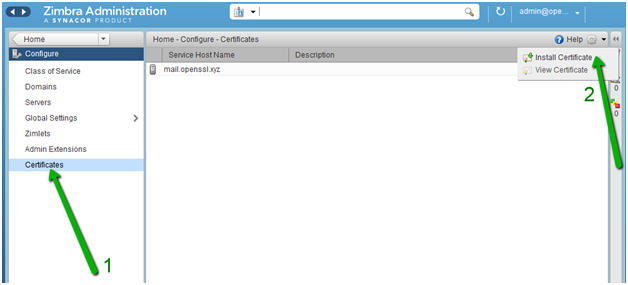
  • Click on “Configure” from the left list of the main menu:
  • In the next window, click on “Certificates” and pick the option “Install Certificate”:
  • You will see a separate window where you need to choose the required mail server. Click “Next” afterwards:
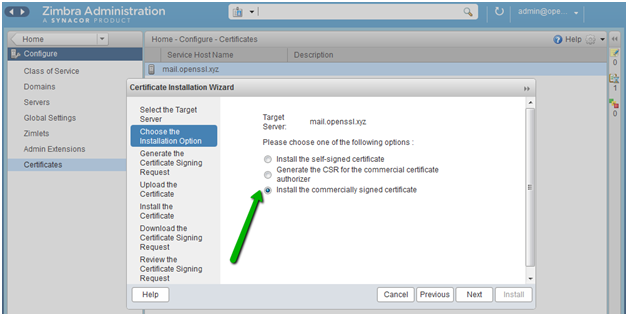
  • Pick “Install the commercially signed certificate” option to start the installation process
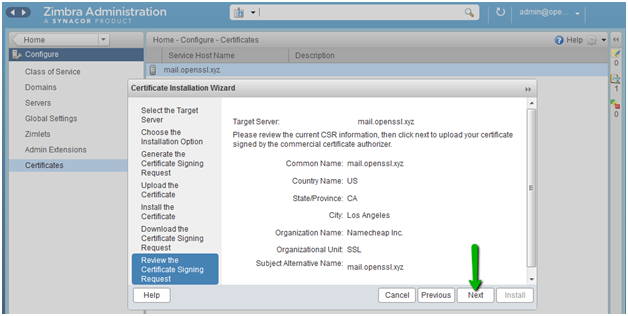
  • Review all information that was used for CSR generation. If the information is correct, click on the “Next” button:
  • Upload the SSL certificate file, root certificate and intermediate certificates received from the Certificate Authority
  • When the SSL installation process is completed, you will see the notification:
  • To apply changes, You need to restart Zimbra service.
SSL certificate installation via Zimbra Certificate Manager (command line interface)
  • A Zimbra package has the “zmcertmgr” tool to manage SSL certificates
  • For version 8.6 or lower, this tool must be run as root. Run this command in the terminal to switch from the default user to the root:
  • To start the installation process, you need to upload the SSL certificate file (server_domain_com.crt) and CA bundle file (server_domain_com.ca-bundle) to any folder to your hosting server on the temporary basis. For this example, SSL files have been uploaded to the /opt/certificate directory.
  • Verify that your certificate received from the Certificate Authority matches the private key generated along with the CSR:

# /opt/zimbra/bin/zmcertmgr verifycrt comm/opt/zimbra/ssl/zimbra/commercial/commercial.key /opt/server_domain_com.crt /opt/certificate/server_domain_com.ca-bundle


  • To deploy certificate run as follow:

# /opt/zimbra/bin/zmcertmgr deploycrt comm /opt/server_domain_com.crt /opt/certificate/server_domain_com.ca-bundle

  • To verify installed certificate run below command :

#/opt/zimbra/bin/zmcertmgr viewdeployedcrt

Install a SSL certificate on Zimbra

Description:  Here I have define how to install ssl certificate on zimbra mail server

Zimbra mail server supports two possible ways of SSL installation:

  • zimbra administration console (web interface)
  • zimbra certificate manager (command line interface)

SSL certificate installation via Zimbra Administration Console

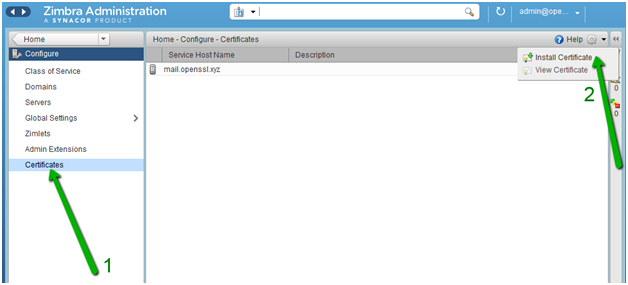
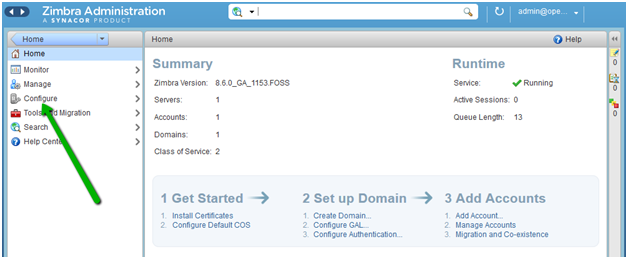
  • Click on “Configure” from the left list of the main menu:
  • In the next window, click on “Certificates” and pick the option “Install Certificate”:
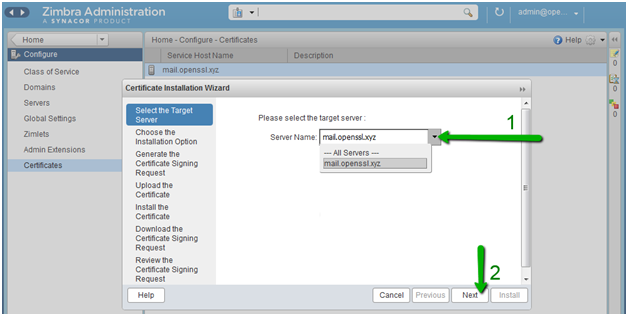
  • You will see a separate window where you need to choose the required mail server. Click “Next” afterwards:
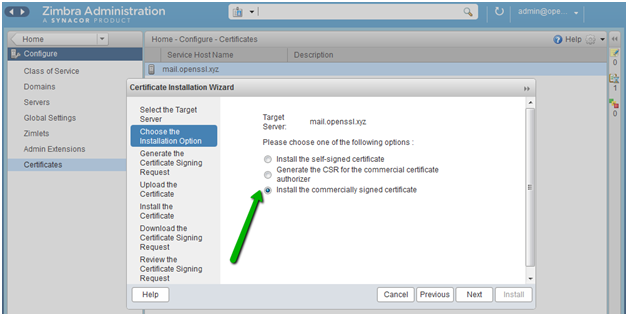
  • Pick “Install the commercially signed certificate” option to start the installation process
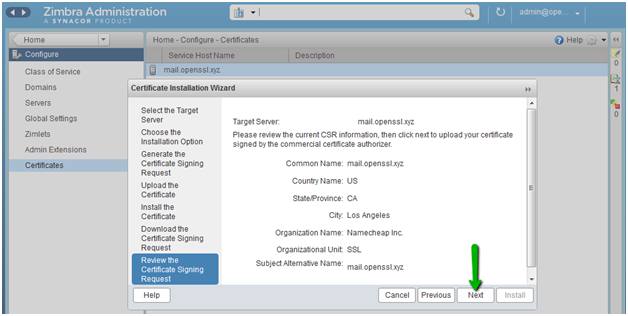
  • Review all information that was used for CSR generation. If the information is correct, click on the “Next” button:
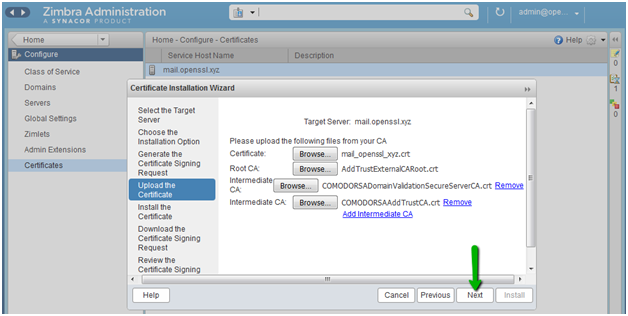
  • Upload the SSL certificate file, root certificate and intermediate certificates received from the Certificate Authority
  • When the SSL installation process is completed, you will see the notification:
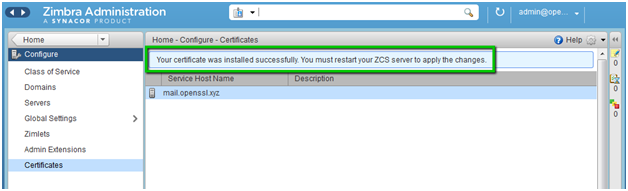
  • To apply changes, You need to restart Zimbra service.
SSL certificate installation via Zimbra Certificate Manager (command line interface)
  • A Zimbra package has the “zmcertmgr” tool to manage SSL certificates
  • For version 8.6 or lower, this tool must be run as root. Run this command in the terminal to switch from the default user to the root:
  • Generate csr and commercial.key file using below command using zimbra user

$ /opt/zimbra/bin/zmcertmgr createcsr comm -new -subject “/C=IN/ST=Ahmedabad/L=Gujarat/O=companyName Limited CERTIFICATS/CN=domain.com”

  • To start the installation process, you need to upload the SSL certificate file (server_domain_com.crt) and CA bundle file (server_domain_com.ca-bundle) to any folder to your hosting server on the temporary basis. For this example, SSL files have been uploaded to the /opt/certificate directory.
  • Verify that your certificate received from the Certificate Authority matches the private key generated along with the CSR:

# /opt/zimbra/bin/zmcertmgr verifycrt comm/opt/zimbra/ssl/zimbra/commercial/commercial.key /opt/server_domain_com.crt /opt/certificate/server_domain_com.ca-bundle


  • To deploy certificate run as follow:

# /opt/zimbra/bin/zmcertmgr deploycrt comm /opt/server_domain_com.crt /opt/certificate/server_domain_com.ca-bundle

  • To verify installed certificate run below command :

#/opt/zimbra/bin/zmcertmgr viewdeployedcrt
Ethernet not up After Clone Virtual Machine

Error: ifup: vmnics device eth0 does not seem to be present, delaying initializing

Solution: Follow below procedure to resolve this issue in cloned virtual machine:

  • Stop Network service

         # /etc/init.d/network stop

  • Remove  /etc/udev/rules.d/70-persistent-net.rules File

         # rm -rf   /etc/udev/rules.d/70-persistent-net.rules

  • Open /etc/sysconfig/network-scripts/ifcfg-eth0
  • Remove value of HWADDR and comment or UUID from configuration
  • Reboot server
  • Add HWADDR value in ifcfg-eth0  from /etc/udev/rules.d/70-persistent-net.rules  file
  • Restart Network Service

SSL issue in CentOS

Error: SSL issue in yum repository during  yum update

Solution: 

  • Access server using ssh console
  • Open /etc/yum.conf and change configuration as follow:

            sslverify = false 
  • Add below line in all active repositories 

             sslverify = 0

Error: curl: (77) pbm with the SSL CA cert (path? access rights?)
Solution: 
  • Run following command to reinstall ca certificate and copy it to ca-bundle directory

  # yum reinstall ca-certificates openssl

  # mkdir /usr/src/ca-certificates && cd /usr/src/ca-certificates
 # wget ftp://ftp.rediris.es/volumes/sites/scientificlinux.org/scientific/6.7/i386/updates/fastbugs/ca-certificates-2015.2.6-65.0.1.el6_7.noarch.rpm
 # rpm2cpio ca-certificates-2015.2.6-65.0.1.el6_7.noarch.rpm| cpio –idmv
 # cp -pi ./etc/pki/tls/certs/ca-bundle.* /etc/pki/tls/certs/

Ethernet not up After Clone Virtual Machine

Error: ifup: vmnics device eth0 does not seem to be present, delaying initializing

Solution: Follow below procedure to resolve this issue in cloned virtual machine:

  • Stop Network service

         # /etc/init.d/network stop

  • Remove  /etc/udev/rules.d/70-persistent-net.rules File

         # rm -rf   /etc/udev/rules.d/70-persistent-net.rules

  • Open /etc/sysconfig/network-scripts/ifcfg-eth0
  • Remove value of HWADDR and comment or UUID from configuration
  • Reboot server
  • Add HWADDR value in ifcfg-eth0  from /etc/udev/rules.d/70-persistent-net.rules  file
  • Restart Network Service

SSL issue in CentOS

Error: SSL issue in yum repository during  yum update

Solution: 

  • Access server using ssh console
  • Open /etc/yum.conf and change configuration as follow:

            sslverify = false 
  • Add below line in all active repositories 

             sslverify = 0

Error: curl: (77) pbm with the SSL CA cert (path? access rights?)
Solution: 
  • Run following command to reinstall ca certificate and copy it to ca-bundle directory

  # yum reinstall ca-certificates openssl

  # mkdir /usr/src/ca-certificates && cd /usr/src/ca-certificates
 # wget ftp://ftp.rediris.es/volumes/sites/scientificlinux.org/scientific/6.7/i386/updates/fastbugs/ca-certificates-2015.2.6-65.0.1.el6_7.noarch.rpm
 # rpm2cpio ca-certificates-2015.2.6-65.0.1.el6_7.noarch.rpm| cpio –idmv
 # cp -pi ./etc/pki/tls/certs/ca-bundle.* /etc/pki/tls/certs/

Shrink Database Log File Using Task Scheduler

Description:  Here I have explained how to shrink database log file using batch file in Task Scheduler
Procedure: 

  1. First create TSQL script in sql as follow:

—————————— TestDB ———————————
use TestDB
go
alter database TestDB set recovery Simple
go
dbcc shrinkfile (‘TestDB_log’,1)
go
alter database TestDB set recovery Full
Go
——————————- TestDB_new ————————–
use TestDB_new
go
alter database TestDB_new set recovery Simple
go
dbcc shrinkfile (‘TestDB_new_log’,1)
go
alter database TestDB_new set recovery Full
Go
—————————————————————————-
   2. Save above file as LogCleanup.sql file in C:\Scripts folder
   3. Create batch file to run TSQL script as follow and save it as logclean.bat to  C:\Scripts 
sqlcmd -S SQLSERVER\SQL14 -E  -i “C:\scripts\LogCleanup.sql”

Note: SQLSERVER\SQL14  SQL Instance Name
    4. Add schedule in task scheduler to run above batch file.

Shrink Database Log File Using Task Scheduler

Description:  Here I have explained how to shrink database log file using batch file in Task Scheduler
Procedure: 

  1. First create TSQL script in sql as follow:

—————————— TestDB ———————————
use TestDB
go
alter database TestDB set recovery Simple
go
dbcc shrinkfile (‘TestDB_log’,1)
go
alter database TestDB set recovery Full
Go
——————————- TestDB_new ————————–
use TestDB_new
go
alter database TestDB_new set recovery Simple
go
dbcc shrinkfile (‘TestDB_new_log’,1)
go
alter database TestDB_new set recovery Full
Go
—————————————————————————-
   2. Save above file as LogCleanup.sql file in C:\Scripts folder
   3. Create batch file to run TSQL script as follow and save it as logclean.bat to  C:\Scripts 
sqlcmd -S SQLSERVER\SQL14 -E  -i “C:\scripts\LogCleanup.sql”

Note: SQLSERVER\SQL14  SQL Instance Name
    4. Add schedule in task scheduler to run above batch file.

Virtual Machine Backup in VMWare

Description : Here I have describe how to take Virtual Machine backup using shell script

Procedure :

  • Download  script from below URL:

https://github.com/lamw/ghettoVCB

  • Upload it in server  using winscp
  •  Login ssh console using putty
  • Go to  location where you have copy  extracted folder [ghettoVCB-master]
  • Give execute permission to  ghettoVCB.sh file using below command

# chmod +x ghettoVCB.sh

  • Create one file name vmbackup where write all vm name  like as follow:

VM1

VM2
VM3
  • Open ghettoVCB.sh file and make changes as follow: 

VM_BACKUP_VOLUME=/vmfs/volumes/596d4786-c3022a80-2c0b-843dc6ec482a/Backup/vmbackup    ### Backup Location ####


VM_BACKUP_ROTATION_COUNT=2    ### Backup Retention File ###
  • Run below command to start backup

# ./ghettoVCB.sh -f vmbackup

  • To set cron job in VMWare open  /var/spool/cron/crontabs/root file

30   4    *   *   6   /bin/sh /vmfs/volumes/596d4786-c3022a80-2c0b-843dc6ec482a/Backup/ghettoVCB-master/ghettoVCB.sh -f  /vmfs/volumes/596d4786-c3022a80-2c0b-843dc6ec482a/Backup/ghettoVCB-master/vmbackup 


Note: In example I have set backup at every saturday 4:30 AM backup

Virtual Machine Backup in VMWare

Description : Here I have describe how to take Virtual Machine backup using shell script

Procedure :

  • Download  script from below URL:

https://github.com/lamw/ghettoVCB

  • Upload it in server  using winscp
  •  Login ssh console using putty
  • Go to  location where you have copy  extracted folder [ghettoVCB-master]
  • Give execute permission to  ghettoVCB.sh file using below command

# chmod +x ghettoVCB.sh

  • Create one file name vmbackup where write all vm name  like as follow:

VM1

VM2
VM3
  • Open ghettoVCB.sh file and make changes as follow: 

VM_BACKUP_VOLUME=/vmfs/volumes/596d4786-c3022a80-2c0b-843dc6ec482a/Backup/vmbackup    ### Backup Location ####


VM_BACKUP_ROTATION_COUNT=2    ### Backup Retention File ###
  • Run below command to start backup

# ./ghettoVCB.sh -f vmbackup

  • To set cron job in VMWare open  /var/spool/cron/crontabs/root file

30   4    *   *   6   /bin/sh /vmfs/volumes/596d4786-c3022a80-2c0b-843dc6ec482a/Backup/ghettoVCB-master/ghettoVCB.sh -f  /vmfs/volumes/596d4786-c3022a80-2c0b-843dc6ec482a/Backup/ghettoVCB-master/vmbackup 


Note: In example I have set backup at every saturday 4:30 AM backup