Remove/Reinstall The Reporting Extension in Dynamics 365 [AX7]

Description: Remove and Reinstall Reporting Extension in AX7

Procedure:

  • Complete the following procedure as a user in the administrator group for the machine where SSRS is running
  • To remove SSRS extension use following script:

PowerShell .\DeploySsrsExtension.ps1 –UninstallOnly

  • In PowerShell, reinstall the Dynamics SSRS extension by running the following script:

PowerShell .\DeploySsrsExtension.ps1

  • Removing the reporting extension removes all the reports. If you have removed and then reinstalled the reporting extension, it is necessary to re-deploy the reports by running the following script:

Powershell .\DeployAllReportsToSsrs.ps1
Remove/Reinstall The Reporting Extension in Dynamics 365 [AX7]

Description: Remove and Reinstall Reporting Extension in AX7

Procedure:

  • Complete the following procedure as a user in the administrator group for the machine where SSRS is running
  • To remove SSRS extension use following script:

PowerShell .\DeploySsrsExtension.ps1 –UninstallOnly

  • In PowerShell, reinstall the Dynamics SSRS extension by running the following script:

PowerShell .\DeploySsrsExtension.ps1

  • Removing the reporting extension removes all the reports. If you have removed and then reinstalled the reporting extension, it is necessary to re-deploy the reports by running the following script:

Powershell .\DeployAllReportsToSsrs.ps1
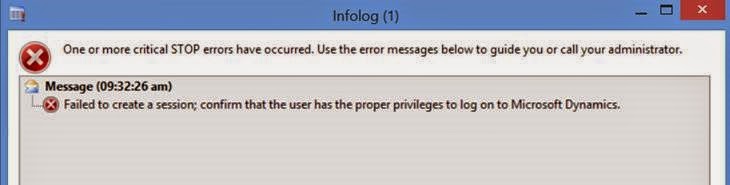
Failed to create session during database synchronization

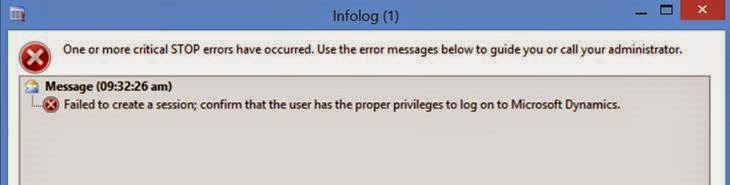
Error : Failed to create session during database synchronization

Solution : 
Check System Service Account user have db_datareader, db_datawriter, db_ddladmin and db_owner permission on database

If you Import contoso database using Data Transfer Tool and upgrade it to CU12:

  • I believe the reason for recreating partitions is because when you import the Demo Data using Data Transfer Tool some system tables are left untouched, including UserInfo table, and the cockpit needs an Admin account for each partition to use on “RunAs”.
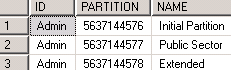
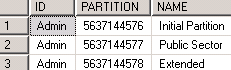
  • The Demo Data consists of three partitions, Initial (default), Public Sector and Extended, for some reason when I deleted the partitions and created again, it didn’t create an Admin account for every new partition.
  • My solution was to create an Admin account for each partition through job in Dynamics AX.

static void CreateUserAdmin(Args _args)
{
       UserInfo userInfo;
       select userInfo where userInfo.id == ‘Admin’;
       userInfo.(fieldNum(UserInfo, Partition)) = 5637144578;
       userInfo.insert();
}

  • This job selects a record from UserInfo with ID equals to Admin and then it modifies the field partition to a manual value, that’s why I had to use “(fieldNum(UserInfo, Partition))”, otherwise AX won’t let me assign a value manually.
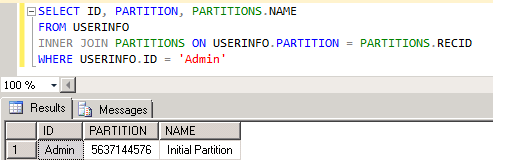
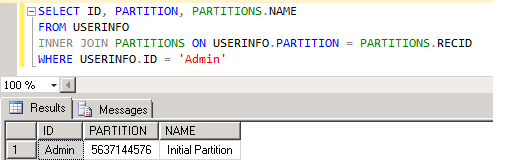
  • Checking records through SQL Management Studio again using below query 

SELECT ID, PARTITION, PARTITIONS.NAME
FROM USERINFO
INNER JOIN PARTITIONS ON USERINFO.PARTITION = PARTITIONS.RECID
WHERE USERINFO.ID = ‘Admin’

  • After completed above procedure restart  AOS service and check Upgrade Cockpit.

Failed to create session during database synchronization

Error : Failed to create session during database synchronization

Solution : 
Check System Service Account user have db_datareader, db_datawriter, db_ddladmin and db_owner permission on database

If you Import contoso database using Data Transfer Tool and upgrade it to CU12:

  • I believe the reason for recreating partitions is because when you import the Demo Data using Data Transfer Tool some system tables are left untouched, including UserInfo table, and the cockpit needs an Admin account for each partition to use on “RunAs”.
  • The Demo Data consists of three partitions, Initial (default), Public Sector and Extended, for some reason when I deleted the partitions and created again, it didn’t create an Admin account for every new partition.
  • My solution was to create an Admin account for each partition through job in Dynamics AX.

static void CreateUserAdmin(Args _args)
{
       UserInfo userInfo;
       select userInfo where userInfo.id == ‘Admin’;
       userInfo.(fieldNum(UserInfo, Partition)) = 5637144578;
       userInfo.insert();
}

  • This job selects a record from UserInfo with ID equals to Admin and then it modifies the field partition to a manual value, that’s why I had to use “(fieldNum(UserInfo, Partition))”, otherwise AX won’t let me assign a value manually.
  • Checking records through SQL Management Studio again using below query 

SELECT ID, PARTITION, PARTITIONS.NAME
FROM USERINFO
INNER JOIN PARTITIONS ON USERINFO.PARTITION = PARTITIONS.RECID
WHERE USERINFO.ID = ‘Admin’

  • After completed above procedure restart  AOS service and check Upgrade Cockpit.

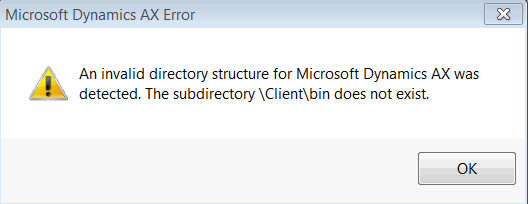
AX 2009 client raise error: "An invalid directory structure for Microsoft Dynamics AX was detected"

Error: AX 2009 client raise error: “An invalid directory structure for Microsoft Dynamics AX was detected”


Solution: There are 2 solutions either change in registry in all user or perform silent installation of dynamics ax 2009 client with predefined path.

Problem occur due to below registry entry:
[HKEY_CURRENT_USER\Software\Microsoft\Dynamics\5.0\Configuration\Original (installed configuration)]
“bindir”=”\Client\Bin”
“datadir”=”Client\Data”
“directory”=”\Client”

Make changes as follow: 

[HKEY_CURRENT_USER\Software\Microsoft\Dynamics\5.0\Configuration\Original (installed configuration)] [For x64 based system]
“bindir”=”C:\Program Files (x86)\Microsoft Dynamics AX\50\Client\Bin”
“datadir”=”C:\Program Files (x86)\Microsoft Dynamics AX\50\Client\Data”
“directory”=”C:\Program Files (x86)\Microsoft Dynamics AX\50\Client”

[HKEY_CURRENT_USER\Software\Microsoft\Dynamics\5.0\Configuration\Original (installed configuration)] [For x86 based system]
“bindir”=”C:\Program Files\Microsoft Dynamics AX\50\Client\Bin”
“datadir”=”C:\Program Files\Microsoft Dynamics AX\50\Client\Data”
“directory”=”C:\Program Files\Microsoft Dynamics AX\50\Client”

This is manual configuration in all client machine. To install ax client silent way copy AX 2009 source in on folder and run below command prompt [cmd.exe]

D:\setup SETUPLANGUAGE=EN ConfigurePrerequisites=1 HideUI=1 AcceptLicenseTerms=1 InstallPath=”C:\Program Files\Microsoft Dynamics AX\50″ InstallPath32Bit=”C:\Program Files (x86)\Microsoft Dynamics AX\50″ InstallClientUI=1 ClientConfig=1 ClientAosServer=AOS-Server ClientLanguage=en-US ClientHelpLanguages=en-US;en-US
  

AX 2009 client raise error: "An invalid directory structure for Microsoft Dynamics AX was detected"

Error: AX 2009 client raise error: “An invalid directory structure for Microsoft Dynamics AX was detected”


Solution: There are 2 solutions either change in registry in all user or perform silent installation of dynamics ax 2009 client with predefined path.

Problem occur due to below registry entry:
[HKEY_CURRENT_USER\Software\Microsoft\Dynamics\5.0\Configuration\Original (installed configuration)]
“bindir”=”\Client\Bin”
“datadir”=”Client\Data”
“directory”=”\Client”

Make changes as follow: 

[HKEY_CURRENT_USER\Software\Microsoft\Dynamics\5.0\Configuration\Original (installed configuration)] [For x64 based system]
“bindir”=”C:\Program Files (x86)\Microsoft Dynamics AX\50\Client\Bin”
“datadir”=”C:\Program Files (x86)\Microsoft Dynamics AX\50\Client\Data”
“directory”=”C:\Program Files (x86)\Microsoft Dynamics AX\50\Client”

[HKEY_CURRENT_USER\Software\Microsoft\Dynamics\5.0\Configuration\Original (installed configuration)] [For x86 based system]
“bindir”=”C:\Program Files\Microsoft Dynamics AX\50\Client\Bin”
“datadir”=”C:\Program Files\Microsoft Dynamics AX\50\Client\Data”
“directory”=”C:\Program Files\Microsoft Dynamics AX\50\Client”

This is manual configuration in all client machine. To install ax client silent way copy AX 2009 source in on folder and run below command prompt [cmd.exe]

D:\setup SETUPLANGUAGE=EN ConfigurePrerequisites=1 HideUI=1 AcceptLicenseTerms=1 InstallPath=”C:\Program Files\Microsoft Dynamics AX\50″ InstallPath32Bit=”C:\Program Files (x86)\Microsoft Dynamics AX\50″ InstallClientUI=1 ClientConfig=1 ClientAosServer=AOS-Server ClientLanguage=en-US ClientHelpLanguages=en-US;en-US
  

Error message: The DefaultValue expression for the report parameter ‘AX_CompanyName’ contains an error

Error: Error while setting server report parameters. Error message: The DefaultValue expression for the report parameter ‘AX_CompanyName’ contains an error: Request for the permission of type ‘System.Security.Permissions.EnvironmentPermission, mscorlib, Version=2.0.0.0, Culture=neutral, PublicKeyToken=b77a5c561934e089’ failed. (rsRuntimeErrorInExpression)

Solution:
The error seems to occur mostly with Reporting Services that have been configured to use a Microsoft Dynamics AX configuration file, Microsoft.Dynamics.AX.ReportConfiguration.axc.
The solution to this problem is to change the permission set name on the Report_Expressions_Default_Permissions in the rssrvpolicy.config file within the SSRS reportserver directory.

=====================================================================================
Standard configuration:
=====================================================================================
<CodeGroup class=”UnionCodeGroup” version=”1″ PermissionSetName=”Execution” Name=”Report_Expressions_Default_Permissions” Description=”This code group grants default permissions for code in report expressions and Code element. “>
[…]

=====================================================================================
New configuration:
=====================================================================================
<CodeGroup class=”UnionCodeGroup” version=”1″ PermissionSetName=”FullTrust
Name=”Report_Expressions_Default_Permissions” Description=”This code group grants default permissions for code in report expressions and Code element. “>
[..]

=====================================================================================

Error: Duplicate type with name ‘Dynamics.Ax.application.*’ in assembly when generate Full CIL

Duplicate type with name ‘Dynamics.Ax.application.*’ in assembly when generate full CIL.  As a result of this issue is many things within AX may stop working and if you go into
/System administration/Setup/Services and Application Integration Framework/Inbound Ports you will see many of the services have stopped and can not be restarted this causing issues within the AX instance.

Solution : Perform below steps to resolve this issue:

  • Stop all AOS instances
  • Delete all files on the AOS server under C:\Program Files\Microsoft Dynamics AX\60\Server\\bin\XppIL
  • Connect to the model database via SQL Management studio
  • Truncate the table SYSXPPASSEMBLY which lists all of the fies found in XppIL
  • You can do this via the command: TRUNCATE TABLE SYSXPPASSEMBLY
  • Start AOS service
  • Run Full CIL