Error message: The DefaultValue expression for the report parameter ‘AX_CompanyName’ contains an error

Error: Error while setting server report parameters. Error message: The DefaultValue expression for the report parameter ‘AX_CompanyName’ contains an error: Request for the permission of type ‘System.Security.Permissions.EnvironmentPermission, mscorlib, Version=2.0.0.0, Culture=neutral, PublicKeyToken=b77a5c561934e089’ failed. (rsRuntimeErrorInExpression)

Solution:
The error seems to occur mostly with Reporting Services that have been configured to use a Microsoft Dynamics AX configuration file, Microsoft.Dynamics.AX.ReportConfiguration.axc.
The solution to this problem is to change the permission set name on the Report_Expressions_Default_Permissions in the rssrvpolicy.config file within the SSRS reportserver directory.

=====================================================================================
Standard configuration:
=====================================================================================
<CodeGroup class=”UnionCodeGroup” version=”1″ PermissionSetName=”Execution” Name=”Report_Expressions_Default_Permissions” Description=”This code group grants default permissions for code in report expressions and Code element. “>
[…]

=====================================================================================
New configuration:
=====================================================================================
<CodeGroup class=”UnionCodeGroup” version=”1″ PermissionSetName=”FullTrust
Name=”Report_Expressions_Default_Permissions” Description=”This code group grants default permissions for code in report expressions and Code element. “>
[..]

=====================================================================================
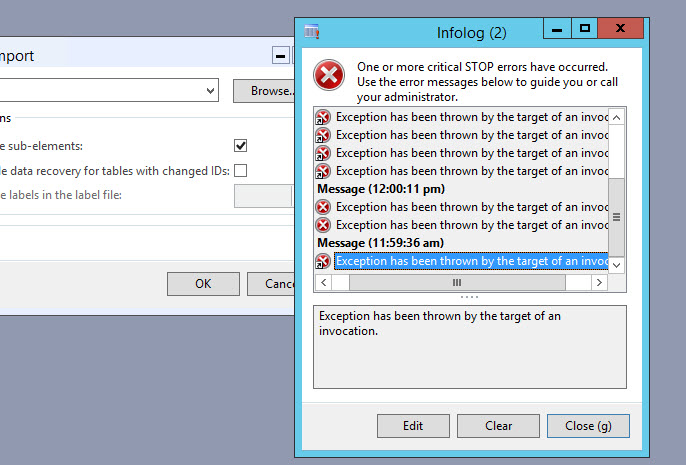
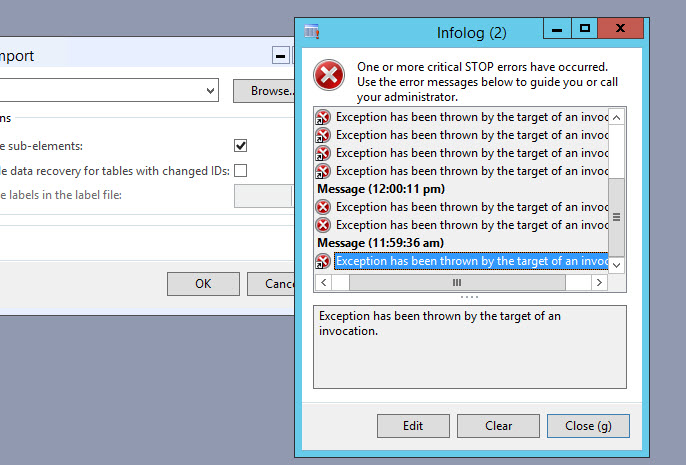
Exception has been Thrown by the target of an invocation Dynamics Ax

Description: Exception has been Thrown by the target of an invocation Dynamics Ax error occurred.


Procedure:  This error occur due to failed name resolution. So to resolve issue change Database server configuration in dynamics ax server configuration add IP address of SQL server instead of name of server. This issue generally due to name not resolved or if you do not want to change ip address instead of name then you need to restart DNS client Service in AOS server.

Label ID Display Instead Of Label Text

Description: In Dynamics AX label ID display instead of Label Text

Procedure: There are 2 solutions for remove label ID  are as follow:
Solution 1:

  • Stop AOS service 
  • Remove all .auc files from all user profile [C:\Users\username\AppData\Local] path
  • Start AOS service and check
Solution 2:
  • Get all users out of the system and Stop all AOS servers
  • On each AOS, Go to the App location C:\Program Files\Microsoft Dynamics AX\60\Server\MicrosoftDynamicsAX\bin\Application\App\Standard
  • Remove all files in the standard folder, but leave the subfolders, such as Tmp and DB.
  • Start each AOS which will create the necessary labels and files in this folder.
  • Check the labels are update correctly or not.

Error: Duplicate type with name ‘Dynamics.Ax.application.*’ in assembly when generate Full CIL

Duplicate type with name ‘Dynamics.Ax.application.*’ in assembly when generate full CIL.  As a result of this issue is many things within AX may stop working and if you go into
/System administration/Setup/Services and Application Integration Framework/Inbound Ports you will see many of the services have stopped and can not be restarted this causing issues within the AX instance.

Solution : Perform below steps to resolve this issue:

  • Stop all AOS instances
  • Delete all files on the AOS server under C:\Program Files\Microsoft Dynamics AX\60\Server\\bin\XppIL
  • Connect to the model database via SQL Management studio
  • Truncate the table SYSXPPASSEMBLY which lists all of the fies found in XppIL
  • You can do this via the command: TRUNCATE TABLE SYSXPPASSEMBLY
  • Start AOS service
  • Run Full CIL

Exception has been Thrown by the target of an invocation Dynamics Ax

Description: Exception has been Thrown by the target of an invocation Dynamics Ax error occurred.


Procedure:  This error occur due to failed name resolution. So to resolve issue change Database server configuration in dynamics ax server configuration add IP address of SQL server instead of name of server. This issue generally due to name not resolved or if you do not want to change ip address instead of name then you need to restart DNS client Service in AOS server.

Label ID Display Instead Of Label Text

Description: In Dynamics AX label ID display instead of Label Text

Procedure: There are 2 solutions for remove label ID  are as follow:
Solution 1:

  • Stop AOS service 
  • Remove all .auc files from all user profile [C:\Users\username\AppData\Local] path
  • Start AOS service and check
Solution 2:
  • Get all users out of the system and Stop all AOS servers
  • On each AOS, Go to the App location C:\Program Files\Microsoft Dynamics AX\60\Server\MicrosoftDynamicsAX\bin\Application\App\Standard
  • Remove all files in the standard folder, but leave the subfolders, such as Tmp and DB.
  • Start each AOS which will create the necessary labels and files in this folder.
  • Check the labels are update correctly or not.

Restore Database To Lower Version in MSSQL

Description: Restore database from Higher Version of MSSQL to Lower Version
Procedure:

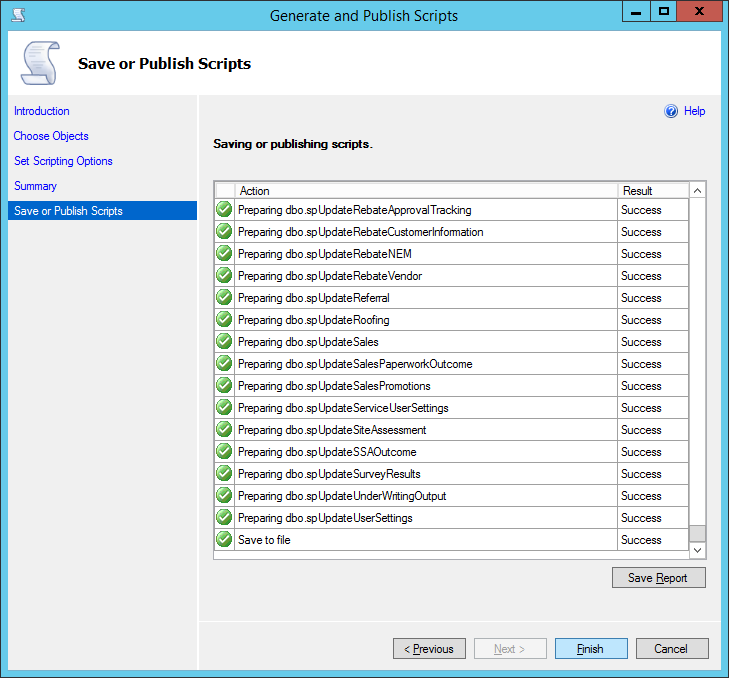
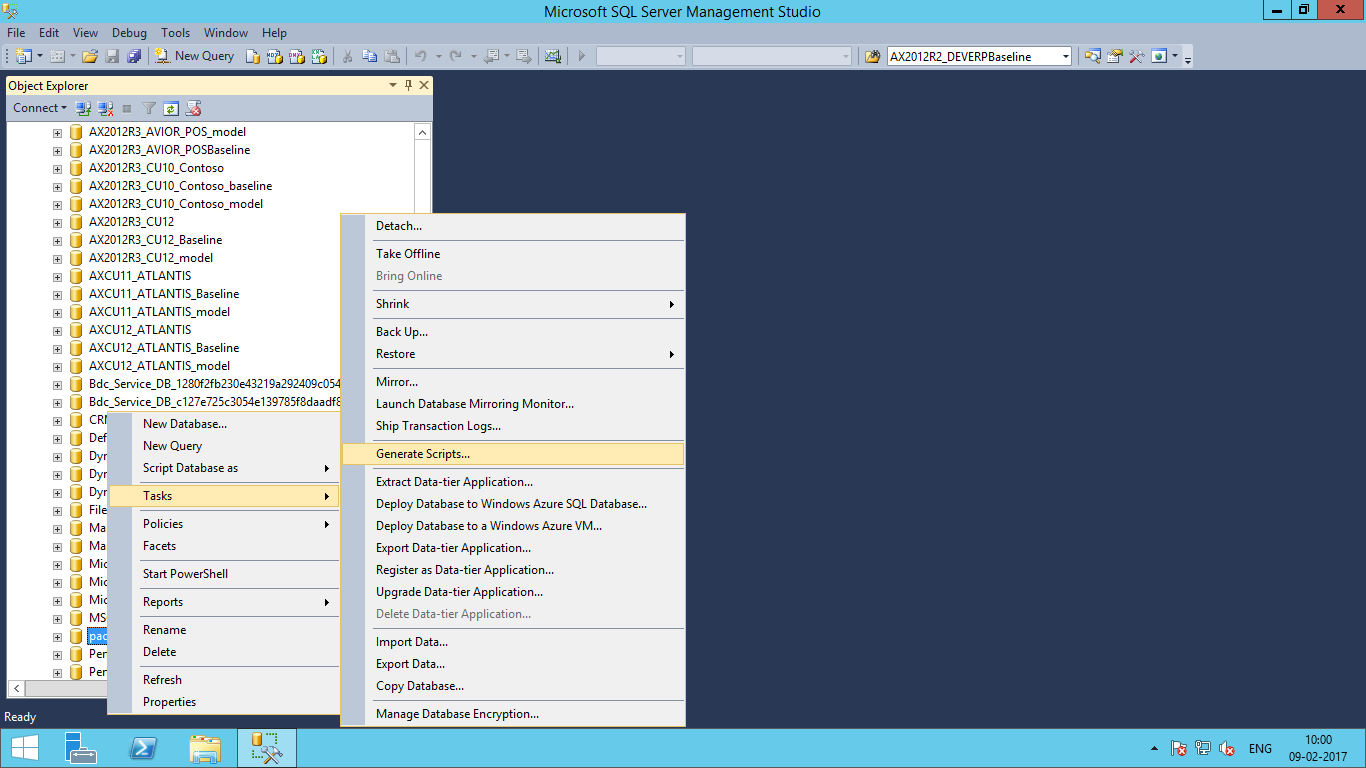
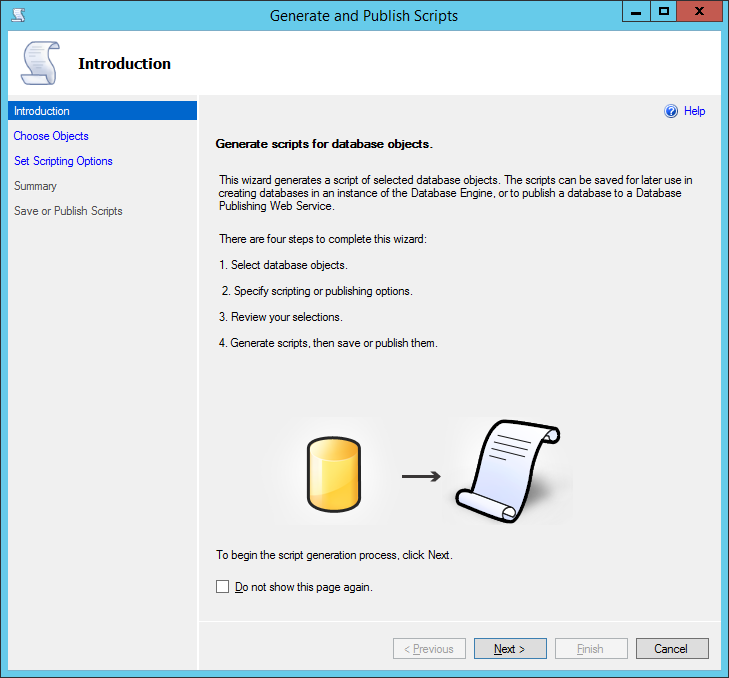
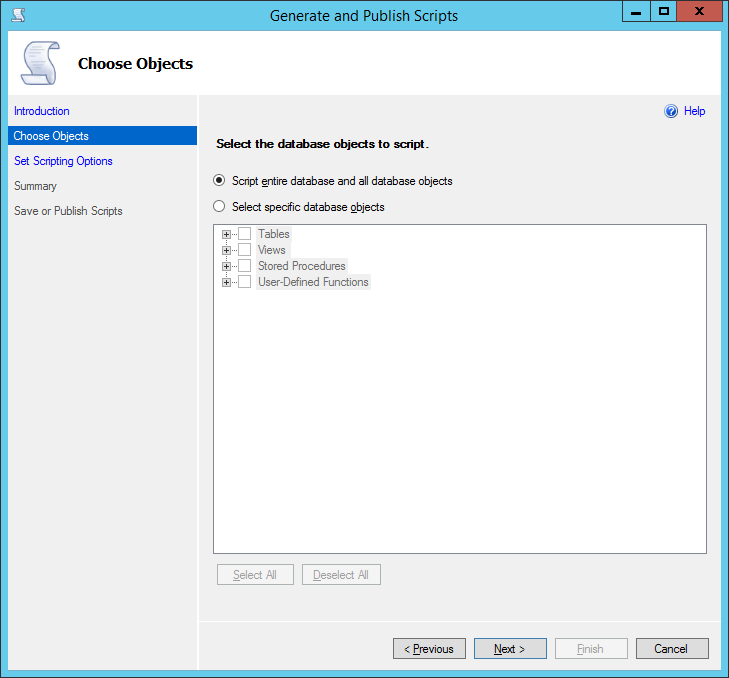
  • Open SQL server management studio in 2014
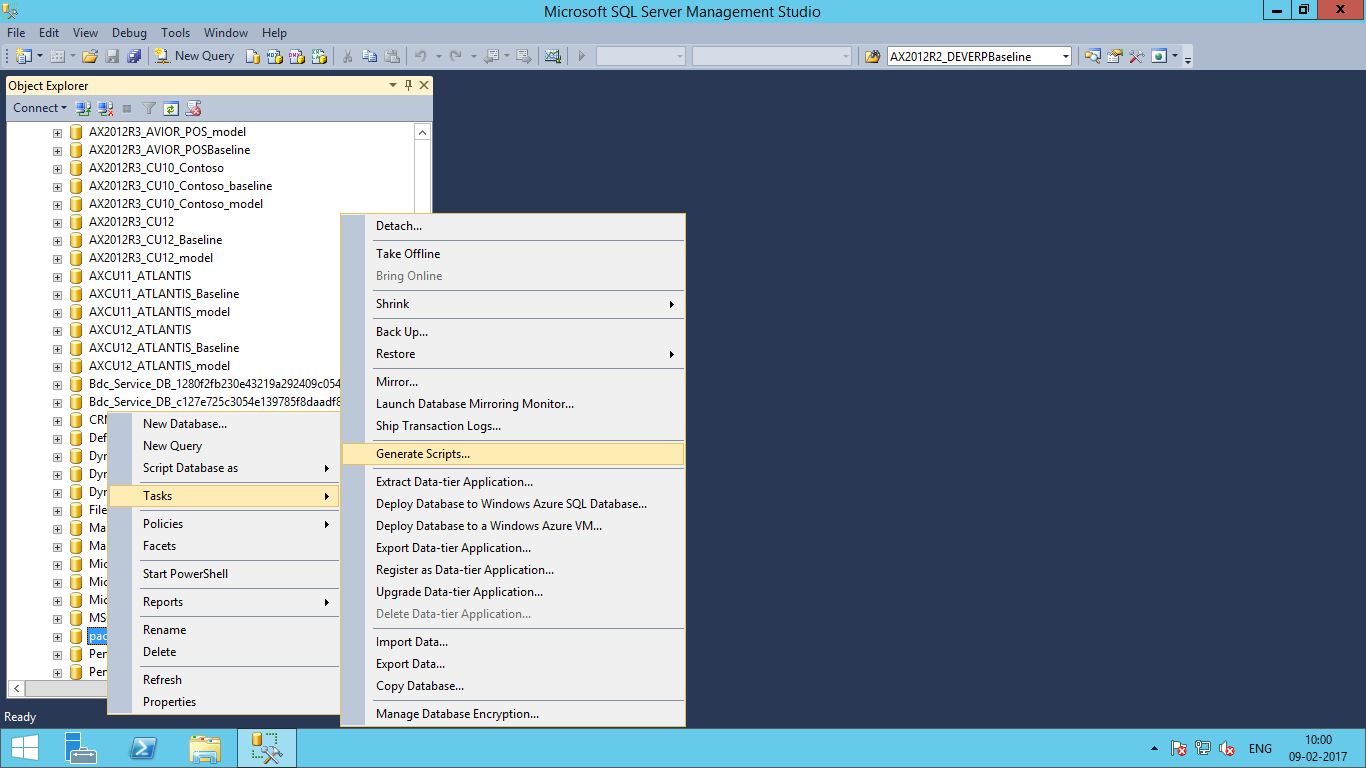
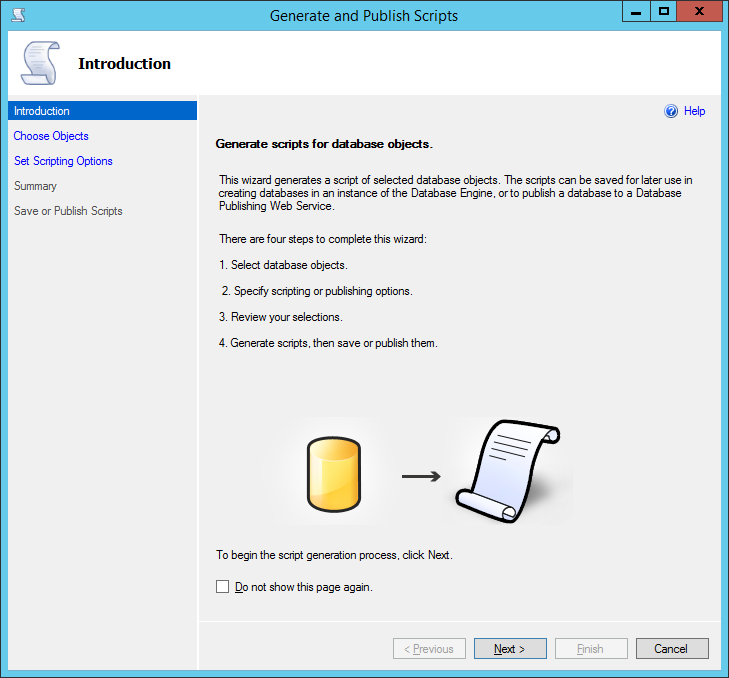
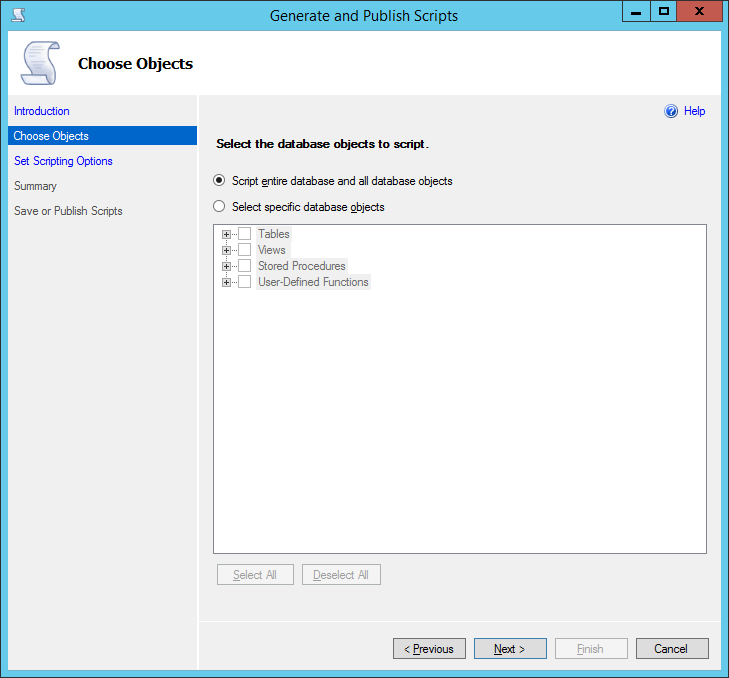
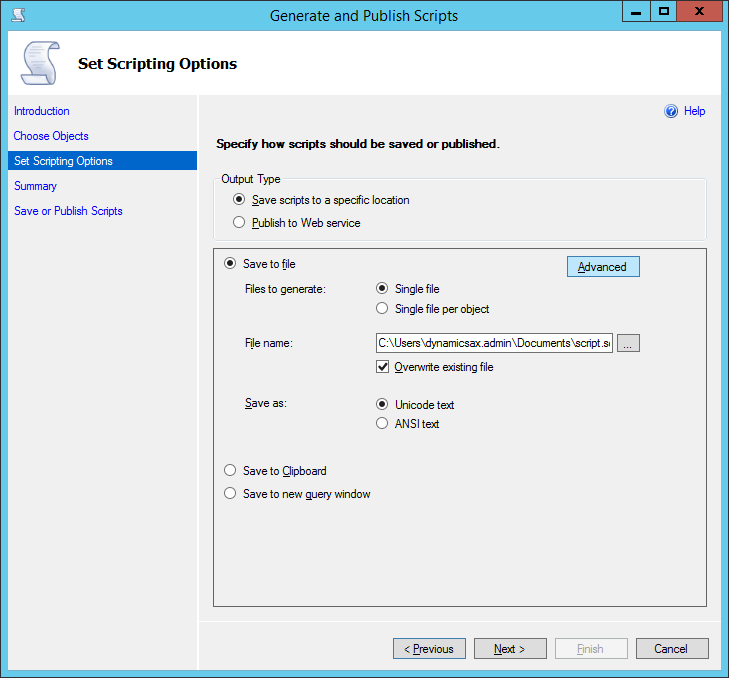
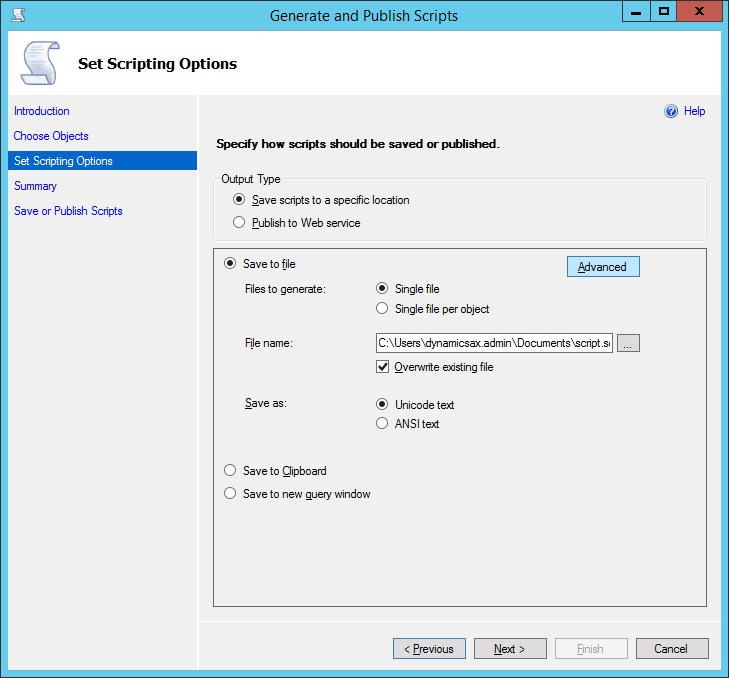
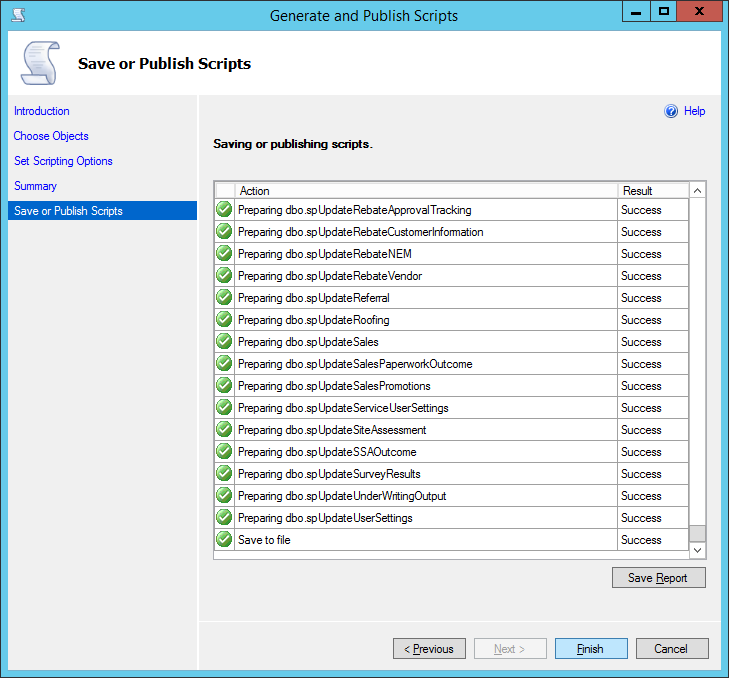
  • Right Click on Database > Tasks > Generate Script

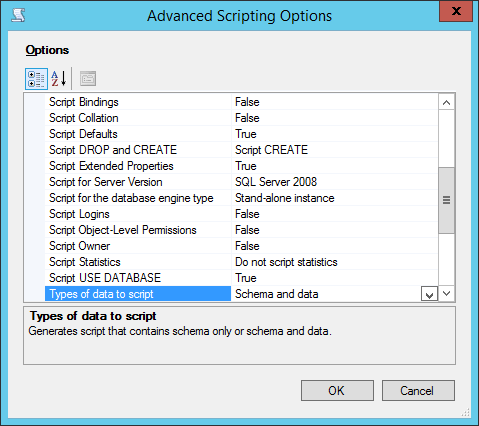
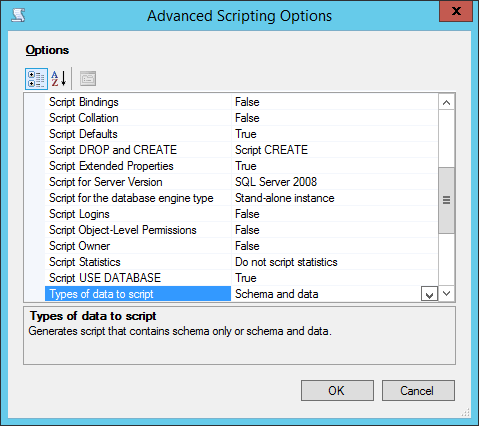
  • Click on Advanced
  • Make 2 Changes
  • Script for server Version : SQL Server 2008
  • Types of data to script : Schema and data

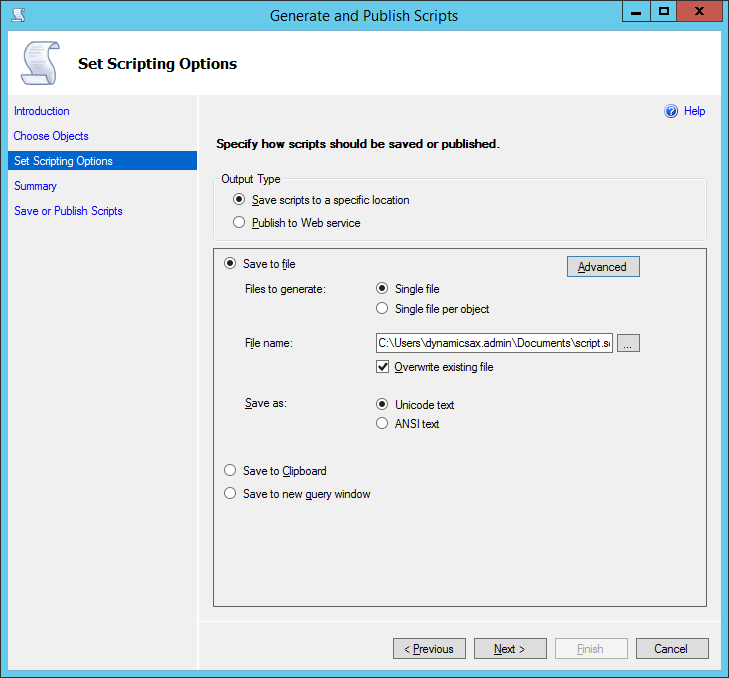
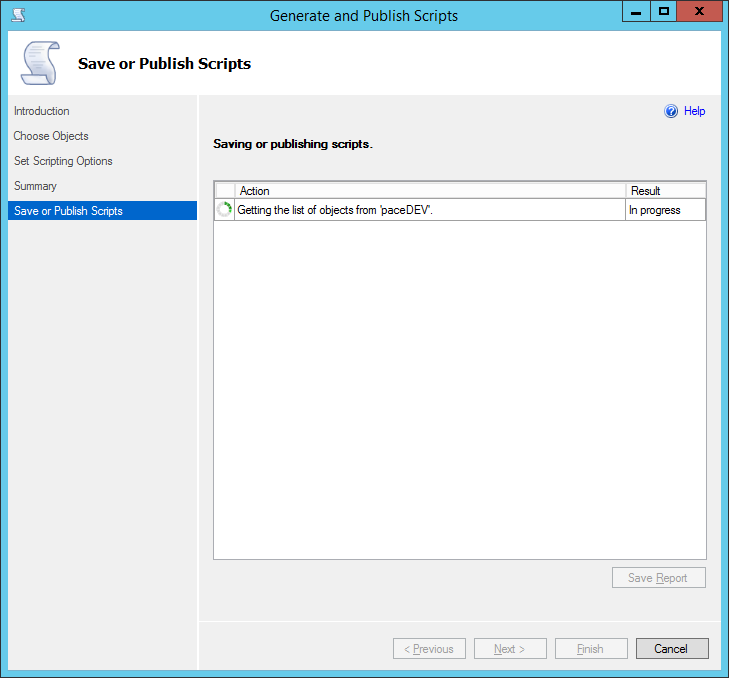
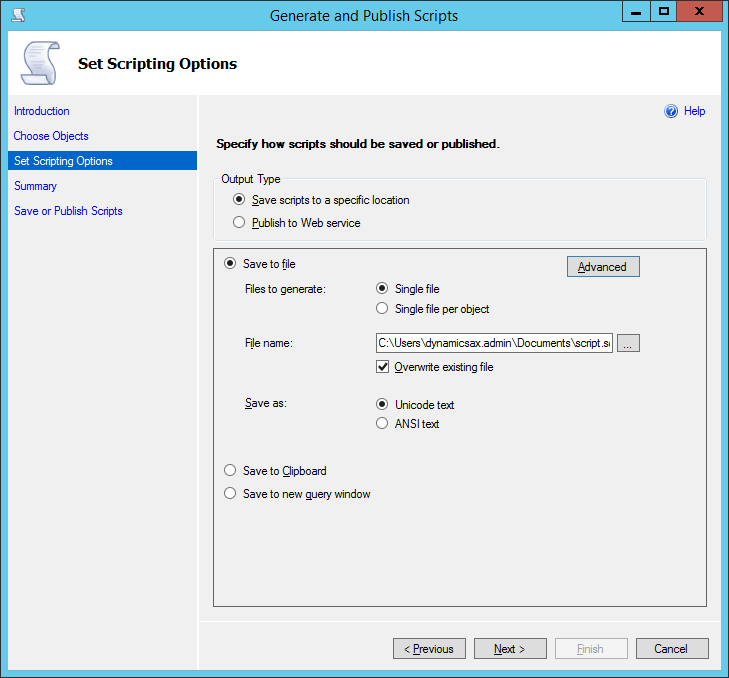
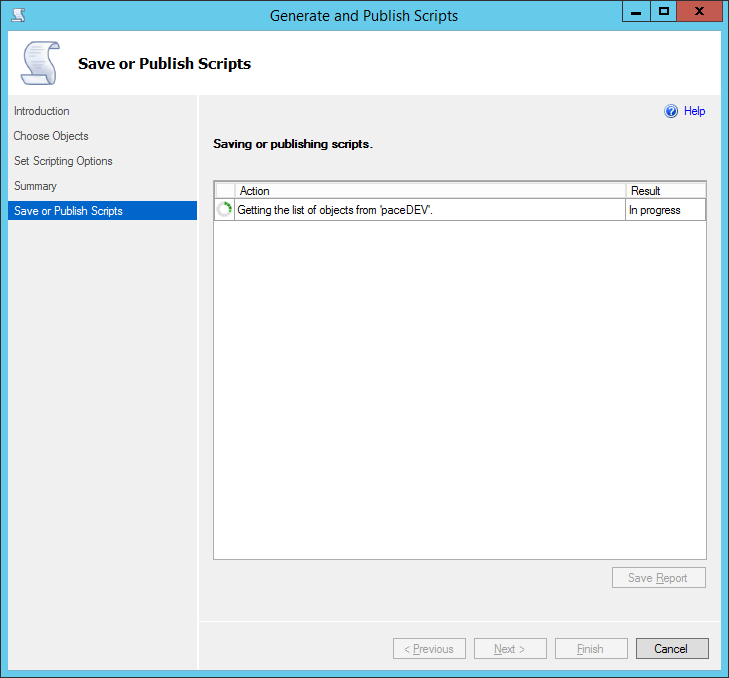
  • After completed open query in SQL management studio and change location of datadir and log file according destination database server and save file in .sql
  • Open .sql file in destination server that will create database and migrate all data in new database server.

Restore Database To Lower Version in MSSQL

Description: Restore database from Higher Version of MSSQL to Lower Version
Procedure:

  • Open SQL server management studio in 2014
  • Right Click on Database > Tasks > Generate Script

  • Click on Advanced
  • Make 2 Changes
  • Script for server Version : SQL Server 2008
  • Types of data to script : Schema and data

  • After completed open query in SQL management studio and change location of datadir and log file according destination database server and save file in .sql
  • Open .sql file in destination server that will create database and migrate all data in new database server.

Block Domain to Send Mail in CPanel

Description: If any domain send huge spam then you can block domain to send mail
Procedure:

  • Open SSH console using root user
  • Check /etc/blockeddomains file exists or not
  • Add domain name in this file that you want to block using below command
    • # echo “thedomain.com” > /etc/blockeddomains
  • After add it set permission on this file using below command
    • # chown root.mail  /etc/blockeddomains
    • # chmod 644 /etc/blockeddomains
  • Login WHM and go to “EXIM Configuration Manager”
    • WHM – Service Configuration – Exim Configuration Manager – Advance Editor
  • Search for “Add additional configuration setting” This can be located by fourth of the way of scroll down
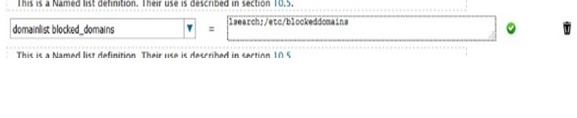
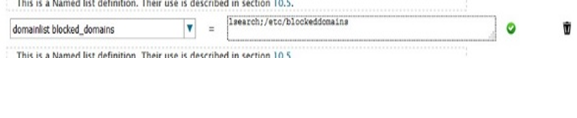
  • Add entry : domainlist blocked_domains = lsearch;/etc/blockeddomains


  • Search for “ROUTERSTART”  and add following entry
  • reject_domains:
    driver = redirect
    domains = +blocked_domains
    allow_fail
    data = :fail: Connection rejected: SPAM source $domain is manually blacklisted.
  • Restart exim service after make changes
  • If you want to add more domain then add entry it in  /etc/blockeddomains
     

Block Domain to Send Mail in CPanel

Description: If any domain send huge spam then you can block domain to send mail
Procedure:

  • Open SSH console using root user
  • Check /etc/blockeddomains file exists or not
  • Add domain name in this file that you want to block using below command
    • # echo “thedomain.com” > /etc/blockeddomains
  • After add it set permission on this file using below command
    • # chown root.mail  /etc/blockeddomains
    • # chmod 644 /etc/blockeddomains
  • Login WHM and go to “EXIM Configuration Manager”
    • WHM – Service Configuration – Exim Configuration Manager – Advance Editor
  • Search for “Add additional configuration setting” This can be located by fourth of the way of scroll down
  • Add entry : domainlist blocked_domains = lsearch;/etc/blockeddomains


  • Search for “ROUTERSTART”  and add following entry
  • reject_domains:
    driver = redirect
    domains = +blocked_domains
    allow_fail
    data = :fail: Connection rejected: SPAM source $domain is manually blacklisted.
  • Restart exim service after make changes
  • If you want to add more domain then add entry it in  /etc/blockeddomains