Install Zabbix Agent on Centos 7

Description: Here I have explained how to install Zabbix Agent on Centos 7

Procedure: Below is the procedure to install Zabbix agent on Centos 7
  • Update and Upgrade packages on systems 
  # yum update
# yum upgrade
  • Install Zabbix Repository
# yum install https://repo.zabbix.com/zabbix/4.2/rhel/7/x86_64/zabbix-release-4.2-1.el7.noarch.rpm
  • Install Zabbix Agent on CentOS 7
# yum install zabbix-agent
  • Once the installation completed configure zabbix agent in order to communicate Zabbix server. The default file is /etc/zabbix/zabbix_agentd.conf 
  • Edit server details as follow.
Server=103.67.236.58
ServerActive=103.67.236.58
Hostname=test1.example.com
  • Configure firewall to allow traffic port for passive check
firewall-cmd --add-port=10050/tcp --permanent 
firewall-cmd --reload
  • Start and Enable service boot time
systemctl start zabbix-agent
systemctl enable zabbix-agent
  • Add Centos server from Zabbix

Install Zabbix Agent on Windows Server

Description: Here I have explained how to install zabbix agent on windows server

Procedure: 

  • Download the agent from URL https://www.zabbix.com/download_agents/
  • Extract zip file 
  • Make a directory and copy all files in same directory like c:\zabbix
  • Open zabbix agent configuration file zabbix_agentd_win.conf and modify below changes 
Server=103.67.236.58
ServerActive=103.67.236.58
  • Register as windows service using below command
  c:\zabbix\zabbix_agentd.exe -c c:\zabbix\zabbix_agentd.win.conf -i
  • Start service after register

  • Once agent installed add device in zabbix

Setup Virtual Host [Server Blocks] in Nginx

Description: Here I have explained how to Setup Virtual Host [Server Blocks] in Nginx

Server Blocks, often referred to as Nginx virtual host are a feature of the Nginx web server that allows you to host multiple websites on one server. As opposed to setting up and configuring a server for each domain, hosting a number of websites on a single machine saves both time and money.

Procedure: 

Create Directory Structure: To host multiple site on Nginx need to create individual directory structure to store data. In example I have created 2 site virtual host under /var/www directory

# mkdir -p /var/www/site1.com/html
# mkdir -p /var/www/site2.com/html
 Change Permission on directory: Change ownership on both site directories using chown command

# chown -R $user1.$user1 /var/www/site1.com/html
# chown -R $user2.$user2 /var/www/site2.com/html
# chmod -R 755 /var/www
Create index.html in both Directory: Create index.html file on both site directory respectively.
Setup Environment for Server Block: Before setup server block need to create 2 directory for setup.
  • Sites-available : Directory store server blocks 
  • Sites-enable : Directory which tell Nginx to publish and block share content
Open Nginx configuration and modify file

vi /etc/nginx/nginx.config [ Inside http block add following two lines]
include /etc/nginx/sites-enabled/*.conf
server_names_hash_bucket_size 64;
nginx configuration file
First line to check sites-enabled directory and second line for increase memory is reserved for examine multiple domain name.
After made changes run below command to verify the configuration
# nginx -t 
If syntax is OK then test was successful as in image.
testing nginx configuration with output that the test is sucessful
Create Virtual Host for the first website with cp and make a copy exact copy of file
# cp /etc/nginx/conf.d/default.conf /etc/nginx/sites-available/site1.com.conf
Open configuration file using vi editor
# vi /etc/nginx/sites-available/site1.com.conf
cloned nginx default configuration file displayed
You need to edit below 3 lines in configuration 
        server name site1.com http://www.site1.com;
        root /var/www/site1.com/html;
        try_files $uri $uri/ =404;
Same configuration you need to done for site2 just need to change name.
Enable Site configuration or Server block: To enable configuration need to link site available with site enable. 

# ln -s /etc/nginx/sites-available/site1.com.conf   /etc/nginx/sites-enabled/site1.com.conf
Restart Nginx Service:

# systemctl restart nginx 
# vi  /etc/hosts
ip_address site1.com
ip_address site2.com
Verify Server Blocks Setup

How to Install Nginx on Centos 7

Description: Here I have explained how to install and configure Nginx on Centos 7.

Procedure: Nginx (pronounced Engine X) is popular web server with good performance and it is alternate of Apache web server. Nginx also works as load balancer, reverse proxy and standard mail server.
Prerequisites:
  • Centos 7 server
  • Root privileges
  • Selinux setup properly

Update Repository Package List

# yum -y update
Install Extra Packages for Enterprise Linux [EPEL]

# yum install -y epel-release
Install Nginx 

# yum install -y nginx 
Start and Enable Nginx Service

# systemctl start nginx
# systemctl enable nginx
Note: If you have already install and running apache/ http, Disable it before install nginx
Enable port from firewall 

# firewall-cmd  –zone=public –permanent –add-service=http
# firewall-cmd  –zone=public –permanent –add-service=https
Verify Nginx by browse your IP Address in Browser.

How to install Zabbix on Centos-7

Procedure: Here I have explained how to install zabbix on Centos-7

Prerequisites:
  • Centos 7 Sever 
  • Root Privileges
Steps:
Install Apache2/httpd : First we install http on centos server using below command.
  start and enable service after install. 
# yum -y install httpd
# systemctl start httpd
# systemctl enable httpd

Install PHP 7.2 on Centos 7: Before install php 7.2 we will install webtatic and the EPEL repository to the system.


# yum -y install epel-release
# rpm -Uvh https://mirror.webtatic.com/yum/el7/webtatic-release.rpm

Install PHP using below command

 # yum -y install mod_php72w php72w-cli php72w-common php72w-devel php72w-pear php72w-gd php72w-mbstring php72w-mysql php72w-xml php72w-bcmath

Once Installation complete make below changes on php.ini PHP configuration file locate on /etc/php.ini

 
# vi /etc/php.ini
max_execution_time = 600
max_input_time = 600
memory_limit = 256M
post_max_size = 32M
upload_max_filesize = 16M
date.timezone = Asia/Kolkata

Once file modified restart httpd service

# systemctl restart httpd

Install and Configure MariaDB: Zabbix supports many database including MySQL, PostgreSQL, SQLite, Oracle Database. We will install MariaDB as a database for Installation.

# yum -y install mariadb-server

After installation start and enable mariadb service

# systemctl start mariadb
# systemctl enable mariadb

Configure MariaDB using below command and setup root password

# mysql_secure_installation

Create Database and user for zabbix. Assigned rights for same.

# mysql -u root -p

create database zabbixdb;
grant all privileges on zabbixdb.* to zabbixuser@'localhost' identified by 'password';
grant all privileges on zabbixdb.* to zabbixuser@'%' identified by 'password';
flush privileges;

Install and Configure Zabbix 3.4

Add zabbix repository to Centos 7 and Install zabbix
 
# yum -y install http://repo.zabbix.com/zabbix/3.4/rhel/7/x86_64/zabbix-release-3.4-1.el7.centos.noarch.rpm

# yum -y install zabbix-get zabbix-server-mysql zabbix-web-mysql zabbix-agent

Import Database: Import database from backup Zabbix database sample to our ‘zabbix’ database

# cd /usr/share/doc/zabbix-server-mysql-3.4.6/
# gunzip create.sql.gz
# mysql -u root -p zabbixdb < create.sql

Configure Zabbix: Configure zabbix by change below in configuration file.
# vi /etc/zabbix/zabbix_server.conf
DBHost=localhost
DBPassword=password

Start and Enable Zabbix service using below command

 
# systemctl start zabbix-server
# systemctl enable zabbix-server

Allow Require port in firewall and reload it.

# firewall-cmd --add-service={http,https} --permanent
# firewall-cmd --add-port={10051/tcp,10050/tcp} --permanent
# firewall-cmd --reload
# firewall-cmd --list-all

User Name : Admin 
Password : zabbix

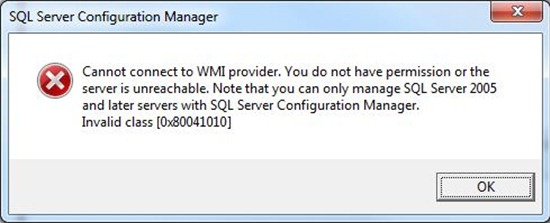
SQL Server Config Manager error ‘Cannot connect to WMI provider’

Description: Here I have explained how to resolved SQL Config Manager error ‘Cannot Connect to WMI Provider’

Procedure: 
  • Open command prompt Run As Administrator
  • Go to SQL shared configuration folder as per your SQL version
SQL 2008: C:\Program Files (x86)\Microsoft SQL Server\100\Shared\
SQL 2012: C:\Program Files (x86)\Microsoft SQL Server\110\Shared\
SQL 2014: C:\Program Files (x86)\Microsoft SQL Server\120\Shared\
SQL 2017: C:\Program Files (x86)\Microsoft SQL Server\140\Shared\
You can find more version here
# C:\WINDOWS\system32>cd "C:\Program Files (x86)\Microsoft SQL Server\140\Shared"

# C:\Program Files (x86)\Microsoft SQL Server\140\Shared>mofcomp sqlmgmproviderxpsp2up.mof"
Note: The problem occurs because the Windows Management Instrumentation (WMI) provider configuration file for manage SQL Server services is missing.so,mofcomp command repair or recreate it.

Map Network Drive to Azure File Storage

Description: Here I have explained how to map Network Drive to Azure File Storage

What is Azure Storage?
Azure Storage is the cloud storage solution for modern applications. You can store as much data as you want and use it in many different ways based on the usage scenario you are interested in. It is accessible from anywhere in the world, from any type of application, whether it’s running on the cloud, on the desktop, on an on-premises server, or on a mobile or tablet device.

There are four storage service provide by Azure

  • Blob Storage stores unstructured object data. A blob can be any type of text or binary data, such as a document, a media file, or an application installer. Blob storage is also referred to as Object storage.
  • Table Storage stores structured datasets. Table storage is a NoSQL key-attribute data store, which allows for rapid development and fast access to large quantities of data.
  • Queue Storage provides reliable messaging for workflow processing and for communication between components of cloud services.
  • File Storage, which we are going to use in this post, offers shared storage for legacy applications using the standard SMB protocol. Azure virtual machines and cloud services can share file data across application components via mounted shares, and on-premises applications can access file data in a share via the File service REST API.
What is File Storage?
Azure File storage is a service that offers file shares in the cloud using the standard Server Message Block (SMB) Protocol (SMB 2.1 or SMB 3.0). You can mount a File Storage share to access file data, just as you would mount a typical SMB share. There is no limitation to the number of computers or roles that can mount and access the File storage share simultaneously. While in the cloud, you can scale as much as you want based on your needs.
File Storage contains the following components:
  • Storage account that provides access to Azure Storage.
  • Share which is an SMB file share in Azure. All directories and files must be created in a parent share. An account can contain an unlimited number of shares, and a share can store an unlimited number of files, up to the 5 TB total capacity of the file share
  • Directory which is nothing more than an optional hierarchy of directories.
  • File that stands for the actual file and that can be up to 1 TB in size.
Create Storage Account

First of all you need to create a storage account that will give you access to the File Storage service that you are going to use. You can do that through the Azure portal:
  • specify a Name, which shall be unique across all storage account names in Azure,
  • select the deployment model; for new applications, Resource Manager is a better choice as it provides more benefits,
  • choose between standard and premium performance; in our case standard is better, as data is stored in magnetic drives and it provides lower costs per GB,
  • select the replication strategy that matches your durability requirements, in our case Locally-Redundant Storage (LRS) replicates data within the region in which you created your storage account by creating 3 copies on separate nodes,
  • create a new or use an existing resource group to group your resources and
  • select the location of the datacenter where your storage account should be created on and click create.

Create File Storage

After your Azure Storage Account is created you need to create a File Share. From the storage account you have previously created, select Files and add a new File Service. Name your service and set a Quota in GB, to limit the total size of files on the share.
Map Network Drive
  • Now that your file share is created, you can map it as a network drive in your computer.
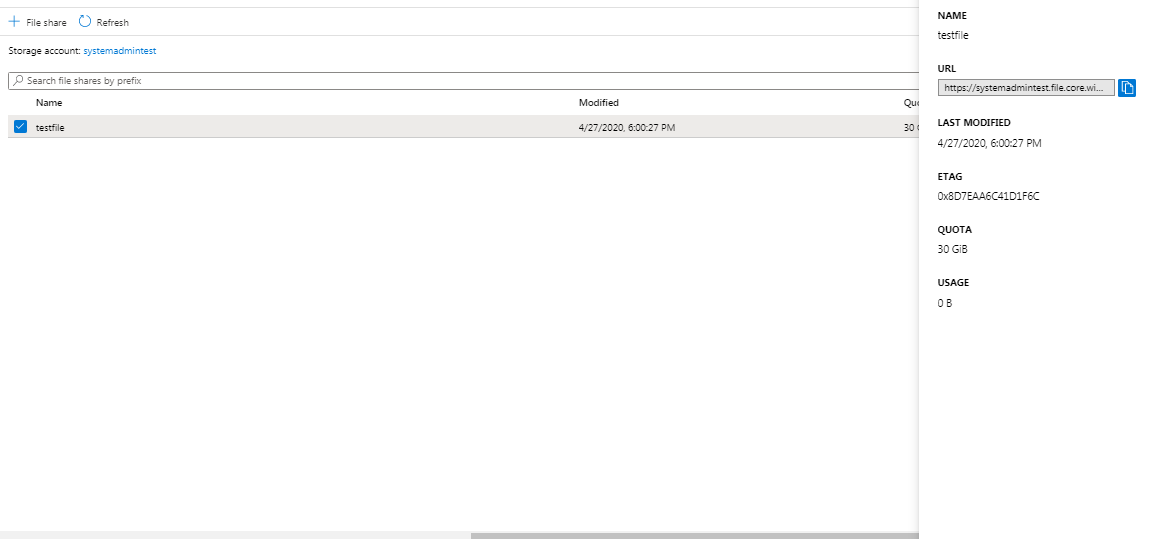
  • Copy URL of your drive from properties.
  • you need to change https:\\ to \\ in order to mount the file share
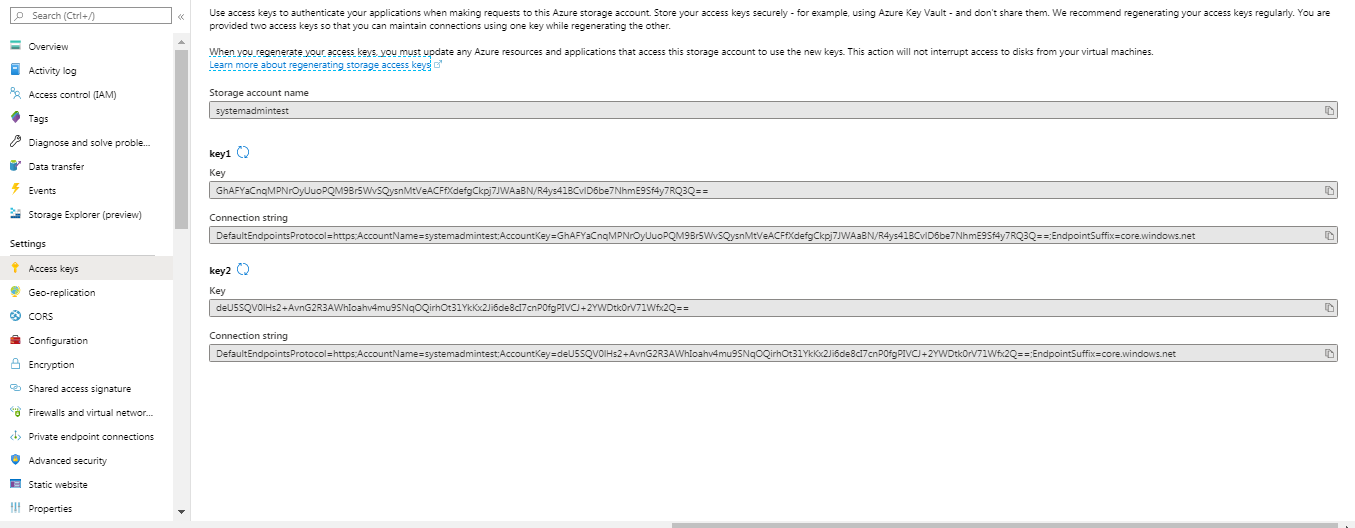
  • The storage account name and the storage account key to allow access to your file share:
To mount drive in Linux.
#  mount -t cifs //systemadmintest.file.core.windows.net/testfile /mnt -o vers=3.0,username=systemadmintest,password=[Key]
To mount in Windows
Open command prompt
$ net use Z: \\systemadmintest.file.core.windows.net\testfile  /u: [Key]
You can Also mount using windows explorer Map Network Drive from My Computer.

How to Configure Apache Reverse Proxy on CentOS

Description: Here I have explained what is Apache Reverse Proxy and How to configure it.

What is Reverse Proxy: 
A reverse proxy accepts connections and then routes them to an appropriate path.

For example, if we have any application running on port 5000, we can configure a reverse proxy to accept connections on HTTP or HTTPS, which can then transparently proxy requests to the application backend.

Configure Reverse Proxy.

  1. Verify Proxy module using below command
# httpd -M
Output


proxy_module (shared)


lbmethod_byrequests_module (shared)


proxy_balancer_module (shared)


proxy_http_module (shared

      2. Configure Virtual Host as follow: [We’ll use example application running on 127.0.0.1:5000 as the backend service that we want to reverse proxy requests to]


        # The ServerName directive sets the request scheme, hostname and port that


        # the server uses to identify itself. This is used when creating


        # redirection URLs. In the context of virtual hosts, the ServerName


        # specifies what hostname must appear in the request's Host: header to


        # match this virtual host. For the default virtual host (this file) this


        # value is not decisive as it is used as a last resort host regardless.


        # However, you must set it for any further virtual host explicitly.


        #ServerName www.example.com


        ProxyPreserveHost On


        ProxyPass /api http://127.0.0.1:5000


        ProxyPassReverse /api http://127.0.0.1:5000


         ServerAdmin webmaster@localhost


        ServerName app1.demo.com


        ServerAlias app1.demo.com


        DocumentRoot /var/www/html/demoapp


SSLEngine on


SSLCertificateFile /var/www/html/certs/demo.crt


SSLCertificateKeyFile /var/www/html/certs/demo.key


SSLCertificateChainFile /var/www/html/certs/demo_CA.crt


        # Available loglevels: trace8, ..., trace1, debug, info, notice, warn,


        # error, crit, alert, emerg.


        # It is also possible to configure the loglevel for particular


        # modules, e.g.


        #LogLevel info ssl:warn


        ErrorLog ${APACHE_LOG_DIR}/error.log


        CustomLog ${APACHE_LOG_DIR}/access.log combined


        # For most configuration files from conf-available/, which are


        # enabled or disabled at a global level, it is possible to


        # include a line for only one particular virtual host. For example the


        # following line enables the CGI configuration for this host only


        # after it has been globally disabled with "a2disconf".


        #Include conf-available/serve-cgi-bin.conf


  • Restart httpd service and verify. 
# systemctl start httpd

Virtual Host Configuration in Tomcat

Description: Here I have explained How to configure Virtual Host in Tomcat

Procedure: 

  • To create Virtual hosts first you need to navigate to installation directory and edit config/server.xml or conf/server.xml in editor. Then create virtual host for your applications
  1. The first application with domain name application1.com and /opt/tomcat/webapps/app1 document root
  2. Second application with domain name application2.com and /opt/tomcat/webapps/app2 document root.


 application1.com


 <Valve className="org.apache.catalina.valves.AccessLogValve" directory="logs"


           prefix="example_access_log" suffix=".txt"


           pattern="%h %l %u %t %r %s %b" />


 <Context path="" docBase=" /opt/tomcat/webapps/app1"


    debug="0" reloadable="true"/>


 application2.com


 <Valve className="org.apache.catalina.valves.AccessLogValve" directory="logs"


           prefix="example_access_log" suffix=".txt"


           pattern="%h %l %u %t %r %s %b" />


 <Context path="" docBase="/opt/tomcat/webapps/app2 "


    debug="0" reloadable="true"/>


     3. Restart tomcat service