IP Rotation for EXIM in WHM/CPanel

Description: There are no native features that would allow you to rotate the IP addresses used for sending out email. The option included with CPanel/WHM only allow for the permanent change of the IP addresses used for sending. Below code is use to configure IP rotation.

#!/bin/bash

# Exim Outgoing IP address rotator
# The cPanel Admin 24/10/2017
# Files: /etc/mailipaddrpool: list of IP addresses to use for mail
ipfile=/etc/mailipaddrpool
curip=$(grep "*:" /etc/mailips |awk '{print $2}')
if [[ "$curip" == "" ]] || ! grep $curip $ipfile >/dev/null ; then
curip=$(tail -1 $ipfile)
fi
nextipct=$(cat $ipfile |grep -A 1 $curip |wc -l)
if [ "$nextipct" == "1" ];then
nextip=$(head -1 $ipfile)
else
nextip=$(cat $ipfile |grep -A 1 $curip | tail -1)
fi
sed '/*:/d' -i /etc/mailips
sed '/^$/d' -i /etc/mailips
echo "*: $nextip" >> /etc/mailips


Note: /etc/mailipaddrpool file contains all your IP Addresses as given example:
192.168.0.1
192.168.0.2
192.168.0.3
192.168.0.4
  • Then setup a cron job with the above script to run as your requirement. As it is kind of bash command and mailips file will be written on every cron action, set up the crontab as superuser root by command line with following commands
#crontab -e (this command will open/create crontab file in edit mode to enter add/edit/remove cron task)
/bin/bash /etc/scripts/yourscriptfile
  • Prior to run bash command, change file permission to execution like chmod filename 777

IP Rotation for EXIM in WHM/CPanel

Description: There are no native features that would allow you to rotate the IP addresses used for sending out email. The option included with CPanel/WHM only allow for the permanent change of the IP addresses used for sending. Below code is use to configure IP rotation.

#!/bin/bash

# Exim Outgoing IP address rotator
# The cPanel Admin 24/10/2017
# Files: /etc/mailipaddrpool: list of IP addresses to use for mail
ipfile=/etc/mailipaddrpool
curip=$(grep "*:" /etc/mailips |awk '{print $2}')
if [[ "$curip" == "" ]] || ! grep $curip $ipfile >/dev/null ; then
curip=$(tail -1 $ipfile)
fi
nextipct=$(cat $ipfile |grep -A 1 $curip |wc -l)
if [ "$nextipct" == "1" ];then
nextip=$(head -1 $ipfile)
else
nextip=$(cat $ipfile |grep -A 1 $curip | tail -1)
fi
sed '/*:/d' -i /etc/mailips
sed '/^$/d' -i /etc/mailips
echo "*: $nextip" >> /etc/mailips


Note: /etc/mailipaddrpool file contains all your IP Addresses as given example:
192.168.0.1
192.168.0.2
192.168.0.3
192.168.0.4
  • Then setup a cron job with the above script to run as your requirement. As it is kind of bash command and mailips file will be written on every cron action, set up the crontab as superuser root by command line with following commands
#crontab -e (this command will open/create crontab file in edit mode to enter add/edit/remove cron task)
/bin/bash /etc/scripts/yourscriptfile
  • Prior to run bash command, change file permission to execution like chmod filename 777

Migrate Mailbox from Cpanel to Zimbra

Procedure

  • First step to find list of mail accounts, to find lists you need to install firebug addins in Firefox
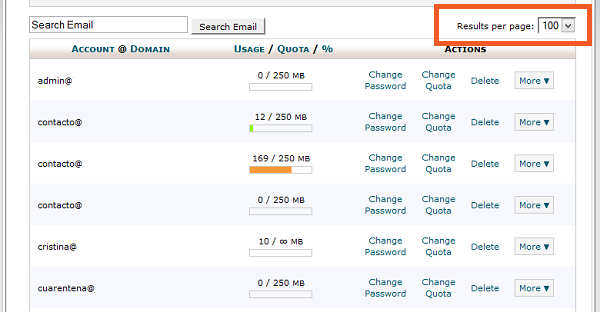
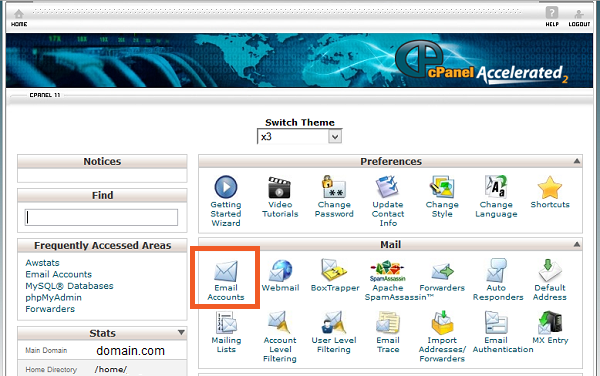
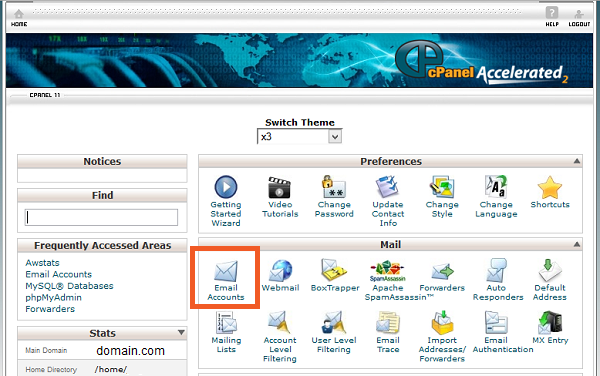
  • After install firebug Open Cpanel and select Email Accounts tab in Firefox Browser as showing in screen shot
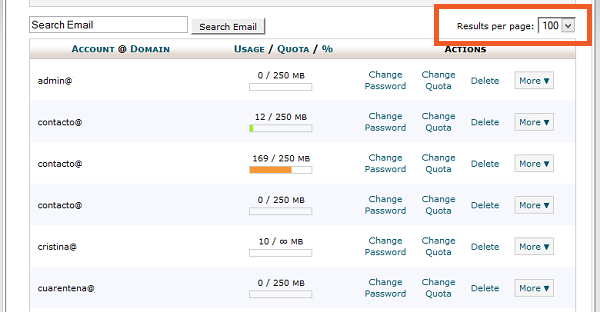
  • Select Result per page maximum you can select 100 as given in screen shot. If result more than 100 you need to below exercise multiple time.

  • Open Firebug in the website and go into Console>Show command editor, and paste the next code in the right window, and press run.
   var rows = $(“#table_email_accts tr.dt_info_row”),
   returnString = “”;
   rows.each(function(i, item){
   var tdList = [];
   $(item).find(‘td:eq(0)’).each(function(s, subItem){
   tdList.push($(subItem).text());
   });
   returnString += tdList + “\n”;
   });
   console.log(returnString);

  • After paste above code in firebug you need to select result per page to 100 you will get result all mail accounts you need to copy it to notepad. Please keep it for we will use in future reference.

Creating the  XML files

Account migration tool in Zimbra server work on two .xml files for bulk migrate accounts.
  1. The first xml is for the Account provision
  2. The second xml is for the IMAP data import

First xml is for account provision,  Which used to provision multiple email account without importing email

Sample
Sam
Sam Sample
ssample@example.com
test123
TRUE
Zackry
Zak
Zak Zackry
zzackry@example.com
test123
TRUE

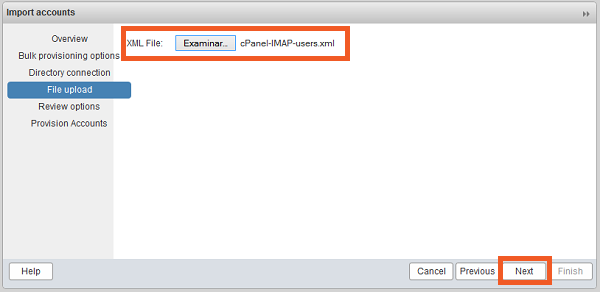
Save this xml file as Cpanel-IMAP-User.xml
The second xml is for import emails.
imap.gmail.com
143
cleartext
0
Sample
Sam
Sam Sample
sam@example.comsam@example.comtest123
Zackry
Zak
Zak Zackry
zzackry@example.comsam@example.comtest123

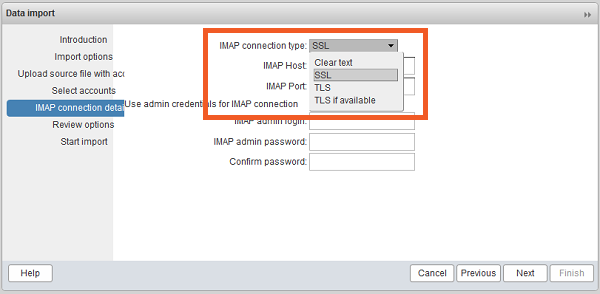
Note: Instead of imap.gmail.com you need to set server address of Domain mail server in above script

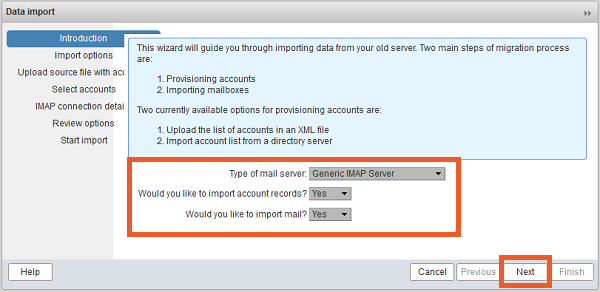
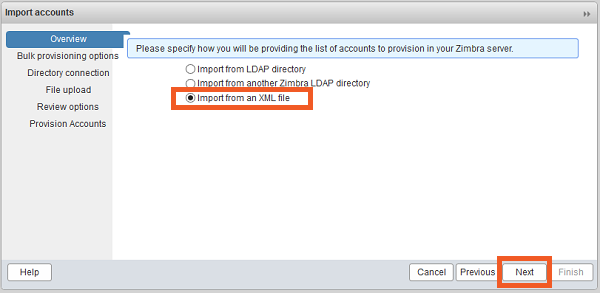
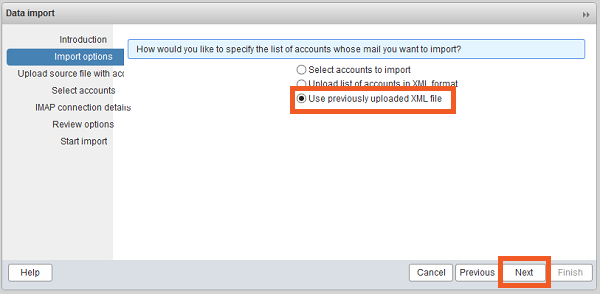
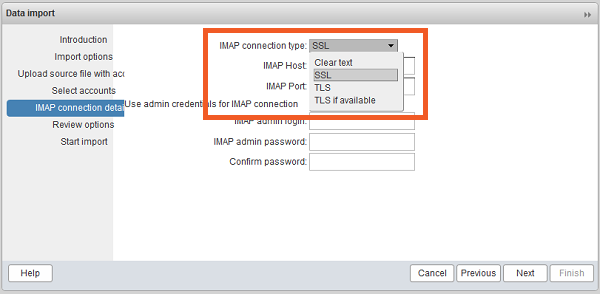
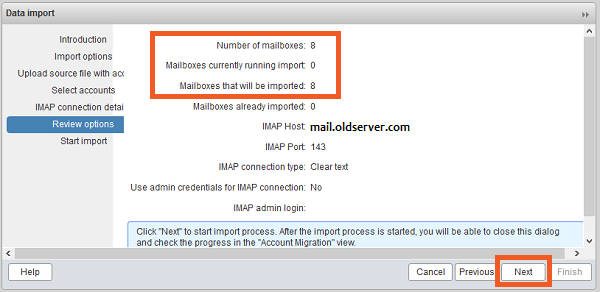
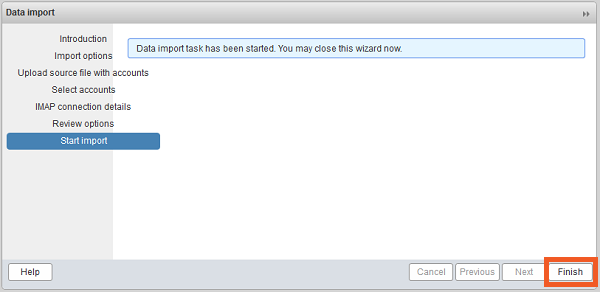
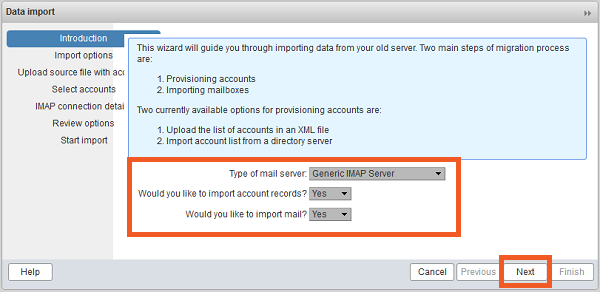
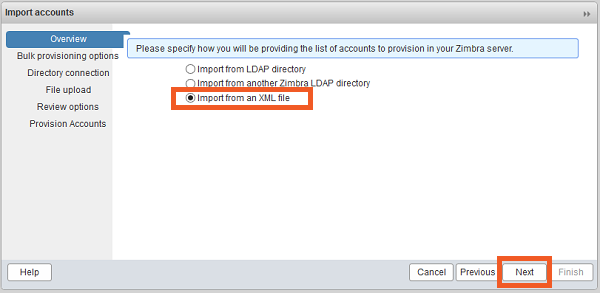
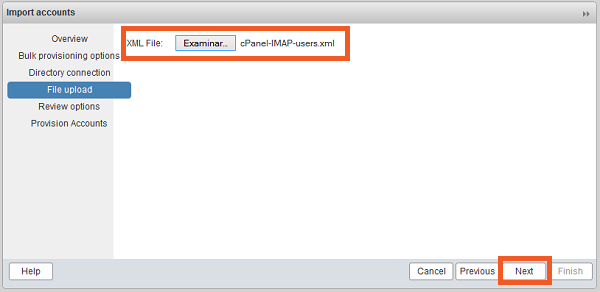
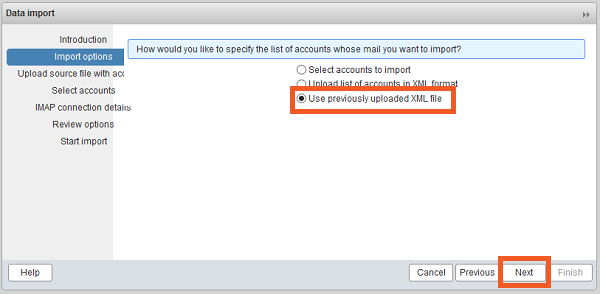
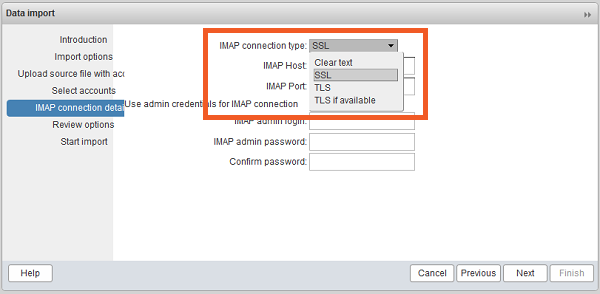
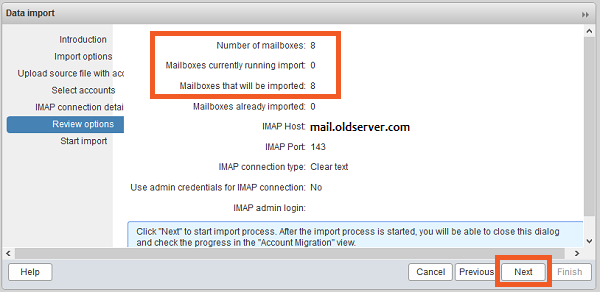
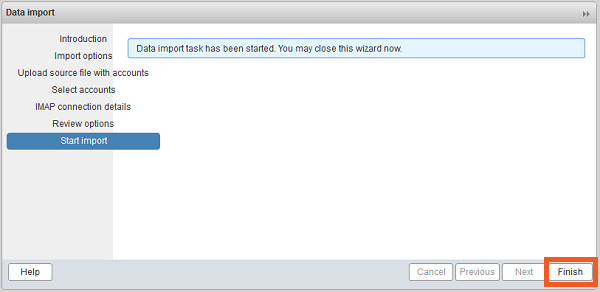
After save both xml files open account migration tool from Zimbra admin console from Home>Tools>Migration>Account Migration
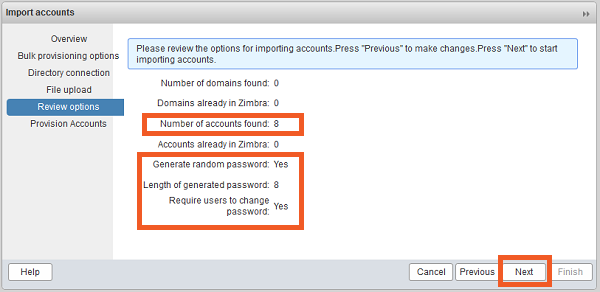
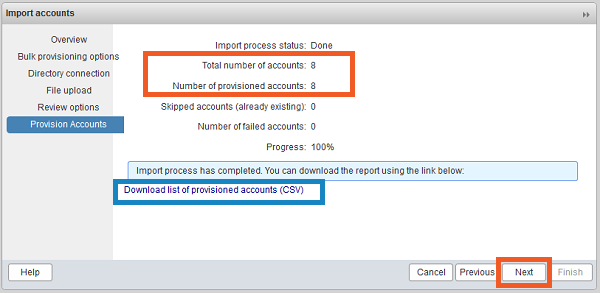
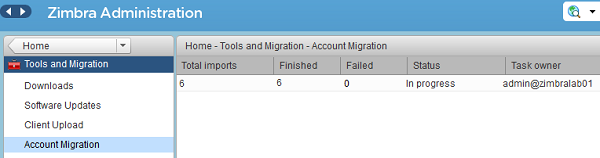
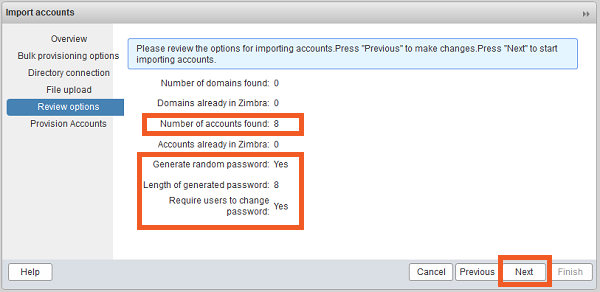
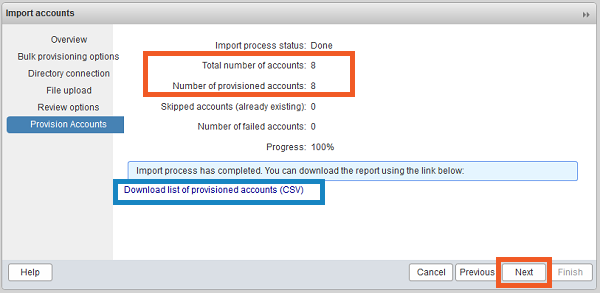
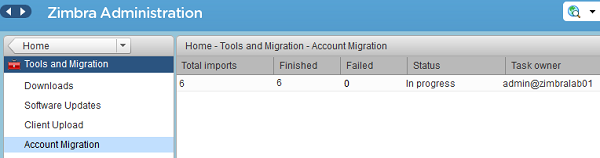
  • After completed this it shows like this if any error not occurred

Migrate Mailbox from Cpanel to Zimbra

Procedure

  • First step to find list of mail accounts, to find lists you need to install firebug addins in Firefox
  • After install firebug Open Cpanel and select Email Accounts tab in Firefox Browser as showing in screen shot
  • Select Result per page maximum you can select 100 as given in screen shot. If result more than 100 you need to below exercise multiple time.

  • Open Firebug in the website and go into Console>Show command editor, and paste the next code in the right window, and press run.
   var rows = $(“#table_email_accts tr.dt_info_row”),
   returnString = “”;
   rows.each(function(i, item){
   var tdList = [];
   $(item).find(‘td:eq(0)’).each(function(s, subItem){
   tdList.push($(subItem).text());
   });
   returnString += tdList + “\n”;
   });
   console.log(returnString);

  • After paste above code in firebug you need to select result per page to 100 you will get result all mail accounts you need to copy it to notepad. Please keep it for we will use in future reference.

Creating the  XML files

Account migration tool in Zimbra server work on two .xml files for bulk migrate accounts.
  1. The first xml is for the Account provision
  2. The second xml is for the IMAP data import

First xml is for account provision,  Which used to provision multiple email account without importing email

Sample
Sam
Sam Sample
ssample@example.com
test123
TRUE
Zackry
Zak
Zak Zackry
zzackry@example.com
test123
TRUE

Save this xml file as Cpanel-IMAP-User.xml
The second xml is for import emails.
imap.gmail.com
143
cleartext
0
Sample
Sam
Sam Sample
sam@example.comsam@example.comtest123
Zackry
Zak
Zak Zackry
zzackry@example.comsam@example.comtest123

Note: Instead of imap.gmail.com you need to set server address of Domain mail server in above script

After save both xml files open account migration tool from Zimbra admin console from Home>Tools>Migration>Account Migration
  • After completed this it shows like this if any error not occurred
Microsoft Dynamics AX 2012 Data Import/Export Framework standalone version for AX 2012 R2 without installing full CU7

Before you begin: 

  • Download the CU7 hotfix package [KB2885603] and extract it to a local folder
  • Download the hotfix package for KB 3018235, and extract it to a local folder.

Install the AX 2012 R2 CU7 Data import/export framework for use with SQL Server 2014 Integration Services:

  • Copy MSI files of DIXF_Service_x64 and DIXF_Service_x86 CU7 hotfix extracted folder to Import export hotfix MSI folder.
  • Open PowerShell Run as administrator and Navigate to the Support folder of the hotfix package run following script
Install-DIXFService.ps1.
  • You will be ask to locate the Data Import/Export Framework service MSI from Microsoft Dynamics AX 2012 R2 CU7. This file can found in the MSI\DIXF_Service_x64 or MSI\DIXF_Service_x86 folder. If the script is unable to locate the corresponding MSP, you will be asked to locate it. The MSP can found in the MSI\DIXF_Service_x64 or MSI\DIXF_Service_x86 folder in the hotfix package folder (KB 3018235). You will ask if you want the Data Import/Export Framework Service to install under the Network Service account. If you answer No, you will asked to enter the username (DOMAIN\username format) and password to run the service. Installation should start.
  • Once Service installation done start KB 3018235 to install and apply DIXF update to all Dynamics AX components.
  • After update installation completed. Run Cumulative Update 7 [CU7] setup and update Data import Export AOS and Client Components.
  • After installation add system service account to Microsoft Dynamics AX Data Import Export Framework Service Users group and restart AOS and data import export services.

Microsoft Dynamics AX 2012 Data Import/Export Framework standalone version for AX 2012 R2 without installing full CU7

Before you begin: 

  • Download the CU7 hotfix package [KB2885603] and extract it to a local folder
  • Download the hotfix package for KB 3018235, and extract it to a local folder.

Install the AX 2012 R2 CU7 Data import/export framework for use with SQL Server 2014 Integration Services:

  • Copy MSI files of DIXF_Service_x64 and DIXF_Service_x86 CU7 hotfix extracted folder to Import export hotfix MSI folder.
  • Open PowerShell Run as administrator and Navigate to the Support folder of the hotfix package run following script
Install-DIXFService.ps1.
  • You will be ask to locate the Data Import/Export Framework service MSI from Microsoft Dynamics AX 2012 R2 CU7. This file can found in the MSI\DIXF_Service_x64 or MSI\DIXF_Service_x86 folder. If the script is unable to locate the corresponding MSP, you will be asked to locate it. The MSP can found in the MSI\DIXF_Service_x64 or MSI\DIXF_Service_x86 folder in the hotfix package folder (KB 3018235). You will ask if you want the Data Import/Export Framework Service to install under the Network Service account. If you answer No, you will asked to enter the username (DOMAIN\username format) and password to run the service. Installation should start.
  • Once Service installation done start KB 3018235 to install and apply DIXF update to all Dynamics AX components.
  • After update installation completed. Run Cumulative Update 7 [CU7] setup and update Data import Export AOS and Client Components.
  • After installation add system service account to Microsoft Dynamics AX Data Import Export Framework Service Users group and restart AOS and data import export services.

Install a SSL certificate on Zimbra

Description:  Here I have define how to install ssl certificate on zimbra mail server

Zimbra mail server supports two possible ways of SSL installation:

  • zimbra administration console (web interface)
  • zimbra certificate manager (command line interface)

SSL certificate installation via Zimbra Administration Console

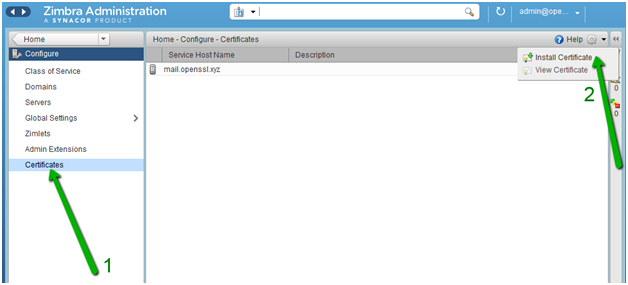
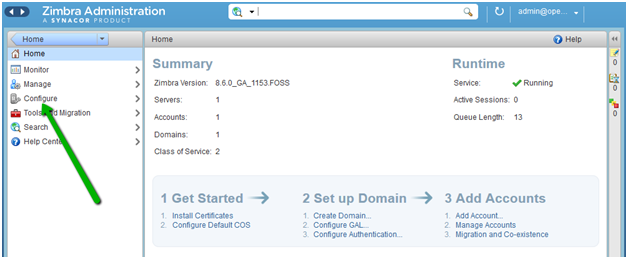
  • Click on “Configure” from the left list of the main menu:
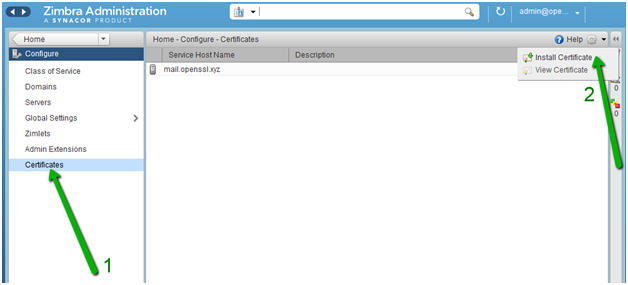
  • In the next window, click on “Certificates” and pick the option “Install Certificate”:
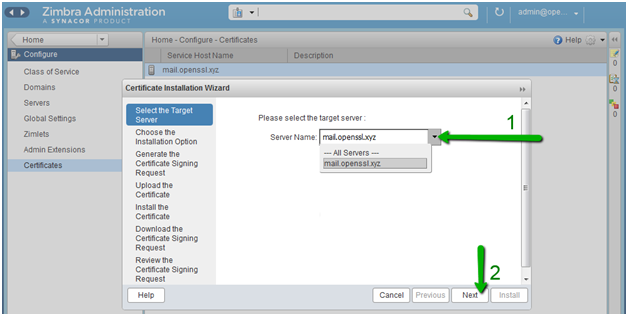
  • You will see a separate window where you need to choose the required mail server. Click “Next” afterwards:
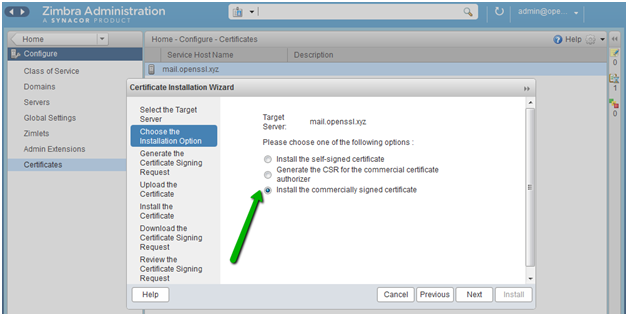
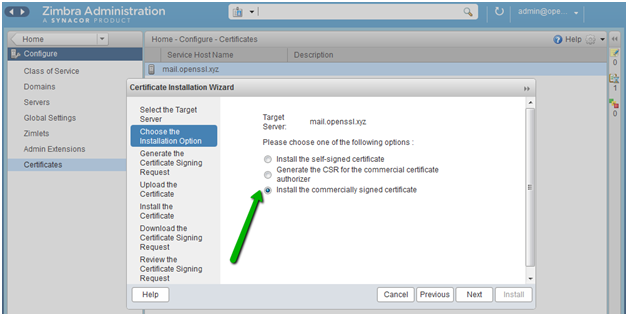
  • Pick “Install the commercially signed certificate” option to start the installation process
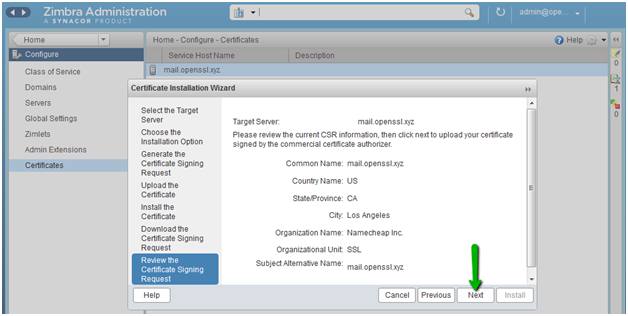
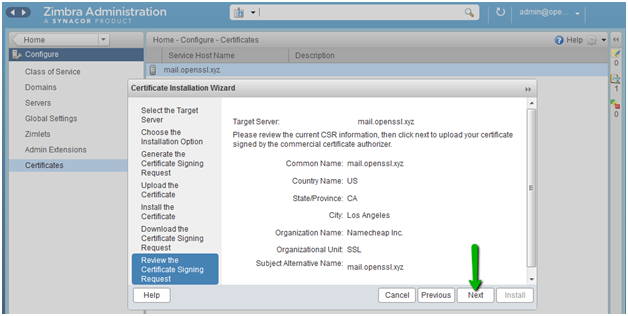
  • Review all information that was used for CSR generation. If the information is correct, click on the “Next” button:
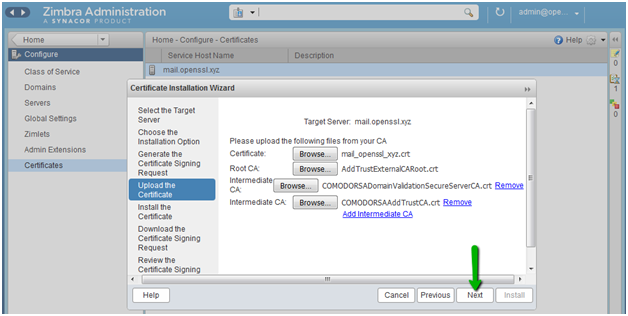
  • Upload the SSL certificate file, root certificate and intermediate certificates received from the Certificate Authority
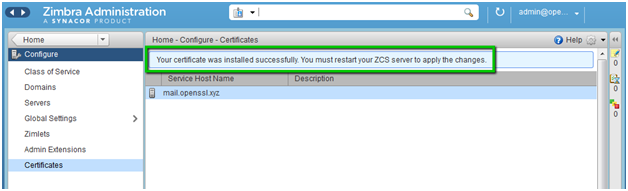
  • When the SSL installation process is completed, you will see the notification:
  • To apply changes, You need to restart Zimbra service.
SSL certificate installation via Zimbra Certificate Manager (command line interface)
  • A Zimbra package has the “zmcertmgr” tool to manage SSL certificates
  • For version 8.6 or lower, this tool must be run as root. Run this command in the terminal to switch from the default user to the root:
  • To start the installation process, you need to upload the SSL certificate file (server_domain_com.crt) and CA bundle file (server_domain_com.ca-bundle) to any folder to your hosting server on the temporary basis. For this example, SSL files have been uploaded to the /opt/certificate directory.
  • Verify that your certificate received from the Certificate Authority matches the private key generated along with the CSR:

# /opt/zimbra/bin/zmcertmgr verifycrt comm/opt/zimbra/ssl/zimbra/commercial/commercial.key /opt/server_domain_com.crt /opt/certificate/server_domain_com.ca-bundle


  • To deploy certificate run as follow:

# /opt/zimbra/bin/zmcertmgr deploycrt comm /opt/server_domain_com.crt /opt/certificate/server_domain_com.ca-bundle

  • To verify installed certificate run below command :

#/opt/zimbra/bin/zmcertmgr viewdeployedcrt

Install a SSL certificate on Zimbra

Description:  Here I have define how to install ssl certificate on zimbra mail server

Zimbra mail server supports two possible ways of SSL installation:

  • zimbra administration console (web interface)
  • zimbra certificate manager (command line interface)

SSL certificate installation via Zimbra Administration Console

  • Click on “Configure” from the left list of the main menu:
  • In the next window, click on “Certificates” and pick the option “Install Certificate”:
  • You will see a separate window where you need to choose the required mail server. Click “Next” afterwards:
  • Pick “Install the commercially signed certificate” option to start the installation process
  • Review all information that was used for CSR generation. If the information is correct, click on the “Next” button:
  • Upload the SSL certificate file, root certificate and intermediate certificates received from the Certificate Authority
  • When the SSL installation process is completed, you will see the notification:
  • To apply changes, You need to restart Zimbra service.
SSL certificate installation via Zimbra Certificate Manager (command line interface)
  • A Zimbra package has the “zmcertmgr” tool to manage SSL certificates
  • For version 8.6 or lower, this tool must be run as root. Run this command in the terminal to switch from the default user to the root:
  • Generate csr and commercial.key file using below command using zimbra user

$ /opt/zimbra/bin/zmcertmgr createcsr comm -new -subject “/C=IN/ST=Ahmedabad/L=Gujarat/O=companyName Limited CERTIFICATS/CN=domain.com”

  • To start the installation process, you need to upload the SSL certificate file (server_domain_com.crt) and CA bundle file (server_domain_com.ca-bundle) to any folder to your hosting server on the temporary basis. For this example, SSL files have been uploaded to the /opt/certificate directory.
  • Verify that your certificate received from the Certificate Authority matches the private key generated along with the CSR:

# /opt/zimbra/bin/zmcertmgr verifycrt comm/opt/zimbra/ssl/zimbra/commercial/commercial.key /opt/server_domain_com.crt /opt/certificate/server_domain_com.ca-bundle


  • To deploy certificate run as follow:

# /opt/zimbra/bin/zmcertmgr deploycrt comm /opt/server_domain_com.crt /opt/certificate/server_domain_com.ca-bundle

  • To verify installed certificate run below command :

#/opt/zimbra/bin/zmcertmgr viewdeployedcrt