Install and Configure FirewallD on Centos 7

Description: FirewallD is a firewall management tool available on CentOS 7 servers. Basically, it is a wrapper around iptables and it comes with graphical configuration tool firewall-config and command line tool firewall-cmd. With the iptables service, every change requires flushing of the old rules and reading the new rules from the ‘/etc/sysconfig/iptables’ file, while with firewalld only differences are applied.

Procedure: 

  • Install FirewallD using yum 
# yum install firewalld 

FirewallD Zones: FirewallD uses services and zones instead of iptables rules and chains. By default the following zones are available

  1. Drop: Drop all incoming network packets with no reply, only outgoing network connections are available.
  2. Block: Reject all incoming network packets with an icmp-host-prohibited message, only outgoing network connections are available.
  3. Public: Only selected incoming connections are accepted, for use in public areas
  4. External: For external networks with masquerading enabled, only selected incoming connections are accepted.
  5. DMZ: DMZ demilitarized zone, publicly-accessible with limited access to the internal network, only selected incoming connections are accepted.
  6. work: For computers in your home area, only selected incoming connections are accepted.
  7. home: For computers in your home area, only selected incoming connections are accepted.
  8. internal: For computers in your internal network, only selected incoming connections are accepted.
  9. trusted: All network connections are accepted.
  • To list all available zones 
# firewall-cmd --get-zones

work drop internal external trusted home dmz public block

  • To list default zone
#firewall-cmd --get-default-zone
public
  • To change the default zone:
# firewall-cmd --set-default-zone
# firewall-cmd --get-default-zone
dmz
  • Add and allow service in DMZ zone 
# firewall-cmd --zone=dmz --add-service=http --permanent
# firewall-cmd --zone=dmz --add-service=https --permanent
# firewall-cmd --zone=dmz --add-service=imap --permanent
# firewall-cmd --zone=dmz --add-service=imaps --permanent
# firewall-cmd --zone=dmz --add-service=pop3 --permanent
# firewall-cmd --zone=dmz --add-service=pop3s --permanent
  • Remove service and add custom port 
# firewall-cmd --remove-service=ssh --permanent
# firewall-cmd --add-port=7022/tcp --permanent
  • Reload Firewall configuration 
# firewall-cmd --reload
  • List Firewall Rules 
# firewall-cmd --list-all
dmz
target: default
icmp-block-inversion:
interfaces
sources
services: http https imap imaps pop3 pop3s smtp smtps
ports: 7022/tcp
protocols
masquerade: no
forward-ports
sourceports
icmp-blocks
rich rules
Install Samba on Centos 7 for file sharing on Windows

Description: In this article I have explain how we can sharing files between windows and Centos

Procedure: 

  • Install Samba in Centos 7 using below command
# yum install samba samba-client samba-common
  • After installation need to add in firewall 
# firewall-cmd --permanent --zone=public --add-service=samba
# firewall-cmd --reload
  • Check windows system work group settings. Before configure samba need to check work group in windows PC.  We can check from My Computer — Properties — Advance System settings — Computer Name
  • After checking work group configure Samba on centos 7. The configuration file of samba is /etc/samba/smb.conf  with pre-configuration settings. But make sure to take backup before made any changes. 
  • First create any directory that you want to share like “Testdirectory”  and set appropriate permission on it.
# mkdir -p /srv/samba/Testdirectory
# chmod -R 0775 /srv/samba/Testdirectory
# chown -R nobody:nobody /srv/samba/Testdirectory
  • You need to set SELinux security context for shared directory
# chcon -t samba_share_t /srv/samba/Testdirectory
  • After creating directory open smb configuration directory and add as following 
# useradd authuser
# vi /etc/samba/smb.conf
[global]
workgroup = WORKGROUP
netbios name = centos
security = user

[Testdirectory]
comment = Test Directory
path = /srv/samba/Testdirectory
browsable =yes
writable = yes
guest ok = yes
read only = no
force user = nobody
  • Now test configuration using below command 
# useradd authuser
# testparm

Load smb config files from /etc/samba/smb.conf
rlimit_max: increasing rlimit_max (1024) to minimum Windows limit (16384)
Processing section "[homes]"
Processing section "[printers]"
Processing section "[print$]"
Processing section "[Anonymous]"
Loaded services file OK.
Server role: ROLE_STANDALONE
Press enter to see a dump of your service definitions
# Global parameters

[global]
netbios name = centos
printcap name = cups
security = USER
idmap config * : backend = tdb
cups options = raw

[homes]
comment = Home Directories
browseable = No
inherit acls = Yes
read only = No
valid users = %S %D%w%S

[printers]
comment = All
Printers
path = /var/tmp
browseable = No
printable = Yes
create mask = 0600
[print$]
comment = Printer
Drivers
path = /var/lib/samba/drivers
create
mask = 0664
directory mask = 0775
write list = root
[Testdirectory]
comment = Anonymous File Server Share
path = /srv/samba/Testdirectory
force user = nobody
guest ok = Yes
read only = No
  • Now start samba service and enable it during boot process
# systemctl enable smb.service
# systemctl enable nmb.service
# systemctl start smb.service
# systemctl start nmb.service
  • Now test from your windows client by using \\ipaddress_of_server 

Setup Secure Samba in Centos 7 

  • First create samba group, then add user and set password for them.
# groupadd smbgrp
# usermod systalk -aG smbgrp
# smbpasswd -a systalk
  • Then create a secure directory where the shared files will be kept and set the appropriate permissions on the directory with SELinux security context for the samba.
# mkdir -p /srv/samba/secure
# chmod -R 0770 /srv/samba/secure
# chown -R root:smbgrp /srv/samba/secure
# chcon -t samba_share_t /srv/samba/secure
  • Open samba configuration file and add samba group for appropriate sharing 
# vi /etc/samba/smb.conf
[Secure]
comment = Secure File Server Share
path =  /srv/samba/secure
valid users = @smbgrp
guest ok = no
writable = yes
browsable = yes
  • After configuration run testparm to test configuration and restart service 
# systemctl restart smb.service
# systemctl restart nmb.service
  • Now test secure samba file sharing it will prompt for password. 

Install Samba on Centos 7 for file sharing on Windows

Description: In this article I have explain how we can sharing files between windows and Centos

Procedure: 

  • Install Samba in Centos 7 using below command
# yum install samba samba-client samba-common
  • After installation need to add in firewall 
# firewall-cmd --permanent --zone=public --add-service=samba
# firewall-cmd --reload
  • Check windows system work group settings. Before configure samba need to check work group in windows PC.  We can check from My Computer — Properties — Advance System settings — Computer Name
  • After checking work group configure Samba on centos 7. The configuration file of samba is /etc/samba/smb.conf  with pre-configuration settings. But make sure to take backup before made any changes. 
  • First create any directory that you want to share like “Testdirectory”  and set appropriate permission on it.
# mkdir -p /srv/samba/Testdirectory
# chmod -R 0775 /srv/samba/Testdirectory
# chown -R nobody:nobody /srv/samba/Testdirectory
  • You need to set SELinux security context for shared directory
# chcon -t samba_share_t /srv/samba/Testdirectory
  • After creating directory open smb configuration directory and add as following 
# useradd authuser
# vi /etc/samba/smb.conf
[global]
workgroup = WORKGROUP
netbios name = centos
security = user

[Testdirectory]
comment = Test Directory
path = /srv/samba/Testdirectory
browsable =yes
writable = yes
guest ok = yes
read only = no
force user = nobody
  • Now test configuration using below command 
# useradd authuser
# testparm

Load smb config files from /etc/samba/smb.conf
rlimit_max: increasing rlimit_max (1024) to minimum Windows limit (16384)
Processing section "[homes]"
Processing section "[printers]"
Processing section "[print$]"
Processing section "[Anonymous]"
Loaded services file OK.
Server role: ROLE_STANDALONE
Press enter to see a dump of your service definitions
# Global parameters

[global]
netbios name = centos
printcap name = cups
security = USER
idmap config * : backend = tdb
cups options = raw

[homes]
comment = Home Directories
browseable = No
inherit acls = Yes
read only = No
valid users = %S %D%w%S

[printers]
comment = All
Printers
path = /var/tmp
browseable = No
printable = Yes
create mask = 0600
[print$]
comment = Printer
Drivers
path = /var/lib/samba/drivers
create
mask = 0664
directory mask = 0775
write list = root
[Testdirectory]
comment = Anonymous File Server Share
path = /srv/samba/Testdirectory
force user = nobody
guest ok = Yes
read only = No
  • Now start samba service and enable it during boot process
# systemctl enable smb.service
# systemctl enable nmb.service
# systemctl start smb.service
# systemctl start nmb.service
  • Now test from your windows client by using \\ipaddress_of_server 

Setup Secure Samba in Centos 7 

  • First create samba group, then add user and set password for them.
# groupadd smbgrp
# usermod systalk -aG smbgrp
# smbpasswd -a systalk
  • Then create a secure directory where the shared files will be kept and set the appropriate permissions on the directory with SELinux security context for the samba.
# mkdir -p /srv/samba/secure
# chmod -R 0770 /srv/samba/secure
# chown -R root:smbgrp /srv/samba/secure
# chcon -t samba_share_t /srv/samba/secure
  • Open samba configuration file and add samba group for appropriate sharing 
# vi /etc/samba/smb.conf
[Secure]
comment = Secure File Server Share
path =  /srv/samba/secure
valid users = @smbgrp
guest ok = no
writable = yes
browsable = yes
  • After configuration run testparm to test configuration and restart service 
# systemctl restart smb.service
# systemctl restart nmb.service
  • Now test secure samba file sharing it will prompt for password. 

Configure NFS [Network File System] in Centos 7

Description: 

Network File System (NFS) is a popular distributed file system protocol that enables users to mount remote directories on their server. NFS lets you leverage storage space in a different location and allows you to write onto the same space from multiple servers or clients in an effortless manner.
Procedure:

NFS Server side:
  • First step to install NFS using yum using below command 

# yum install nfs-utils

  • Now create directory that need to share using NFS 

# mkdir /data

  • Change permission on directory as follow

# chmod -R 755 /data

# chown nfsnobody:nfsnobody /data
  • Need to start service and enable them as boot time

# systemctl enable rpcbind
# systemctl enable nfs-server
# systemctl enable nfs-lock
# systemctl enable nfs-idmap
# systemctl start rpcbind
# systemctl start nfs-server
# systemctl start nfs-lock
# systemctl start nfs-idmap
  • Share directory over network using following

# vi /etc/exports

/var/nfsshare    * (rw,sync,no_root_squash,no_all_squash)
/home            10.10.10.10 (rw,sync,no_root_squash,no_all_squash)
Note : 10.10.10.10 is the IP of client machine, if you wish that any other client should access it you need to add the it IP wise other wise you can add “*” instead of IP for all IP access.
  • Restart NFS service 

# systemctl restart nfs-server

  • After restart service need to allow NFS port in firewall 

# firewall-cmd –permanent –zone=public –add-service=nfs
# firewall-cmd –permanent –zone=public –add-service=mountd
# firewall-cmd –permanent –zone=public –add-service=rpc-bind
# firewall-cmd –reload
NFS Client Side:
  • Install nfs-util using below command 

# yum install nfs-utils

  • Create directory to  mount from NFS

# mkdir /mnt/nfsshare

# mkdir /mnt/home
  • After creating directory now mount from NFS using below command:

# mount -t nfs 10.10.10.1:/var/nfsshare /mnt/nfsshare

# mount -t nfs 10.10.10.1:/home /mnt/home
  • After mount check storage using below command 

# df -kh

Filesystem                             Size     Used   Avail   Use%   Mounted on
/dev/mapper/centos-root       39G      1.1G    38G    3%       /
devtmpfs                                488M    0        488M   0%       /dev
tmpfs                                     494M     0        494M   0%      /dev/shm
tmpfs                                     494M    6.7M   487M   2%     /run
tmpfs                                     494M     0        494M    0%      /sys/fs/cgroup
/dev/mapper/centos-home    19G      33M    19G      1%      /home
/dev/sda1                               497M  126M   372M    26%    /boot
10.10.10.1:/var/nfsshare       49G    980M   48G     3%      /mnt/nfsshare 
10.10.10.1:/home                   19G   33M     19G      1%      /mnt/home
  • Now we are connecting NFS shared drive, please check by create test file 

# touch  /mnt/nfsshare/testfile

Permanent  NFS Mounting
  • We need to remount after every reboot, so to mount them as permanent by adding NFS share in fstab as follow:

# vi /etc/fstab

Add entries as follow 
10.10.10.1:/var/nfsshare   /mnt/nfsshare  nfs defaults 0 0
Save file using :wq 
  • Now check by reboot client machine and directory mounted or not.

Configure NFS [Network File System] in Centos 7

Description: 

Network File System (NFS) is a popular distributed file system protocol that enables users to mount remote directories on their server. NFS lets you leverage storage space in a different location and allows you to write onto the same space from multiple servers or clients in an effortless manner.
Procedure:

NFS Server side:
  • First step to install NFS using yum using below command 

# yum install nfs-utils

  • Now create directory that need to share using NFS 

# mkdir /data

  • Change permission on directory as follow

# chmod -R 755 /data

# chown nfsnobody:nfsnobody /data
  • Need to start service and enable them as boot time

# systemctl enable rpcbind
# systemctl enable nfs-server
# systemctl enable nfs-lock
# systemctl enable nfs-idmap
# systemctl start rpcbind
# systemctl start nfs-server
# systemctl start nfs-lock
# systemctl start nfs-idmap
  • Share directory over network using following

# vi /etc/exports

/var/nfsshare    * (rw,sync,no_root_squash,no_all_squash)
/home            10.10.10.10 (rw,sync,no_root_squash,no_all_squash)
Note : 10.10.10.10 is the IP of client machine, if you wish that any other client should access it you need to add the it IP wise other wise you can add “*” instead of IP for all IP access.
  • Restart NFS service 

# systemctl restart nfs-server

  • After restart service need to allow NFS port in firewall 

# firewall-cmd –permanent –zone=public –add-service=nfs
# firewall-cmd –permanent –zone=public –add-service=mountd
# firewall-cmd –permanent –zone=public –add-service=rpc-bind
# firewall-cmd –reload
NFS Client Side:
  • Install nfs-util using below command 

# yum install nfs-utils

  • Create directory to  mount from NFS

# mkdir /mnt/nfsshare

# mkdir /mnt/home
  • After creating directory now mount from NFS using below command:

# mount -t nfs 10.10.10.1:/var/nfsshare /mnt/nfsshare

# mount -t nfs 10.10.10.1:/home /mnt/home
  • After mount check storage using below command 

# df -kh

Filesystem                             Size     Used   Avail   Use%   Mounted on
/dev/mapper/centos-root       39G      1.1G    38G    3%       /
devtmpfs                                488M    0        488M   0%       /dev
tmpfs                                     494M     0        494M   0%      /dev/shm
tmpfs                                     494M    6.7M   487M   2%     /run
tmpfs                                     494M     0        494M    0%      /sys/fs/cgroup
/dev/mapper/centos-home    19G      33M    19G      1%      /home
/dev/sda1                               497M  126M   372M    26%    /boot
10.10.10.1:/var/nfsshare       49G    980M   48G     3%      /mnt/nfsshare 
10.10.10.1:/home                   19G   33M     19G      1%      /mnt/home
  • Now we are connecting NFS shared drive, please check by create test file 

# touch  /mnt/nfsshare/testfile

Permanent  NFS Mounting
  • We need to remount after every reboot, so to mount them as permanent by adding NFS share in fstab as follow:

# vi /etc/fstab

Add entries as follow 
10.10.10.1:/var/nfsshare   /mnt/nfsshare  nfs defaults 0 0
Save file using :wq 
  • Now check by reboot client machine and directory mounted or not.

How to add user and grant Root Privileges in centos 7

Description: To assign root privileges to another user on centos 7

Procedure: 

  • First add user using below command 

# adduser testuser1

  • Set password to user 

# passwd testuser1

  • Grant privileges to user using below command 

# visudo

## find the following content
root ALL=(ALL) ALL
## Add following content
testuser1 ALL=(ALL) ALL

  • Then save and exit file using :wq command
  • To test privileges login with testuser1 and use below command to take previleges

$ sudo su
password prompt for testuser1 now testuser1 can run all commands as a root. 

How to add user and grant Root Privileges in centos 7

Description: To assign root privileges to another user on centos 7

Procedure: 

  • First add user using below command 

# adduser testuser1

  • Set password to user 

# passwd testuser1

  • Grant privileges to user using below command 

# visudo

## find the following content
root ALL=(ALL) ALL
## Add following content
testuser1 ALL=(ALL) ALL

  • Then save and exit file using :wq command
  • To test privileges login with testuser1 and use below command to take previleges

$ sudo su
password prompt for testuser1 now testuser1 can run all commands as a root. 

Windows 10 RDP CredSSP Encryption Oracle Remediation Error

Description:
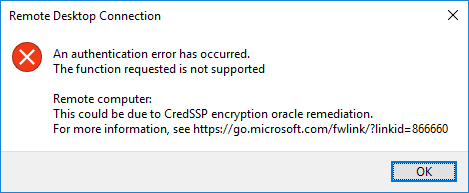
You have noticed that after installed recent security updates in windows 10 users face an error during remote desktop connection.

Procedure:

Just a couple of days ago, the cumulative updates were released below for Windows 10 and Server 2016, etc.  These cumulative updates include the fix for the CredSSP encryption vulnerability.

May 8, 2018 – KB4103721 (OS Build 1803)
May 8, 2018 – KB4103727 (OS Build 1709)
May 8, 2018 – KB4103731 (OS Build 1703)
May 8, 2018 – KB4103723 (OS Build 1609 & Server 2016)

Once you have installed the patch on a “vulnerable” workstation and attempt to connect to an unpatched server, you will see the following error message that happens after you type in your password to authenticate to the RDP session.


  • To Resolved this issue you need to configure security update in group policy in local system. 
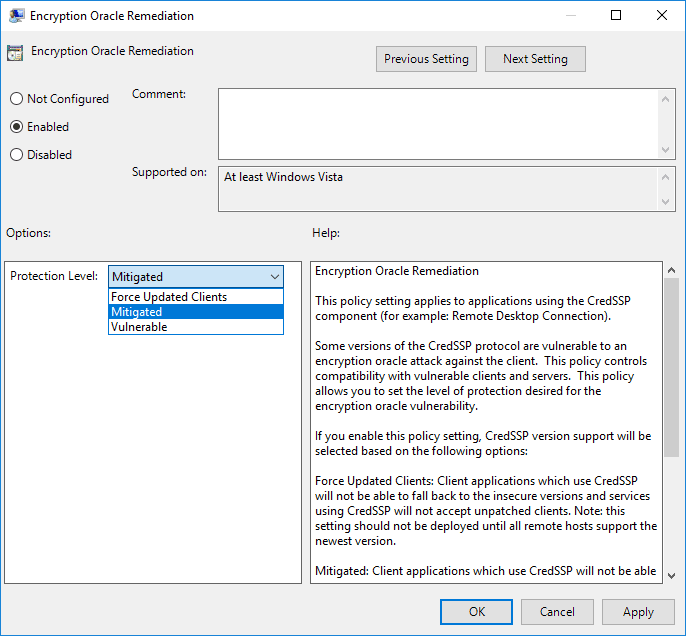
  • You can find this at Computer Configuration >> Administrative Templates >> System >> Credentials Delegation >> Encryption Oracle Remediation.  By default, this is set to not configured.
  • To Fix the issue as a workaround, set the policy to Enabled and set the Protection Level to Vulnerable. This is not recommended by Microsoft, as making sure both the client and server is patched is best practice.  However, setting the policy to Vulnerable allows your workstation to now connect to the remote desktop session that was previously blocked by the mitigation.


Windows 10 RDP CredSSP Encryption Oracle Remediation Error

Description:
You have noticed that after installed recent security updates in windows 10 users face an error during remote desktop connection.

Procedure:

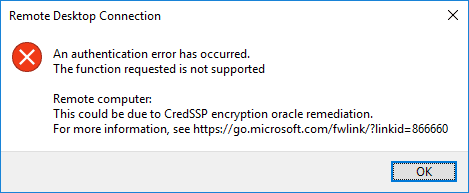
Just a couple of days ago, the cumulative updates were released below for Windows 10 and Server 2016, etc.  These cumulative updates include the fix for the CredSSP encryption vulnerability.

May 8, 2018 – KB4103721 (OS Build 1803)
May 8, 2018 – KB4103727 (OS Build 1709)
May 8, 2018 – KB4103731 (OS Build 1703)
May 8, 2018 – KB4103723 (OS Build 1609 & Server 2016)

Once you have installed the patch on a “vulnerable” workstation and attempt to connect to an unpatched server, you will see the following error message that happens after you type in your password to authenticate to the RDP session.


  • To Resolved this issue you need to configure security update in group policy in local system. 
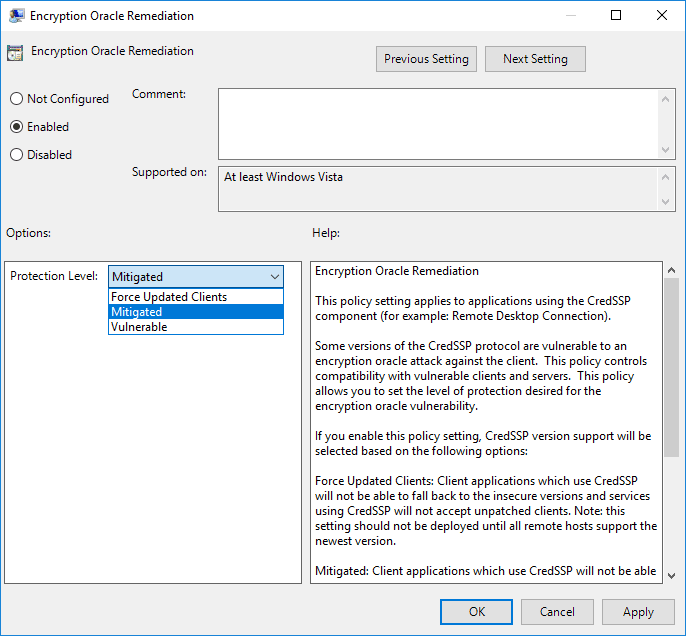
  • You can find this at Computer Configuration >> Administrative Templates >> System >> Credentials Delegation >> Encryption Oracle Remediation.  By default, this is set to not configured.
  • To Fix the issue as a workaround, set the policy to Enabled and set the Protection Level to Vulnerable. This is not recommended by Microsoft, as making sure both the client and server is patched is best practice.  However, setting the policy to Vulnerable allows your workstation to now connect to the remote desktop session that was previously blocked by the mitigation.


Install and Configure Apache in Centos 7

Description:  Here I have explained how to install and configure Apache in Centos 7

Procedure:

  • First you need to install httpd using yum

# yum -y install httpd

  • After installation you need to start and enable service 

# systemctl  enable httpd.service
# systemctl start httpd.service

  • Configure firewall to allow httpd traffic using below command 

# firewall-cmd –zone=public –permanent –add-service=http
# firewall-cmd –zone=public –permanent –add-service=https
# firewall-cmd –reload

  • Test your installation by browse default page in browser 

http://SERVER_DOMAIN_NAME_OR_IP

Configure Name Based Virtual Host: 

  • If you have more than one domain need to host on same server then you need to configure Name based virtual host. 

Procedure: 

  • First create vhost.conf file under /etc/httpd/conf.d/ to store multiple vhost configuration 

# vi /etc/httpd/conf.d/vhost.conf

Add the following example virtual host directive template for website testdomain.com, make sure to change the necessary values for your own domain

NameVirtualHost *:80

ServerAdmin master@testdomain.com
ServerName testdomain.com
ServerAlias http://www.testdomain.com
DocumentRoot /var/www/html/testdomain.com/
ErrorLog /var/log/httpd/testdomain.com/error.log
CustomLog /var/log/httpd/testdomain.com/access.log

######## Additional Domain ################

ServerAdmin master@testdomain2.com
ServerName testdomain2.com
ServerAlias http://www.testdomain2.com
DocumentRoot /var/www/html/testdomain2.com/
ErrorLog /var/log/httpd/testdomain2.com/error.log
CustomLog /var/log/httpd/testdomain2.com/access.log

  • Save file after make changes 
  • You can add more virtual host as you require. 
  • Make sure to create error log and custom log folder as defined in virtual host file.
  • Restart httpd service after chagnes

# systemctl restart httpd.service 

  • Now you can visit to testdomain.com 

Setup Apache Password Protected Directory with htpasswd

  • By default Apache does not allow the use of .htaccess files in CentOS 7. You will need to set up Apache to allow .htaccess based authentication. You can do this by editing the Apache config file

# vi /etc/httpd/conf/httpd.conf

Find the section that begins with . Change the line from AllowOverride none to AllowOverride AuthConfig


AllowOverride AuthConfig
  • Create a password file with htpasswd

# htpasswd -c /etc/httpd/.htpasswd user1

You will be asked to supply and confirm a password for user1.
.htpasswd file created  and it looks like as follow
 user1:$apr1$0r/2zNGG$jopiWY3DEJd2FvZxTnugJ/

  • Now, you need to allow the apache user to read the .htpasswd file.
# chown apache:apache /etc/httpd/.htpasswd
# chmod 0660 /etc/httpd/.htpasswd
Now you need to create a .htaccess file in the web directory you wish to restrict.
For this example, we will create the .htaccess file in the /var/www/html/ directory to restrict the entire document root.
vi /var/www/html/.htaccess
Add the following content:
AuthType Basic
AuthName “Restricted Content”
AuthUserFile /etc/httpd/.htpasswd
Require valid-user
  • Save file and restart service. 
  • Test it by browse URL in browser. You will prompt for username and password