How to add user and grant Root Privileges in centos 7

Description: To assign root privileges to another user on centos 7

Procedure: 

  • First add user using below command 

# adduser testuser1

  • Set password to user 

# passwd testuser1

  • Grant privileges to user using below command 

# visudo

## find the following content
root ALL=(ALL) ALL
## Add following content
testuser1 ALL=(ALL) ALL

  • Then save and exit file using :wq command
  • To test privileges login with testuser1 and use below command to take previleges

$ sudo su
password prompt for testuser1 now testuser1 can run all commands as a root. 

Install and Configure Apache in Centos 7

Description:  Here I have explained how to install and configure Apache in Centos 7

Procedure:

  • First you need to install httpd using yum

# yum -y install httpd

  • After installation you need to start and enable service 

# systemctl  enable httpd.service
# systemctl start httpd.service

  • Configure firewall to allow httpd traffic using below command 

# firewall-cmd –zone=public –permanent –add-service=http
# firewall-cmd –zone=public –permanent –add-service=https
# firewall-cmd –reload

  • Test your installation by browse default page in browser 

http://SERVER_DOMAIN_NAME_OR_IP

Configure Name Based Virtual Host: 

  • If you have more than one domain need to host on same server then you need to configure Name based virtual host. 

Procedure: 

  • First create vhost.conf file under /etc/httpd/conf.d/ to store multiple vhost configuration 

# vi /etc/httpd/conf.d/vhost.conf

Add the following example virtual host directive template for website testdomain.com, make sure to change the necessary values for your own domain

NameVirtualHost *:80

ServerAdmin master@testdomain.com
ServerName testdomain.com
ServerAlias http://www.testdomain.com
DocumentRoot /var/www/html/testdomain.com/
ErrorLog /var/log/httpd/testdomain.com/error.log
CustomLog /var/log/httpd/testdomain.com/access.log

######## Additional Domain ################

ServerAdmin master@testdomain2.com
ServerName testdomain2.com
ServerAlias http://www.testdomain2.com
DocumentRoot /var/www/html/testdomain2.com/
ErrorLog /var/log/httpd/testdomain2.com/error.log
CustomLog /var/log/httpd/testdomain2.com/access.log

  • Save file after make changes 
  • You can add more virtual host as you require. 
  • Make sure to create error log and custom log folder as defined in virtual host file.
  • Restart httpd service after chagnes

# systemctl restart httpd.service 

  • Now you can visit to testdomain.com 

Setup Apache Password Protected Directory with htpasswd

  • By default Apache does not allow the use of .htaccess files in CentOS 7. You will need to set up Apache to allow .htaccess based authentication. You can do this by editing the Apache config file

# vi /etc/httpd/conf/httpd.conf

Find the section that begins with . Change the line from AllowOverride none to AllowOverride AuthConfig


AllowOverride AuthConfig
  • Create a password file with htpasswd

# htpasswd -c /etc/httpd/.htpasswd user1

You will be asked to supply and confirm a password for user1.
.htpasswd file created  and it looks like as follow
 user1:$apr1$0r/2zNGG$jopiWY3DEJd2FvZxTnugJ/

  • Now, you need to allow the apache user to read the .htpasswd file.
# chown apache:apache /etc/httpd/.htpasswd
# chmod 0660 /etc/httpd/.htpasswd
Now you need to create a .htaccess file in the web directory you wish to restrict.
For this example, we will create the .htaccess file in the /var/www/html/ directory to restrict the entire document root.
vi /var/www/html/.htaccess
Add the following content:
AuthType Basic
AuthName “Restricted Content”
AuthUserFile /etc/httpd/.htpasswd
Require valid-user
  • Save file and restart service. 
  • Test it by browse URL in browser. You will prompt for username and password

Install and Configure Apache in Centos 7

Description:  Here I have explained how to install and configure Apache in Centos 7

Procedure:

  • First you need to install httpd using yum

# yum -y install httpd

  • After installation you need to start and enable service 

# systemctl  enable httpd.service
# systemctl start httpd.service

  • Configure firewall to allow httpd traffic using below command 

# firewall-cmd –zone=public –permanent –add-service=http
# firewall-cmd –zone=public –permanent –add-service=https
# firewall-cmd –reload

  • Test your installation by browse default page in browser 

http://SERVER_DOMAIN_NAME_OR_IP

Configure Name Based Virtual Host: 

  • If you have more than one domain need to host on same server then you need to configure Name based virtual host. 

Procedure: 

  • First create vhost.conf file under /etc/httpd/conf.d/ to store multiple vhost configuration 

# vi /etc/httpd/conf.d/vhost.conf

Add the following example virtual host directive template for website testdomain.com, make sure to change the necessary values for your own domain

NameVirtualHost *:80

ServerAdmin master@testdomain.com
ServerName testdomain.com
ServerAlias http://www.testdomain.com
DocumentRoot /var/www/html/testdomain.com/
ErrorLog /var/log/httpd/testdomain.com/error.log
CustomLog /var/log/httpd/testdomain.com/access.log

######## Additional Domain ################

ServerAdmin master@testdomain2.com
ServerName testdomain2.com
ServerAlias http://www.testdomain2.com
DocumentRoot /var/www/html/testdomain2.com/
ErrorLog /var/log/httpd/testdomain2.com/error.log
CustomLog /var/log/httpd/testdomain2.com/access.log

  • Save file after make changes 
  • You can add more virtual host as you require. 
  • Make sure to create error log and custom log folder as defined in virtual host file.
  • Restart httpd service after chagnes

# systemctl restart httpd.service 

  • Now you can visit to testdomain.com 

Setup Apache Password Protected Directory with htpasswd

  • By default Apache does not allow the use of .htaccess files in CentOS 7. You will need to set up Apache to allow .htaccess based authentication. You can do this by editing the Apache config file

# vi /etc/httpd/conf/httpd.conf

Find the section that begins with . Change the line from AllowOverride none to AllowOverride AuthConfig


AllowOverride AuthConfig
  • Create a password file with htpasswd

# htpasswd -c /etc/httpd/.htpasswd user1

You will be asked to supply and confirm a password for user1.
.htpasswd file created  and it looks like as follow
 user1:$apr1$0r/2zNGG$jopiWY3DEJd2FvZxTnugJ/

  • Now, you need to allow the apache user to read the .htpasswd file.
# chown apache:apache /etc/httpd/.htpasswd
# chmod 0660 /etc/httpd/.htpasswd
Now you need to create a .htaccess file in the web directory you wish to restrict.
For this example, we will create the .htaccess file in the /var/www/html/ directory to restrict the entire document root.
vi /var/www/html/.htaccess
Add the following content:
AuthType Basic
AuthName “Restricted Content”
AuthUserFile /etc/httpd/.htpasswd
Require valid-user
  • Save file and restart service. 
  • Test it by browse URL in browser. You will prompt for username and password

Install and configure FTP in Centos 6

Description: Install and configure FTP in Centos 7

Procedure:

  • Enable epel repository by using below command

[root@localhost ~] # wget http://dl.fedoraproject.org/pub/epel/7/x86_64/e/epel-release-7-6.noarch.rpm

[root@localhost ~] # rpm -ivh epel-release-7-6.noarch.rpm

  • Install ftp by using below command

[root@localhost ~] # yum install proftpd proftpd-utils

  • Enable and start service

[root@localhost ~] # systemctl start proftpd
[root@localhost ~] # systemctl enable proftpd

  • Verify Installation of Pureftp

you can access your FTP server using a web browser. Open your favorite web browser and enter the following:
ftp://10.10.0.1

  • Check log files: 

ProFTPD logs many activities so if you like to investigate or debug some problem, you can check the log files which are stored in the /var/log/proftpd/ directory

Install and configure FTP in Centos 6

Description: Install and configure FTP in Centos 7

Procedure:

  • Enable epel repository by using below command

[root@localhost ~] # wget http://dl.fedoraproject.org/pub/epel/7/x86_64/e/epel-release-7-6.noarch.rpm

[root@localhost ~] # rpm -ivh epel-release-7-6.noarch.rpm

  • Install ftp by using below command

[root@localhost ~] # yum install proftpd proftpd-utils

  • Enable and start service

[root@localhost ~] # systemctl start proftpd
[root@localhost ~] # systemctl enable proftpd

  • Verify Installation of Pureftp

you can access your FTP server using a web browser. Open your favorite web browser and enter the following:
ftp://10.10.0.1

  • Check log files: 

ProFTPD logs many activities so if you like to investigate or debug some problem, you can check the log files which are stored in the /var/log/proftpd/ directory

Install KVM Virtualization on Centos 7 and RHEL 7

Description: KVM is an open source hardware virtualization software through which we can create and run multiple Linux based and windows based virtual machines simultaneously. KVM known as Kernel based Virtual Machine because when we install KVM package then KVM module is loaded into the current kernel and turns our Linux machine into a hyper-visor.
Before installation, we need to check CPU supports Hardware Virtualization. To check use below command:
[root@localhost ~] # grep -E ‘(vmx|svm)’ /proc/cpuinfo
Output should be either vmx or svm, Otherwise CPU does not support Virtualization
Procedure:
First install KVM and its associate packages 
[root@localhost ~] # yum install qemu-kvm qemu-img virt-manager libvirt libvirt-python libvirt-client virt-install virt-viewer bridge-utils
After installation enable and start libvirtd service
[root@localhost ~] # systemctl start libvirtd
[root@localhost ~] # systemctl enable libvirtd 
Verify KVM Installation:
[root@localhost ~] # lsmod | grep -i kvm
kvm_intel             162153  0
kvm                   525409  1 kvm_intel
Configure Bridge Interface: Before start creating VM you need to configure bridge interface is required if you want to access virtual machine from outside of your network
[root@localhost ~]# cd /etc/sysconfig/network-scripts/
[root@localhost network-scripts]# cp ifcfg-eth0 ifcfg-br0
Edit the Interface file and set followings:
[root@localhost network-scripts]# vi ifcfg-eth0
TYPE=Ethernet
BOOTPROTO=static
DEVICE=eth0
ONBOOT=yes
BRIDGE=br0
Edit the Bridge file (ifcfg-br0) and set the followings:

[root@localhost network-scripts] # vi ifcfg-br0
TYPE=Bridge
BOOTPROTO=static
DEVICE=br0
ONBOOT=yes
IPADDR=10.10.10.1
NETMASK=255.255.255.0
GATEWAY=10.10.10.11
DNS1=10.10.10.11
Replace the IP address and DNS server details as per your setup.
After making changes Restart network service 
[root@localhost ~] # systemctl restart network
Check the Bridge interface using below command :
[root@localhost ~] # ip addr show br0
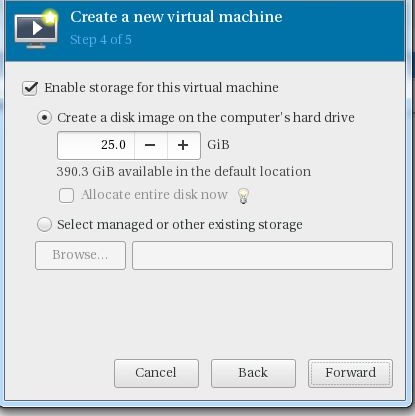
Start creating virtual machine using by ‘virt-install’ or virt-manager [GUI Tool]
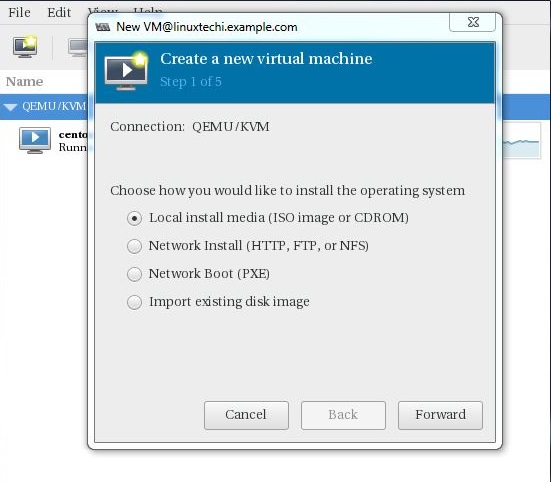
Go to file option, Click on “New Virtual Machine”

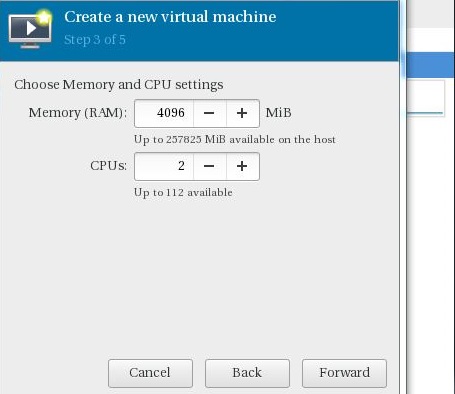
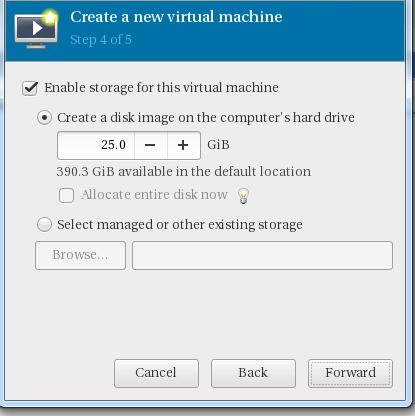
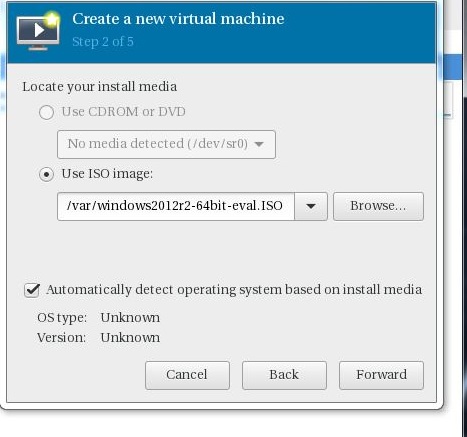
Specify ISO file location and provide RAM and CPU as per your requirement. 
Click on Finish to create Virtual Machine

Creating a virtual Machine from Command Line:

[root@localhost ~] # virt-install –name=Ubuntu-16-04 –file=/var/lib/libvirt/images/ubuntu16-04.dsk –file-size=20 –nonsparse –graphics spice –vcpus=2 –ram=2048 –cdrom=ubuntu-16.04-server-amd64.iso –network bridge=br0 –os-type=linux –os-variant=generic
Starting install…
Allocating ‘ubuntu16-04.dsk’               | 20 GB 00:00:00
Creating domain…

Install KVM Virtualization on Centos 7 and RHEL 7

Description: KVM is an open source hardware virtualization software through which we can create and run multiple Linux based and windows based virtual machines simultaneously. KVM known as Kernel based Virtual Machine because when we install KVM package then KVM module is loaded into the current kernel and turns our Linux machine into a hyper-visor.
Before installation, we need to check CPU supports Hardware Virtualization. To check use below command:
[root@localhost ~] # grep -E ‘(vmx|svm)’ /proc/cpuinfo
Output should be either vmx or svm, Otherwise CPU does not support Virtualization
Procedure:
First install KVM and its associate packages 
[root@localhost ~] # yum install qemu-kvm qemu-img virt-manager libvirt libvirt-python libvirt-client virt-install virt-viewer bridge-utils
After installation enable and start libvirtd service
[root@localhost ~] # systemctl start libvirtd
[root@localhost ~] # systemctl enable libvirtd 
Verify KVM Installation:
[root@localhost ~] # lsmod | grep -i kvm
kvm_intel             162153  0
kvm                   525409  1 kvm_intel
Configure Bridge Interface: Before start creating VM you need to configure bridge interface is required if you want to access virtual machine from outside of your network
[root@localhost ~]# cd /etc/sysconfig/network-scripts/
[root@localhost network-scripts]# cp ifcfg-eth0 ifcfg-br0
Edit the Interface file and set followings:
[root@localhost network-scripts]# vi ifcfg-eth0
TYPE=Ethernet
BOOTPROTO=static
DEVICE=eth0
ONBOOT=yes
BRIDGE=br0
Edit the Bridge file (ifcfg-br0) and set the followings:

[root@localhost network-scripts] # vi ifcfg-br0
TYPE=Bridge
BOOTPROTO=static
DEVICE=br0
ONBOOT=yes
IPADDR=10.10.10.1
NETMASK=255.255.255.0
GATEWAY=10.10.10.11
DNS1=10.10.10.11
Replace the IP address and DNS server details as per your setup.
After making changes Restart network service 
[root@localhost ~] # systemctl restart network
Check the Bridge interface using below command :
[root@localhost ~] # ip addr show br0
Start creating virtual machine using by ‘virt-install’ or virt-manager [GUI Tool]
Go to file option, Click on “New Virtual Machine”

Specify ISO file location and provide RAM and CPU as per your requirement. 
Click on Finish to create Virtual Machine

Creating a virtual Machine from Command Line:

[root@localhost ~] # virt-install –name=Ubuntu-16-04 –file=/var/lib/libvirt/images/ubuntu16-04.dsk –file-size=20 –nonsparse –graphics spice –vcpus=2 –ram=2048 –cdrom=ubuntu-16.04-server-amd64.iso –network bridge=br0 –os-type=linux –os-variant=generic
Starting install…
Allocating ‘ubuntu16-04.dsk’               | 20 GB 00:00:00
Creating domain…

SSL Certificate Installation – Tomcat Server

Procedure:


Create a New Keystore:

  • You will be using the keytool command to create and manage your new Keystore file. You may need to add the java /bin/ directory to your PATH before the keytool command is recognized. When you are ready to create your keystore go to the directory where you plan to manage your Keystore and certificates. Enter the following command in command prompt:

           keytool -genkey -alias server -keyalg RSA -keysize 2048 -keystore your_site_name.jks

  • You will be prompt to choose a password for your keystore. You will then be prompt to enter your Organization information.
  • When it asks for first and last name, this is NOT your first and last name, but rather it is your Fully Qualified Domain Name for the site you are securing (example: http://www.yourdomain.com). If you are ordering a Wildcard Certificate this must begin with the * character. (example: *.yourdomain.com)
  • After you have completed the required information, confirm that the information is correct by entering ‘y’ or ‘yes’ when prompted. Next, you will be ask for your password to confirm. Make sure to remember the password you choose. Your keystore file named your_site_name.jks is now create in your current working directory.

Generate a CSR from Your New Keystore:

  • Next, you will use keytool to create the Certificate Signing Request (CSR) from your Keystore. Enter the following command:

         keytool -certreq -alias server -file csr.txt -keystore your_site_name.jks

  • Type the keystore password that you chose earlier and hit Enter.
  • Once CSR generated upload it to Certificate Authority and generate SSL certificate.
  • Install Certificate on Tomcat Server
  • Depending on the certificate format in which you received the certificate from the Certificate Authority, there are different ways of importing the files into the keystore. 
PKCS#:   
  • If the certificate you received is in PKCS#7 format (the extension of the certificate file will be .p7b or .cer), it already includes the necessary intermediate and root certificates. Additionally, a certificate with .p7b extension can be download in the user account. Run the following command to import it into the keystore:

         keytool -import -trustcacerts -alias server -keystore example.jks -file example.p7b

  • If the certificate was imported successfully, you will see the message ‘Certificate reply was installed in keystore’. You can check the details of the certificate that was imported to the keystore with a command:
         keytool -list -keystore example.jks 

PEM: 
  • If you received the certificate in the PEM format ( files will be with the .crt extension), you will need to import the root certificate, intermediate certificates and the certificate issued for your domain name to the keystore separately starting from a root certificate and ending with the certificate for your domain name. To import a root certificate, run the following command

        keytool -import -alias root -keystore example.jks -trustcacerts -file root.crt

  • To import an intermediate certificate

        keytool -import -alias intermediate -keystore example.jks -trustcacerts -file intermediate.crt

  • After the successful import you need to edit Tomcat configuration file. As a rule, it is called server.xml and usually can be found in Home_Directory/conf folder. Please change in configuration file as follow:

        <Connector port="443" protocol="HTTP/1.1"

          SSLEnabled=”true”
          scheme=”https” secure=”true” clientAuth=”false”
          sslProtocol=”TLS” keystoreFile=”/your_path/yourkeystore.jks”
          keystorePass=”password_for_your_key_store” />

  • Save the changes and restart Tomcat web service.

LVM [Logical Volume Manager]

Description:


LVM is a tool for logical volume management, which includes allocating disks, striping, mirroring and resizing logical volumes. LVM allow you to manage disk space more effectively. With LVM, we can create logical partitions that can span across one or more physical hard drives. First, the hard drives are divided into physical volumes, then those physical volumes are combined together to create the volume group and finally the logical volumes are created from volume group.

Configure Logical Volume:


First create three partitions using fdisk or gdisk. In this example I have create 3 partition /dev/sda5, /dev/sdb1 and /dev/sdc1
After create partition need to convert to physical volume using below command:
        # pvcreate /dev/sda5 /dev/sdb1 /dev/sdc1
            Physical volume “/dev/sda5” successfully created
            Physical volume “/dev/sdb1” successfully created
            Physical volume “/dev/sdc1” successfully created
Once physical volume created you need to create volume group of all three partition using below command:
       # vgcreate vg0 /dev/sda5 /dev/sdb1 /dev/sdc1
           Volume group “vg0” successfully created
           You can use the vgs command to display the attributes of the new volume group
Now you can create logical volume  from volume group using below command:
      # lvcreate –L  100 G –n lv0 vg0
          Logical volume “lv0” created
          Note :  lv0 is logical volume name
Create a file system on the logical volume using below command
      # mkfs –t ext4 /dev/vg0/lv0
Mount logical volume to directory
      # mount /dev/vg0/lv0 /storage

Extending a logical volume:

Extend logical volume using below command.
     # lvextend -L12G /dev/vg0/lv0
        lvextend — extending logical volume “/dev/vg0/lv0” to 12 GB
        lvextend — doing automatic backup of volume group “vg0”
        lvextend — logical volume “/dev/vg0/lv0” successfully extended
    # lvextend -L+1G /dev/vg0/lv0
       lvextend — extending logical volume “/dev/vg0/lv0” to 13 GB
       lvextend — doing automatic backup of volume group “vg0”
       lvextend — logical volume “/dev/vg0/lv0” successfully extended
After you have extended the logical volume, it is necessary to increase the file system size to match.
     # umount /dev/vg0/lv0
     # resize2fs /dev/vg0/lv0
     # mount /dev/vg0/lv0 /storage

Reducing a Logical Volume:

First, unmount partition using below command
# umount /storage
Check file system for error using e2fsck command
# e2fsck –f /dev/vg0/lv0
Note: In the above command e2fsck, we use the option ‘-f’ to forcefully check the file system, even if the file system is clean.
Reduce or Shrink the size of /storage to desire size
# resize2fs /dev/vg0/lv0 10G
Now reduce the size using lvreduce command.
# lvreduce -L 10G /dev/vg0/lv0
For the safer side, now check the reduced file system for errors
# e2fsck -f /dev/vg0/lv0
Mount the file system and verify its size.
# mount /dev/vg0/lv0 /storage
LVM [Logical Volume Manager]

Description:


LVM is a tool for logical volume management, which includes allocating disks, striping, mirroring and resizing logical volumes. LVM allow you to manage disk space more effectively. With LVM, we can create logical partitions that can span across one or more physical hard drives. First, the hard drives are divided into physical volumes, then those physical volumes are combined together to create the volume group and finally the logical volumes are created from volume group.

Configure Logical Volume:


First create three partitions using fdisk or gdisk. In this example I have create 3 partition /dev/sda5, /dev/sdb1 and /dev/sdc1
After create partition need to convert to physical volume using below command:
        # pvcreate /dev/sda5 /dev/sdb1 /dev/sdc1
            Physical volume “/dev/sda5” successfully created
            Physical volume “/dev/sdb1” successfully created
            Physical volume “/dev/sdc1” successfully created
Once physical volume created you need to create volume group of all three partition using below command:
       # vgcreate vg0 /dev/sda5 /dev/sdb1 /dev/sdc1
           Volume group “vg0” successfully created
           You can use the vgs command to display the attributes of the new volume group
Now you can create logical volume  from volume group using below command:
      # lvcreate –L  100 G –n lv0 vg0
          Logical volume “lv0” created
          Note :  lv0 is logical volume name
Create a file system on the logical volume using below command
      # mkfs –t ext4 /dev/vg0/lv0
Mount logical volume to directory
      # mount /dev/vg0/lv0 /storage
Extending a logical volume:

Extend logical volume using below command.
     # lvextend -L12G /dev/vg0/lv0
        lvextend — extending logical volume “/dev/vg0/lv0” to 12 GB
        lvextend — doing automatic backup of volume group “vg0”
        lvextend — logical volume “/dev/vg0/lv0” successfully extended
    # lvextend -L+1G /dev/vg0/lv0
       lvextend — extending logical volume “/dev/vg0/lv0” to 13 GB
       lvextend — doing automatic backup of volume group “vg0”
       lvextend — logical volume “/dev/vg0/lv0” successfully extended
After you have extended the logical volume, it is necessary to increase the file system size to match.
     # umount /dev/vg0/lv0
     # resize2fs /dev/vg0/lv0
     # mount /dev/vg0/lv0 /storage

Reducing a Logical Volume:

First, unmount partition using below command
# umount /storage
Check file system for error using e2fsck command
# e2fsck –f /dev/vg0/lv0
Note: In the above command e2fsck, we use the option ‘-f’ to forcefully check the file system, even if the file system is clean.
Reduce or Shrink the size of /storage to desire size
# resize2fs /dev/vg0/lv0 10G
Now reduce the size using lvreduce command.
# lvreduce -L 10G /dev/vg0/lv0
For the safer side, now check the reduced file system for errors
# e2fsck -f /dev/vg0/lv0
Mount the file system and verify its size.
# mount /dev/vg0/lv0 /storage