Cron job not working in CPanel

Description: Cron jobs stopped working suddenly in CPanel Server

Procedure: Below are steps to troubleshoot issue

  • Make sure Cron service running 
  • check permission in /usr/bin/crontab it should be 4775 if it is different, then change it using below command 
# useradd authuser
# chmod 4775 /usr/bin/crontab
  • Check permission in /var/spool/cron it should be as follow:
drwx------. 2 root root 4.0K Jul 8 15:34 .
drwxr-xr-x. 16 root root 4.0K Jul 8 15:23 ..
-rw------- 1 root root 1 May 11 20:53 demosite1
-rw------- 1 root root 1 May 15 12:52 testsite1
-rw------- 1 root root 1.3K Jun 6 21:04 example
-rw------- 1 root root 583 May 27 21:39 democy
-rw------- 1 root root 1 May 11 20:54 demowriterpay
-rw------- 1 root root 1 May 11 20:54 origianl

Cron job not working in CPanel

Description: Cron jobs stopped working suddenly in CPanel Server

Procedure: Below are steps to troubleshoot issue

  • Make sure Cron service running 
  • check permission in /usr/bin/crontab it should be 4775 if it is different, then change it using below command 
# useradd authuser
# chmod 4775 /usr/bin/crontab
  • Check permission in /var/spool/cron it should be as follow:
drwx------. 2 root root 4.0K Jul 8 15:34 .
drwxr-xr-x. 16 root root 4.0K Jul 8 15:23 ..
-rw------- 1 root root 1 May 11 20:53 demosite1
-rw------- 1 root root 1 May 15 12:52 testsite1
-rw------- 1 root root 1.3K Jun 6 21:04 example
-rw------- 1 root root 583 May 27 21:39 democy
-rw------- 1 root root 1 May 11 20:54 demowriterpay
-rw------- 1 root root 1 May 11 20:54 origianl
Tips to secure CPanel server

Description: Server Security is very important to keep your websites and other data secure as new methods of attacks and hacks are popping up almost every day, so it is critically important to keep your servers secure and updated. Here I have explained ways to secure CPanel server.

Procedure: Here are some basic ways to secure Cpanel server

  • Strong  Server Password:  Set such password which is not easy to guess. So set password with complexity and lengthy with multiple characters. Also change server password in regular retention.  
  • Create Wheel user:  Create new user and disable ssh access for root user. So SSH console will access with that user only. Here are the steps.
# useradd authuser
  • Change default ssh port and  disable root ssh access from configuration file 
    # vi /etc/ssh/sshd_config
    Port 2255
    Set PermitRootLogin to 'No'
    PermitRootLogin no
    • Updating CPanel: Updating CPanel to the latest version is the best way to keep the system from vulnerabilities and bugs as CPanel releases the bug fixes regularly. 
    You can update cPanel via WHM,
    WHM >> cPanel >> Upgrade to Latest Version >> Click to upgrade

    You can also do this via Command Line

      #/scripts/upcp --force
      • Install and Config Server Firewall (CSF)
      # rm -fv csf.tgz
      # wget http://www.configserver.com/free/csf.tgz
      # tar -xzf csf.tgz
      # cd csf
      # sh install.sh
      # cd /etc/csf/
      # mv csf.conf csf.conf.BKP
      # wget http://jarry.web-dns1.com/~heberge/csf.tar.gz
      # tar -zxf csf.tar.gz
      # rm -rf csf.tar.gz
      # csf –r
      • Install Maldet Malware Scanner
      # cd /usr/src
      # wget http://www.rfxn.com/downloads/maldetect-current.tar.gz
      # tar -xzf maldetect-current.tar.gz
      # cd maldetect-*
      # sh ./install.sh
      # maldet –update-ver
      • Install ClamAV AntiVirus (From WHM/CPanel)
      Log in to WHM
      Click on Manage Plugins
      Check the ClamAV box
      At bottom click Save
      Wait for process to finish (It will take approx 15 minutes)
    • Install Rootkit Hunter

    • Go to http://downloads.sourceforge.net/project/rkhunter/
      and locate the latest version. Copy the URL into source url below.
      # wget http://sourceforge.net/projects/rkhu…ar.gz/download
      # tar -xvzf rkhunter-*
      # cd rkhunter-*
      # sh installer.sh –install –layout default
      # rkhunter -c
      Results are logged to: /var/log/rkhunter.log
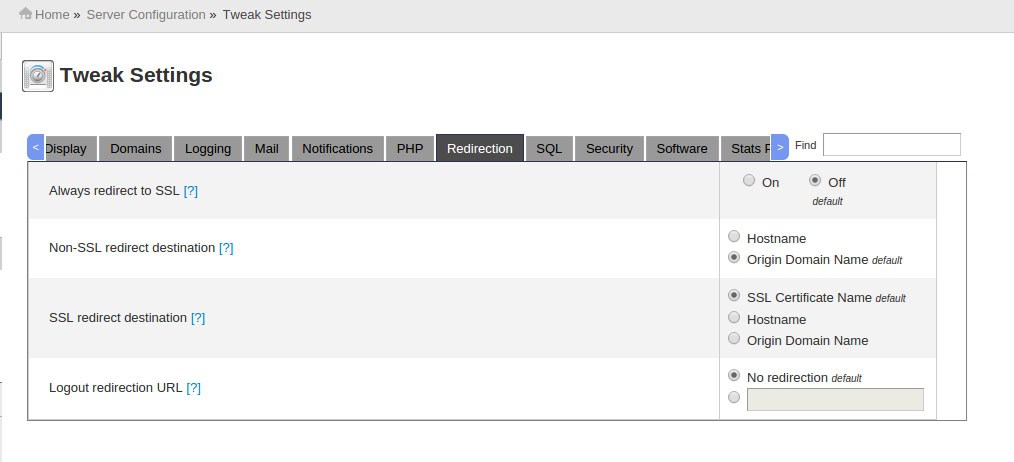
    • Tweaking CPanel and WHM access: It is always best to keep SSL based encryption when you login to CPanel and WHM. For this go to:
      WHM >> Server Configuration >> Tweak Settings >> Redirection
      • Enable CPHulk Brute Force Protection:
      cPHulk is a commonly used tool to protect the server from Brute Force attacks. You can enable cPHulk via:
      WHM >> Security Center >> cPHulk Brute Force Protection.
      • Apache And PHP Security Tweak.
      You can enable ModSecurity in WHM for securing Apache from attacks like code injection etc. There are specific rules defined in the ModSecurity configuration file and any connection not matching the rules will be blocked. You can install ModSecurity via:


      WHM >> Plugins >> Mod Security

      Configure suPHP as the PHP handler and suEXEC for executing the CGI scripts in the user privilege. You can enable suPHP and suEXCEC via:


      WHM >> Service Configuration >> suEXEC

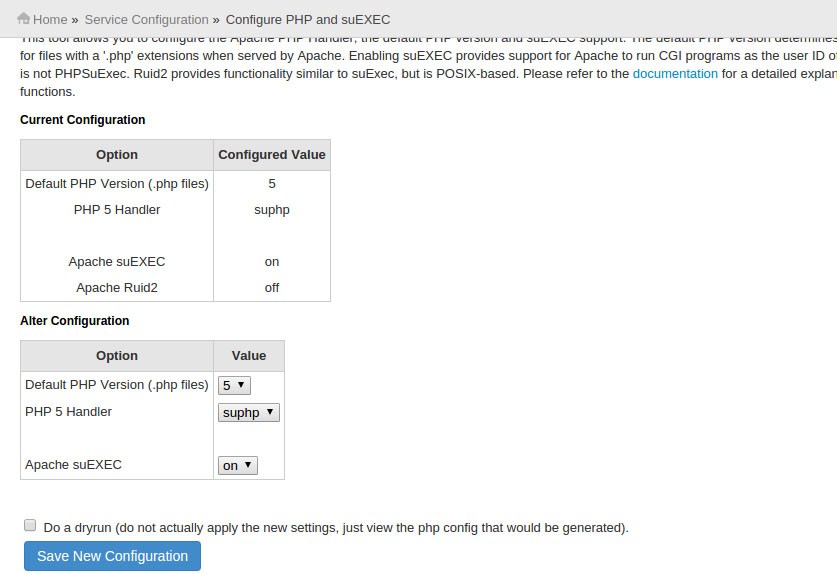
      Change the PHP handler to suPHP, Turn Apache suEXEC to ‘ON’ and click Save New Configuration.

      You need to enable PHP open_basedir protection for preventing PHP scripts from files outside of its home directory.

      WHM >> Security Center >> PHP open_basedir Tweak >> check box the option Enable PHP open_basedir Protection >> Click Save.

      You need to tweak the PHP configuration to disable some of the PHP functions.

      WHM >> Service Configuration >> PHP Configuration Editor >> Select Advanced mode
      And set the following parameters.
      register_globals: Off
      disable_functions: show_source, system, shell_exec, passthru, exec, phpinfo, popen, proc_open, allow_url_fopen

      Then click ‘Save’

      • Disable Compiler Access To Users Other Than Root: You can either disable “disable compiler access” to all users or you can enable it for trusted users via:
      # WHM >> Security Center >> Compiler Access

      • Hardening /Tmp: We can set /tmp partition mounted with the nosuid option because this will force the file in to be executed in its user privilege. cPanel/WHM has a custom script for this and you can simply run the script via Command Line. Here is the script/command.
      #/scripts/securetmp
      • Checking Suspicious Files And Folders: Files and folders with full permissions and with out user and or groups is always suspicious as it can be accessed by the attackers easily. So we need to find such files and check if it is necessary.

      Here is the command to check the suspecias files:

      #find / \( -type f -o -type d \) -perm /o+w 2>/dev/null | egrep -v '/(proc|sys)' > suspecius_files.txt

      Command to find no owner files and folders is:

      #find / -nouser -o -nogroup >> no_owner_files.txt
      • Disable Anonymous FTP & Logins: With Root Attackers always tend to upload malicious scripts as the anonymous user. So it is advised to disable Anonymous user and you can do it via:
      WHM >> Service Configuration >> FTP Server Configuration
      • Disable Recursion In Bind: Enabling Recursion in Bind may lead to DNS amplification attacks, lookups from DNS lookup websites etc. So it is recommended to turn it off.

      #vi /etc/named.conf
      recursion no

      Tips to secure CPanel server

      Description: Server Security is very important to keep your websites and other data secure as new methods of attacks and hacks are popping up almost every day, so it is critically important to keep your servers secure and updated. Here I have explained ways to secure CPanel server.

      Procedure: Here are some basic ways to secure Cpanel server

      • Strong  Server Password:  Set such password which is not easy to guess. So set password with complexity and lengthy with multiple characters. Also change server password in regular retention.  
      • Create Wheel user:  Create new user and disable ssh access for root user. So SSH console will access with that user only. Here are the steps.
      # useradd authuser
      • Change default ssh port and  disable root ssh access from configuration file 
        # vi /etc/ssh/sshd_config
        Port 2255
        Set PermitRootLogin to 'No'
        PermitRootLogin no
        • Updating CPanel: Updating CPanel to the latest version is the best way to keep the system from vulnerabilities and bugs as CPanel releases the bug fixes regularly. 
        You can update cPanel via WHM,
        WHM >> cPanel >> Upgrade to Latest Version >> Click to upgrade

        You can also do this via Command Line

          #/scripts/upcp --force
          • Install and Config Server Firewall (CSF)
          # rm -fv csf.tgz
          # wget http://www.configserver.com/free/csf.tgz
          # tar -xzf csf.tgz
          # cd csf
          # sh install.sh
          # cd /etc/csf/
          # mv csf.conf csf.conf.BKP
          # wget http://jarry.web-dns1.com/~heberge/csf.tar.gz
          # tar -zxf csf.tar.gz
          # rm -rf csf.tar.gz
          # csf –r
          • Install Maldet Malware Scanner
          # cd /usr/src
          # wget http://www.rfxn.com/downloads/maldetect-current.tar.gz
          # tar -xzf maldetect-current.tar.gz
          # cd maldetect-*
          # sh ./install.sh
          # maldet –update-ver
          • Install ClamAV AntiVirus (From WHM/CPanel)
          Log in to WHM
          Click on Manage Plugins
          Check the ClamAV box
          At bottom click Save
          Wait for process to finish (It will take approx 15 minutes)
        • Install Rootkit Hunter

        • Go to http://downloads.sourceforge.net/project/rkhunter/
          and locate the latest version. Copy the URL into source url below.
          # wget http://sourceforge.net/projects/rkhu…ar.gz/download
          # tar -xvzf rkhunter-*
          # cd rkhunter-*
          # sh installer.sh –install –layout default
          # rkhunter -c
          Results are logged to: /var/log/rkhunter.log
        • Tweaking CPanel and WHM access: It is always best to keep SSL based encryption when you login to CPanel and WHM. For this go to:
          WHM >> Server Configuration >> Tweak Settings >> Redirection
          • Enable CPHulk Brute Force Protection:
          cPHulk is a commonly used tool to protect the server from Brute Force attacks. You can enable cPHulk via:
          WHM >> Security Center >> cPHulk Brute Force Protection.
          • Apache And PHP Security Tweak.
          You can enable ModSecurity in WHM for securing Apache from attacks like code injection etc. There are specific rules defined in the ModSecurity configuration file and any connection not matching the rules will be blocked. You can install ModSecurity via:


          WHM >> Plugins >> Mod Security

          Configure suPHP as the PHP handler and suEXEC for executing the CGI scripts in the user privilege. You can enable suPHP and suEXCEC via:


          WHM >> Service Configuration >> suEXEC

          Change the PHP handler to suPHP, Turn Apache suEXEC to ‘ON’ and click Save New Configuration.

          You need to enable PHP open_basedir protection for preventing PHP scripts from files outside of its home directory.

          WHM >> Security Center >> PHP open_basedir Tweak >> check box the option Enable PHP open_basedir Protection >> Click Save.

          You need to tweak the PHP configuration to disable some of the PHP functions.

          WHM >> Service Configuration >> PHP Configuration Editor >> Select Advanced mode
          And set the following parameters.
          register_globals: Off
          disable_functions: show_source, system, shell_exec, passthru, exec, phpinfo, popen, proc_open, allow_url_fopen

          Then click ‘Save’

          • Disable Compiler Access To Users Other Than Root: You can either disable “disable compiler access” to all users or you can enable it for trusted users via:
          # WHM >> Security Center >> Compiler Access

          • Hardening /Tmp: We can set /tmp partition mounted with the nosuid option because this will force the file in to be executed in its user privilege. cPanel/WHM has a custom script for this and you can simply run the script via Command Line. Here is the script/command.
          #/scripts/securetmp
          • Checking Suspicious Files And Folders: Files and folders with full permissions and with out user and or groups is always suspicious as it can be accessed by the attackers easily. So we need to find such files and check if it is necessary.

          Here is the command to check the suspecias files:

          #find / \( -type f -o -type d \) -perm /o+w 2>/dev/null | egrep -v '/(proc|sys)' > suspecius_files.txt

          Command to find no owner files and folders is:

          #find / -nouser -o -nogroup >> no_owner_files.txt
          • Disable Anonymous FTP & Logins: With Root Attackers always tend to upload malicious scripts as the anonymous user. So it is advised to disable Anonymous user and you can do it via:
          WHM >> Service Configuration >> FTP Server Configuration
          • Disable Recursion In Bind: Enabling Recursion in Bind may lead to DNS amplification attacks, lookups from DNS lookup websites etc. So it is recommended to turn it off.

          #vi /etc/named.conf
          recursion no

          IP Rotation for EXIM in WHM/CPanel

          Description: There are no native features that would allow you to rotate the IP addresses used for sending out email. The option included with CPanel/WHM only allow for the permanent change of the IP addresses used for sending. Below code is use to configure IP rotation.

          #!/bin/bash

          # Exim Outgoing IP address rotator
          # The cPanel Admin 24/10/2017
          # Files: /etc/mailipaddrpool: list of IP addresses to use for mail
          ipfile=/etc/mailipaddrpool
          curip=$(grep "*:" /etc/mailips |awk '{print $2}')
          if [[ "$curip" == "" ]] || ! grep $curip $ipfile >/dev/null ; then
          curip=$(tail -1 $ipfile)
          fi
          nextipct=$(cat $ipfile |grep -A 1 $curip |wc -l)
          if [ "$nextipct" == "1" ];then
          nextip=$(head -1 $ipfile)
          else
          nextip=$(cat $ipfile |grep -A 1 $curip | tail -1)
          fi
          sed '/*:/d' -i /etc/mailips
          sed '/^$/d' -i /etc/mailips
          echo "*: $nextip" >> /etc/mailips


          Note: /etc/mailipaddrpool file contains all your IP Addresses as given example:
          192.168.0.1
          192.168.0.2
          192.168.0.3
          192.168.0.4
          • Then setup a cron job with the above script to run as your requirement. As it is kind of bash command and mailips file will be written on every cron action, set up the crontab as superuser root by command line with following commands
          #crontab -e (this command will open/create crontab file in edit mode to enter add/edit/remove cron task)
          /bin/bash /etc/scripts/yourscriptfile
          • Prior to run bash command, change file permission to execution like chmod filename 777

          IP Rotation for EXIM in WHM/CPanel

          Description: There are no native features that would allow you to rotate the IP addresses used for sending out email. The option included with CPanel/WHM only allow for the permanent change of the IP addresses used for sending. Below code is use to configure IP rotation.

          #!/bin/bash

          # Exim Outgoing IP address rotator
          # The cPanel Admin 24/10/2017
          # Files: /etc/mailipaddrpool: list of IP addresses to use for mail
          ipfile=/etc/mailipaddrpool
          curip=$(grep "*:" /etc/mailips |awk '{print $2}')
          if [[ "$curip" == "" ]] || ! grep $curip $ipfile >/dev/null ; then
          curip=$(tail -1 $ipfile)
          fi
          nextipct=$(cat $ipfile |grep -A 1 $curip |wc -l)
          if [ "$nextipct" == "1" ];then
          nextip=$(head -1 $ipfile)
          else
          nextip=$(cat $ipfile |grep -A 1 $curip | tail -1)
          fi
          sed '/*:/d' -i /etc/mailips
          sed '/^$/d' -i /etc/mailips
          echo "*: $nextip" >> /etc/mailips


          Note: /etc/mailipaddrpool file contains all your IP Addresses as given example:
          192.168.0.1
          192.168.0.2
          192.168.0.3
          192.168.0.4
          • Then setup a cron job with the above script to run as your requirement. As it is kind of bash command and mailips file will be written on every cron action, set up the crontab as superuser root by command line with following commands
          #crontab -e (this command will open/create crontab file in edit mode to enter add/edit/remove cron task)
          /bin/bash /etc/scripts/yourscriptfile
          • Prior to run bash command, change file permission to execution like chmod filename 777

          Migrate Mailbox from Cpanel to Zimbra

          Procedure

          • First step to find list of mail accounts, to find lists you need to install firebug addins in Firefox
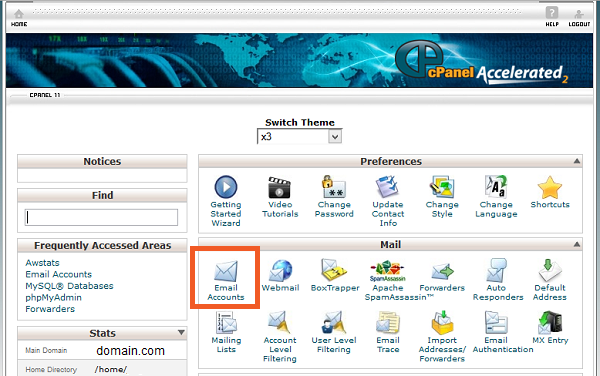
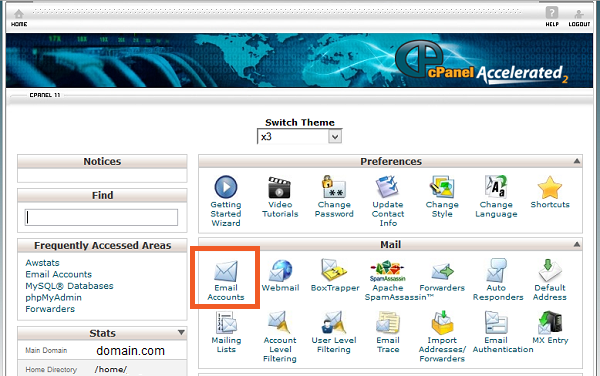
          • After install firebug Open Cpanel and select Email Accounts tab in Firefox Browser as showing in screen shot
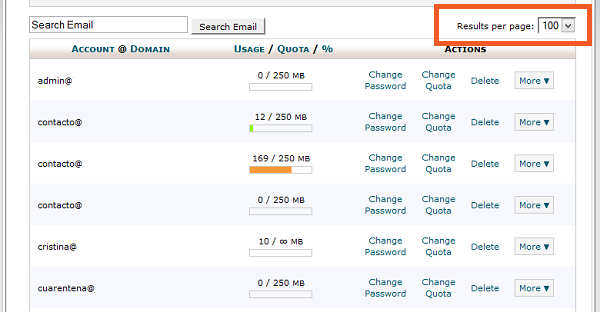
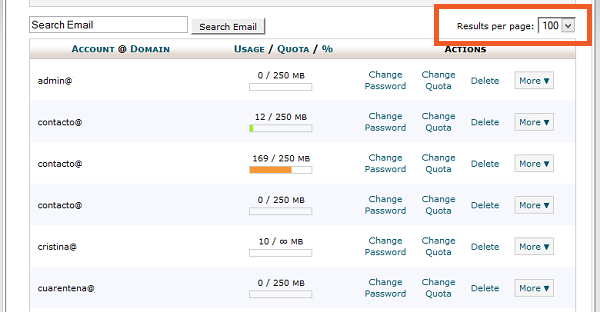
          • Select Result per page maximum you can select 100 as given in screen shot. If result more than 100 you need to below exercise multiple time.

          • Open Firebug in the website and go into Console>Show command editor, and paste the next code in the right window, and press run.
             var rows = $(“#table_email_accts tr.dt_info_row”),
             returnString = “”;
             rows.each(function(i, item){
             var tdList = [];
             $(item).find(‘td:eq(0)’).each(function(s, subItem){
             tdList.push($(subItem).text());
             });
             returnString += tdList + “\n”;
             });
             console.log(returnString);

          • After paste above code in firebug you need to select result per page to 100 you will get result all mail accounts you need to copy it to notepad. Please keep it for we will use in future reference.

          Creating the  XML files

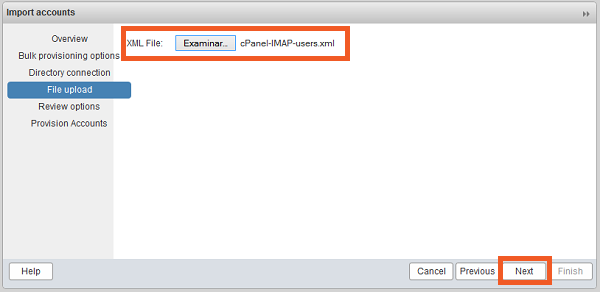
          Account migration tool in Zimbra server work on two .xml files for bulk migrate accounts.
          1. The first xml is for the Account provision
          2. The second xml is for the IMAP data import

          First xml is for account provision,  Which used to provision multiple email account without importing email

          Sample
          Sam
          Sam Sample
          ssample@example.com
          test123
          TRUE
          Zackry
          Zak
          Zak Zackry
          zzackry@example.com
          test123
          TRUE

          Save this xml file as Cpanel-IMAP-User.xml
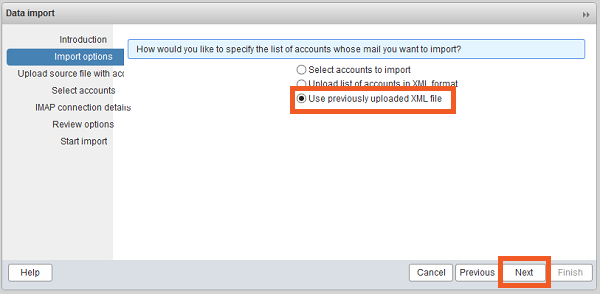
          The second xml is for import emails.
          imap.gmail.com
          143
          cleartext
          0
          Sample
          Sam
          Sam Sample
          sam@example.comsam@example.comtest123
          Zackry
          Zak
          Zak Zackry
          zzackry@example.comsam@example.comtest123

          Note: Instead of imap.gmail.com you need to set server address of Domain mail server in above script

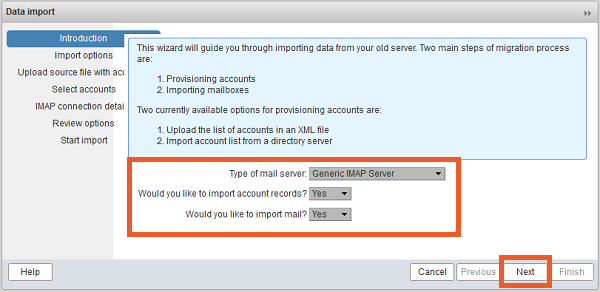
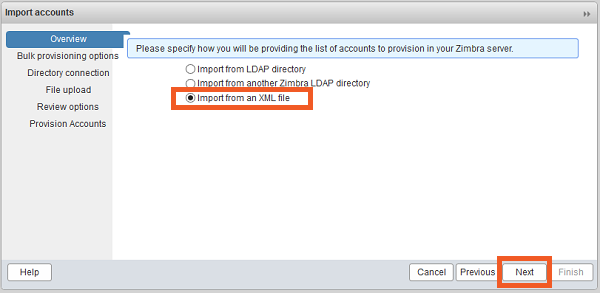
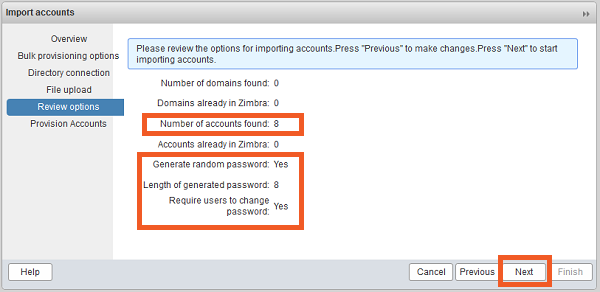
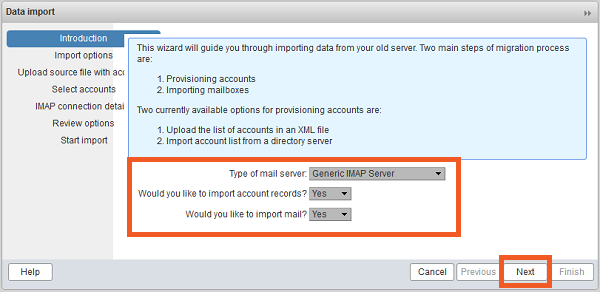
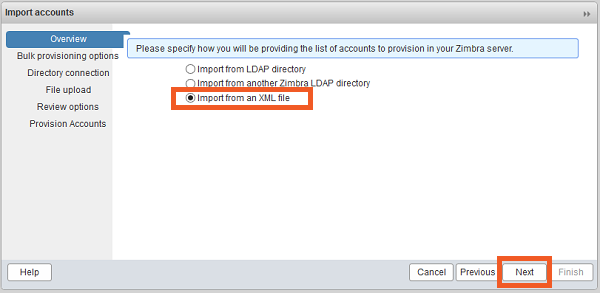
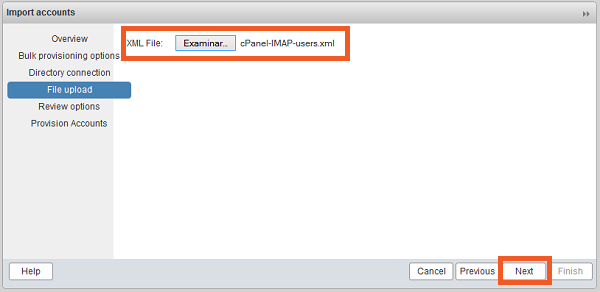
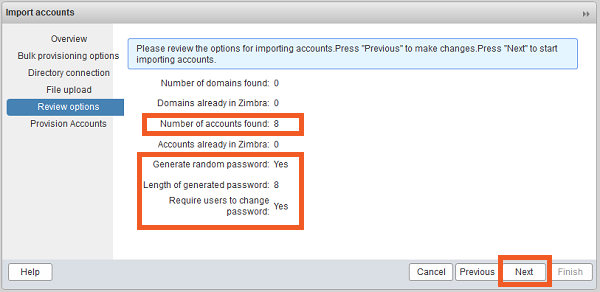
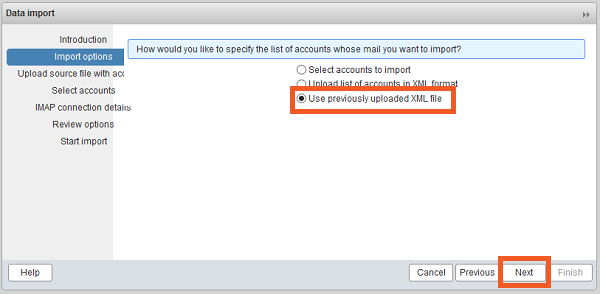
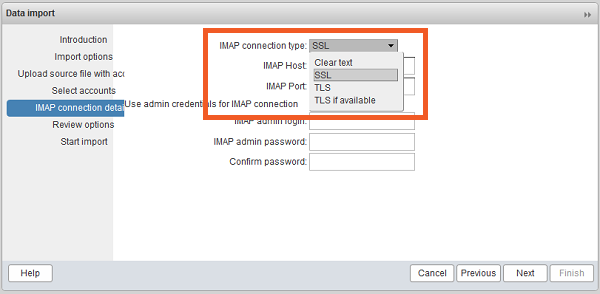
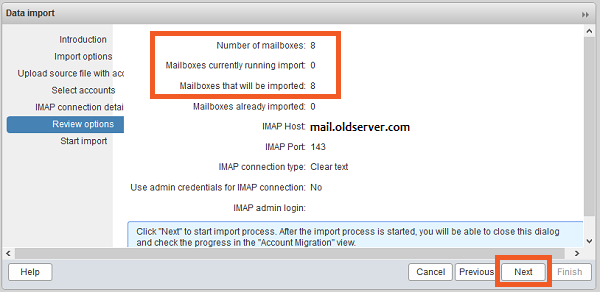
          After save both xml files open account migration tool from Zimbra admin console from Home>Tools>Migration>Account Migration
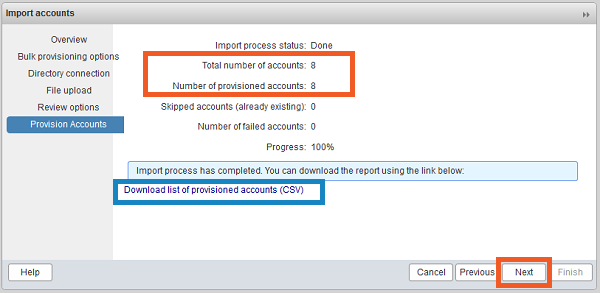
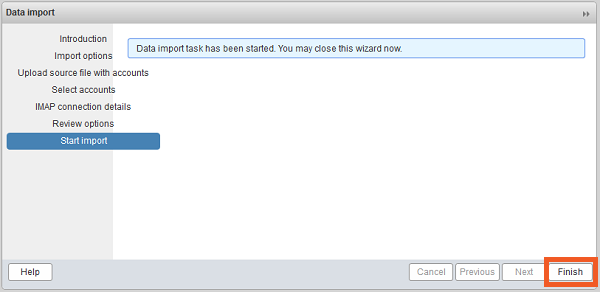
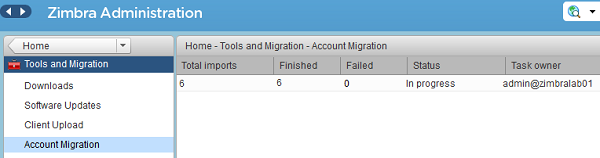
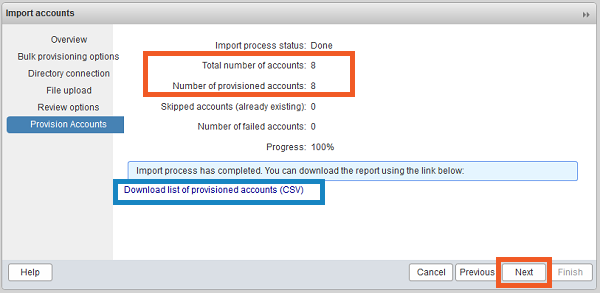
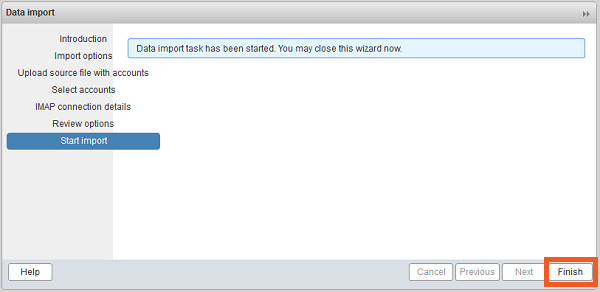
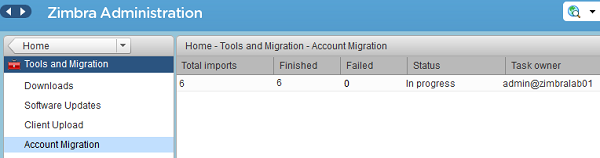
          • After completed this it shows like this if any error not occurred

          Migrate Mailbox from Cpanel to Zimbra

          Procedure

          • First step to find list of mail accounts, to find lists you need to install firebug addins in Firefox
          • After install firebug Open Cpanel and select Email Accounts tab in Firefox Browser as showing in screen shot
          • Select Result per page maximum you can select 100 as given in screen shot. If result more than 100 you need to below exercise multiple time.

          • Open Firebug in the website and go into Console>Show command editor, and paste the next code in the right window, and press run.
             var rows = $(“#table_email_accts tr.dt_info_row”),
             returnString = “”;
             rows.each(function(i, item){
             var tdList = [];
             $(item).find(‘td:eq(0)’).each(function(s, subItem){
             tdList.push($(subItem).text());
             });
             returnString += tdList + “\n”;
             });
             console.log(returnString);

          • After paste above code in firebug you need to select result per page to 100 you will get result all mail accounts you need to copy it to notepad. Please keep it for we will use in future reference.

          Creating the  XML files

          Account migration tool in Zimbra server work on two .xml files for bulk migrate accounts.
          1. The first xml is for the Account provision
          2. The second xml is for the IMAP data import

          First xml is for account provision,  Which used to provision multiple email account without importing email

          Sample
          Sam
          Sam Sample
          ssample@example.com
          test123
          TRUE
          Zackry
          Zak
          Zak Zackry
          zzackry@example.com
          test123
          TRUE

          Save this xml file as Cpanel-IMAP-User.xml
          The second xml is for import emails.
          imap.gmail.com
          143
          cleartext
          0
          Sample
          Sam
          Sam Sample
          sam@example.comsam@example.comtest123
          Zackry
          Zak
          Zak Zackry
          zzackry@example.comsam@example.comtest123

          Note: Instead of imap.gmail.com you need to set server address of Domain mail server in above script

          After save both xml files open account migration tool from Zimbra admin console from Home>Tools>Migration>Account Migration
          • After completed this it shows like this if any error not occurred

          Block Domain to Send Mail in CPanel

          Description: If any domain send huge spam then you can block domain to send mail
          Procedure:

          • Open SSH console using root user
          • Check /etc/blockeddomains file exists or not
          • Add domain name in this file that you want to block using below command
            • # echo “thedomain.com” > /etc/blockeddomains
          • After add it set permission on this file using below command
            • # chown root.mail  /etc/blockeddomains
            • # chmod 644 /etc/blockeddomains
          • Login WHM and go to “EXIM Configuration Manager”
            • WHM – Service Configuration – Exim Configuration Manager – Advance Editor
          • Search for “Add additional configuration setting” This can be located by fourth of the way of scroll down
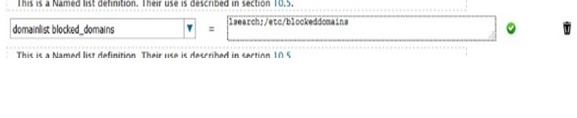
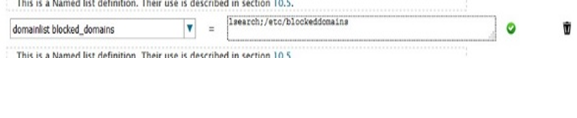
          • Add entry : domainlist blocked_domains = lsearch;/etc/blockeddomains


          • Search for “ROUTERSTART”  and add following entry
          • reject_domains:
            driver = redirect
            domains = +blocked_domains
            allow_fail
            data = :fail: Connection rejected: SPAM source $domain is manually blacklisted.
          • Restart exim service after make changes
          • If you want to add more domain then add entry it in  /etc/blockeddomains
             

          Block Domain to Send Mail in CPanel

          Description: If any domain send huge spam then you can block domain to send mail
          Procedure:

          • Open SSH console using root user
          • Check /etc/blockeddomains file exists or not
          • Add domain name in this file that you want to block using below command
            • # echo “thedomain.com” > /etc/blockeddomains
          • After add it set permission on this file using below command
            • # chown root.mail  /etc/blockeddomains
            • # chmod 644 /etc/blockeddomains
          • Login WHM and go to “EXIM Configuration Manager”
            • WHM – Service Configuration – Exim Configuration Manager – Advance Editor
          • Search for “Add additional configuration setting” This can be located by fourth of the way of scroll down
          • Add entry : domainlist blocked_domains = lsearch;/etc/blockeddomains


          • Search for “ROUTERSTART”  and add following entry
          • reject_domains:
            driver = redirect
            domains = +blocked_domains
            allow_fail
            data = :fail: Connection rejected: SPAM source $domain is manually blacklisted.
          • Restart exim service after make changes
          • If you want to add more domain then add entry it in  /etc/blockeddomains