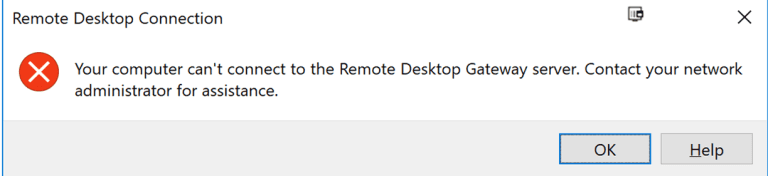
Failed to connect RDP “Your computer can’t connect to the Remote Desktop Gateway server”

Error: “Your computer can’t connect to the Remote Desktop Gateway server”


Solution: 

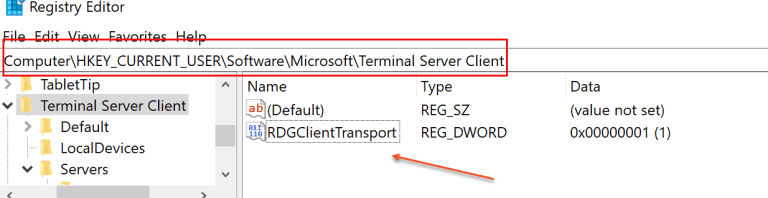
  • Open Registry using regedit command
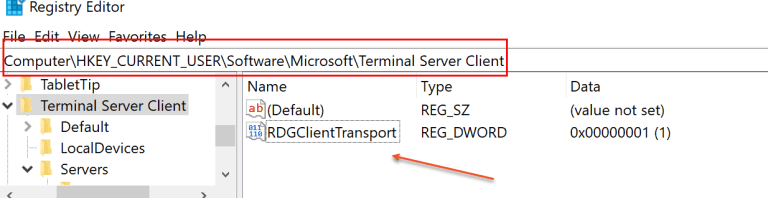
  • Go to HKCU\Software\Microsoft\Terminal Server Client\
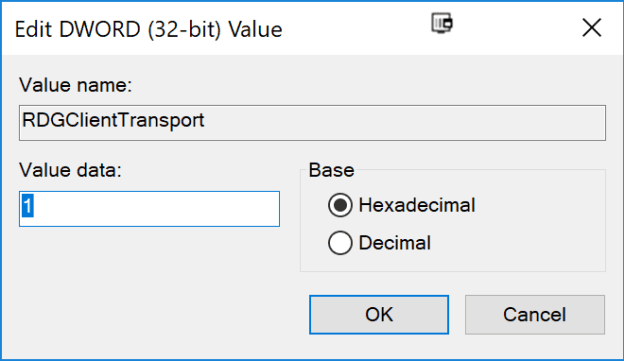
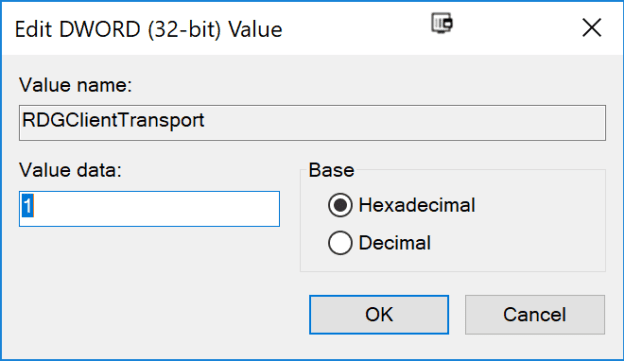
  • Create a new DWORD (32-bit) called: RDGClientTransport
  • Give it a Value of: 1
  • After updating registry restart server

Windows 10 RDP CredSSP Encryption Oracle Remediation Error

Description:
You have noticed that after installed recent security updates in windows 10 users face an error during remote desktop connection.

Procedure:

Just a couple of days ago, the cumulative updates were released below for Windows 10 and Server 2016, etc.  These cumulative updates include the fix for the CredSSP encryption vulnerability.

May 8, 2018 – KB4103721 (OS Build 1803)
May 8, 2018 – KB4103727 (OS Build 1709)
May 8, 2018 – KB4103731 (OS Build 1703)
May 8, 2018 – KB4103723 (OS Build 1609 & Server 2016)

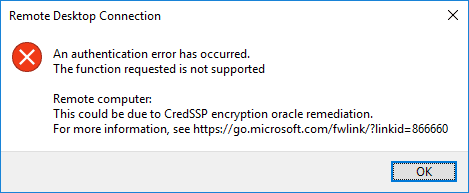
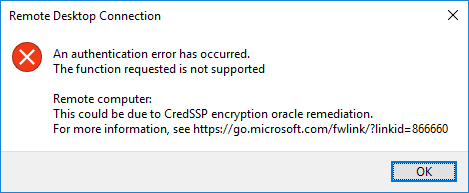
Once you have installed the patch on a “vulnerable” workstation and attempt to connect to an unpatched server, you will see the following error message that happens after you type in your password to authenticate to the RDP session.


  • To Resolved this issue you need to configure security update in group policy in local system. 
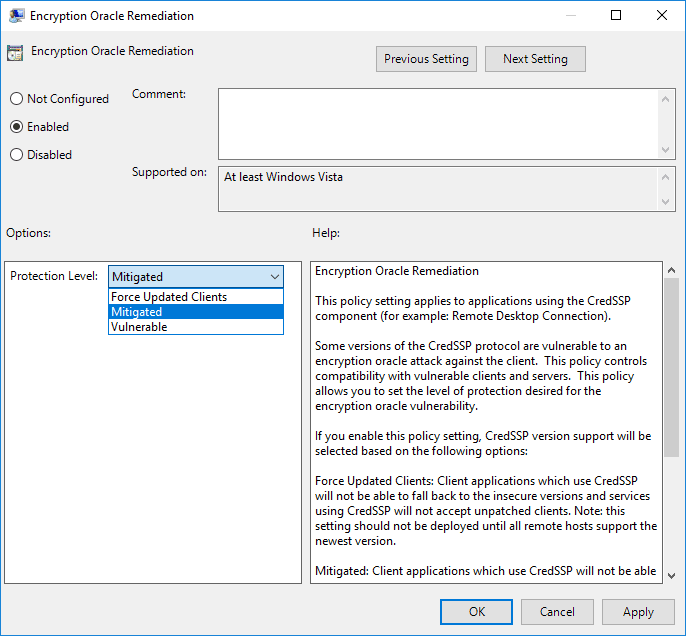
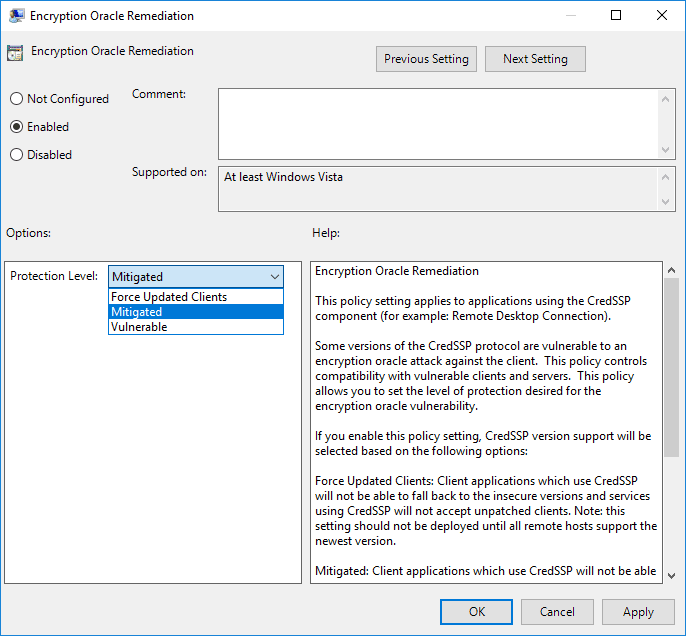
  • You can find this at Computer Configuration >> Administrative Templates >> System >> Credentials Delegation >> Encryption Oracle Remediation.  By default, this is set to not configured.
  • To Fix the issue as a workaround, set the policy to Enabled and set the Protection Level to Vulnerable. This is not recommended by Microsoft, as making sure both the client and server is patched is best practice.  However, setting the policy to Vulnerable allows your workstation to now connect to the remote desktop session that was previously blocked by the mitigation.


Windows 10 RDP CredSSP Encryption Oracle Remediation Error

Description:
You have noticed that after installed recent security updates in windows 10 users face an error during remote desktop connection.

Procedure:

Just a couple of days ago, the cumulative updates were released below for Windows 10 and Server 2016, etc.  These cumulative updates include the fix for the CredSSP encryption vulnerability.

May 8, 2018 – KB4103721 (OS Build 1803)
May 8, 2018 – KB4103727 (OS Build 1709)
May 8, 2018 – KB4103731 (OS Build 1703)
May 8, 2018 – KB4103723 (OS Build 1609 & Server 2016)

Once you have installed the patch on a “vulnerable” workstation and attempt to connect to an unpatched server, you will see the following error message that happens after you type in your password to authenticate to the RDP session.


  • To Resolved this issue you need to configure security update in group policy in local system. 
  • You can find this at Computer Configuration >> Administrative Templates >> System >> Credentials Delegation >> Encryption Oracle Remediation.  By default, this is set to not configured.
  • To Fix the issue as a workaround, set the policy to Enabled and set the Protection Level to Vulnerable. This is not recommended by Microsoft, as making sure both the client and server is patched is best practice.  However, setting the policy to Vulnerable allows your workstation to now connect to the remote desktop session that was previously blocked by the mitigation.


SSL Certificate Installation – Tomcat Server

Procedure:


Create a New Keystore:

  • You will be using the keytool command to create and manage your new Keystore file. You may need to add the java /bin/ directory to your PATH before the keytool command is recognized. When you are ready to create your keystore go to the directory where you plan to manage your Keystore and certificates. Enter the following command in command prompt:

           keytool -genkey -alias server -keyalg RSA -keysize 2048 -keystore your_site_name.jks

  • You will be prompt to choose a password for your keystore. You will then be prompt to enter your Organization information.
  • When it asks for first and last name, this is NOT your first and last name, but rather it is your Fully Qualified Domain Name for the site you are securing (example: http://www.yourdomain.com). If you are ordering a Wildcard Certificate this must begin with the * character. (example: *.yourdomain.com)
  • After you have completed the required information, confirm that the information is correct by entering ‘y’ or ‘yes’ when prompted. Next, you will be ask for your password to confirm. Make sure to remember the password you choose. Your keystore file named your_site_name.jks is now create in your current working directory.

Generate a CSR from Your New Keystore:

  • Next, you will use keytool to create the Certificate Signing Request (CSR) from your Keystore. Enter the following command:

         keytool -certreq -alias server -file csr.txt -keystore your_site_name.jks

  • Type the keystore password that you chose earlier and hit Enter.
  • Once CSR generated upload it to Certificate Authority and generate SSL certificate.
  • Install Certificate on Tomcat Server
  • Depending on the certificate format in which you received the certificate from the Certificate Authority, there are different ways of importing the files into the keystore. 
PKCS#:   
  • If the certificate you received is in PKCS#7 format (the extension of the certificate file will be .p7b or .cer), it already includes the necessary intermediate and root certificates. Additionally, a certificate with .p7b extension can be download in the user account. Run the following command to import it into the keystore:

         keytool -import -trustcacerts -alias server -keystore example.jks -file example.p7b

  • If the certificate was imported successfully, you will see the message ‘Certificate reply was installed in keystore’. You can check the details of the certificate that was imported to the keystore with a command:
         keytool -list -keystore example.jks 

PEM: 
  • If you received the certificate in the PEM format ( files will be with the .crt extension), you will need to import the root certificate, intermediate certificates and the certificate issued for your domain name to the keystore separately starting from a root certificate and ending with the certificate for your domain name. To import a root certificate, run the following command

        keytool -import -alias root -keystore example.jks -trustcacerts -file root.crt

  • To import an intermediate certificate

        keytool -import -alias intermediate -keystore example.jks -trustcacerts -file intermediate.crt

  • After the successful import you need to edit Tomcat configuration file. As a rule, it is called server.xml and usually can be found in Home_Directory/conf folder. Please change in configuration file as follow:

        <Connector port="443" protocol="HTTP/1.1"

          SSLEnabled=”true”
          scheme=”https” secure=”true” clientAuth=”false”
          sslProtocol=”TLS” keystoreFile=”/your_path/yourkeystore.jks”
          keystorePass=”password_for_your_key_store” />

  • Save the changes and restart Tomcat web service.

Use Hyper-V Manager To Move Running Virtual Machine

Procedure: Below steps are use to Import and Export Virtual Machine in Hyper-V

  1. Open Hyper-V Manager. (From Server Manager, click Tools >>Hyper-V Manager.)
  2. In the navigation pane, select one of the servers. (If it isn’t listed, right-click Hyper-V Manager, click Connect to Server, type the server name, and click OK. Repeat to add more servers.)
  3. From the Virtual Machines pane, right-click the virtual machine and then click Move. This opens the Move Wizard.
  4. Use the wizard pages to choose the type of move, destination server, and options.
  5. On the Summary page, review your choices and then click Finish.

Import and Export Virtual Machine in Windows  Hyper-V  Server

Export Virtual Machine in Hyper-V

A. Export Menu Option

  1. Connect to your Hyper-V server from Hyper-V Manger -> Right click on your virtual machine and select the export option.
  2. In this example, we’ll export Windows 8 virtual machine from server1 (Hyper-v server).


B.  Specify Export Folder Path

Specify the folder path to export virtual machine. After selecting folder path, export operation will start
Please note that you can export a virtual machine even when it is in “On” (tun on) state.
C. Exported VM Files

      After completing export operation you can see the virtual machine files in destination folder. This folder will contain Snapshots, Virtual Disks and Virtual machine files


To import the VM, you need to copy all these three folders to the other server.

II. Import Virtual Machine in Hyper-V

1. Copy the VM Files

Copy the exported Virtual machine files and folders to your local server before you start import a virtual machine.
In this example, we will import a Windows 8 Virtual machine from Server 1 to Backup-Server.
Before importing virtual machine, I have Copied Windows 8 exported machine files from Server 1 to Backup-Server.

2. Import Virtual Machine Menu Option

Connect Hyper-V server from Hyper-V Manger, Right click on Hyper-V server and select Import Virtual Machine Option. Click next on the import virtual Machine page.

3. Select VM File Folder

Select the virtual machine folder path (This is the folder that contains the exported machine files).

4. Select the VM to Import

After selecting the path, it will show the machine name in import virtual Machine page. Select machine and click next

5. Choose Import Type

Select the Import mode as per your requirement. Please note that exported files can be reused to clone machines only using “Copy The virtual machine (create a new unique ID)” option.
This has the following three options:
  1. Register the virtual machine in-place
  2. Restore the virtual machine
  3. Copy the virtual machine (In our example, we are going to select this option)

6. Choose Destination Location

Select the Virtual Machine storage location path to store virtual machine files. Accept the default values here. If you want to change the location, select the “Store the virtual machine in a different location” checkbox

8. Finish the Import

Review your machine configuration selection, and click on Finish to complete the import process.

    IIS Common Issues and solutions

    Below are some common IIS issue in its solutions
    1. “User is not recognized using Windows Authentication”
    • Open Internet Information Service Manager
    • Find the application pool for Pronestor (pronestor)
    • Right click and choose advanced settings
    • Ensure that “Identity” is set to Network Services
    • Recycle application pool
       

    2>     “HTTP 502 – Bad gateway”

    • Open Internet Information Service Manager
    • Find the application pool for Pronestor (pronestor)
    • Right click and choose advanced settings
    • Ensure that “Identity” is set to Network Services
    • Recycle application pool
       

    3>     “HTTP 500 internal server error” / “HTTP 500.19 internal server error” / “HTTP 500.21”

    • Open a command prompt
    • Go to the folder for the .NET Frame (C:\Windows\Microsoft.NET\Framework64\v4.0.30319)
    • aspnet_regiis.exe –i
    And
    • Make sure .NET is enabled as a feature (“add/remove Programs” -> “Turn Windows features on or off”)
    And
    • Make sure ASP.NET is enabled as a role(“add/remove Programs” -> “Turn Windows features on or off”)
    And
    • Ensure that “IIS_IUSRS” has full permissions on the PRONESTORDISPLAY folder
    And (if “Handler” is showing MVCScriptMap64)
    • Ensure the handler mapping for MvcScriptMap64 is set to use .NET 4.0 framework
    • “PageHandlerFactory-Integrated” bad module “ManagedPipelineHandler in IIS7…”
    • Open a command prompt
    • Go to the folder for the .NET Frame (C:\Windows\Microsoft.NET\Framework64\v4.0.30319)
    • aspnet_regiis.exe -i
       

    4>     “Absolute physical path “C:\inetpub\custerr” is not allowed in….

    • Please open the Event Viewer and look for Warning/Errors in the “Application” log.
    • Choose an Warning/Error and look for stack trace in the “General tab”
       

    5>     “HTTP 404 when call http://localhost/pronestor

    IIS 7/7.5 (Windows 2008 Server)

    • Open Internet Information Service Manager
    • Find the application pool (pronestor)
    • Right click and choose advance
    • Ensure that “Load user profile” is set to “true

    IIS 6 (Windows 2003 Server)

    • Open Internet Information Service Manager
    • Make sure ASPNET 4.0 is allows as a Web Service Extension 

    6>     “HTTP 404 when calling http://localhost/pronestor/Booking.NET/Home.mvc

    • IIS 7/7.5 (Windows 2008 Server)
    • Ensure that the Role “HTTP Redirection” is enable
       
    1. “Can’t install Pronestor Display due to missing ASP.NET Role”
    • IIS 6 – the role is installed but the Pronestor Display still argues that ASP.NET isn’t
    • Check that ASP.NET role enabled (see article here from Microsoft)
    • Run the installation from a command prompt using:
    • “msiexec /i proNestor.Display.Setup.msi /l*v logfile.txt BYPASS_PREREQUISITES=1”
       
    1. “PronestorWebAdmin.Models.PnbDataContext…ctor()”
    • With notepad open the connectionstrings.config located in Configuration folder
    • Ensure that the name of the connection string is equal to:
    • <add name="dbConnectionString" connectionstring="……
       
    1.  “Unable to generate a temporary class (Result=1)”
    • It is due to a lack of permissions on the temporary folder which is used by the IIS.
      The easist way to fix it to do as follows:
    • Right click the folder c:\windows\temp
    • Choose permission
    • Ensure that the “NTAUTHORITY\NETWORK SERVICE” has the following minimum permissions on the folder – (“List folder”/”Read Data”/”Write”/”Delete”)
    • Open the IIS
    • Locate the Pronestor application pool and recycle the application pool
       
    1.  “HTTP Error 400. The size of the request headers is too long”
    • When a user is a member of a large number of active directory groups the Kerberos authentication token for the user increases in size.  If the HTTP header or packet size increases past the limits configured in IIS, IIS may reject the request and send this error as the response.
    • There are two ways to solve this issue
    • Decrease the number of Active Directory groups that the user is a member of.
    • Try increasing the MaxRequestBytes and MaxFieldLength values as per note (you will need to restart http service (or reboot the machine) for it to take effect.)